GETTING STARTED
Insert the disc into the PlayStation and turn the power ON. Press the start button when the title screen is displayed to reach the MAIN MENU. TO START FROM THE BEGINNING
The game will begin from the very beginning.
TO LOAD A SAVED GAME
•
Select the memory card to load from
•
Select the game data to be loaded
SWITCHING DISCS
You may be prompted to insert a different disc depending on game progress. Follow the message and insert the correct disc.
SAVING THE GAME
You can save game data on the World Map. To save, insert a memory card and select SAVE at the status screen.
Select the memory card, then choose the file to be overwritten by pressing the X button. Up to 3 files can be saved on one memory card, with each file taking 1 block.
PLACES WHERE YOU ARE ALLOWED TO SAVE
Besides the World Map, you can also save at inns in various towns and cities. In a dungeon, you can save the game by talking to the save point called SAVE DAMASHI.
GENERAL FLOW OF THE GAME
This game progresses as you travel around the World Map and talk to people in cities and towns. When you encounter enemies, defeat them and continue your journey.
In some cases, you will need to explore a dungeon and accomplish a certain objective before you can continue.
DUNGEON
WORLD MAP
SWITCHES TO THE BATTLE SCREEN WHEN YOU ENCOUNTER THE ENEMY!
MINI-MAP
The mini-map can only be accessed at the World Map and in cities or towns by pressing the TRIANGLE button. It cannot be used in dungeons and in certain cities/towns.
TOWN/VILLAGE
STATUS SCREEN
You can access the status screen by pressing the CIRCLE button, as long as you are not in the middle of a battle or an event. From here, you can perform various commands such as checking character status and using items.
DESCRIPTION OF WINDOWS
1.
Command Window
Selects and performs various commands. See Page 10 for details.
2.
Party Window
Displays a quick overview of the character's status. Characters in the left-hand column participate in battle, and those in the right-hand column are on standby (Cannot participate in battle unless moved to the left-hand column).
3.
Money (GG)
Displays the current total of money. The unit of currency is GG.
4.
Master Points
Displays the current total of Master Points (MP). See Page 24 for details.
ITEM
This command allows you to perform various operations on items obtained by the player. The icon to the left of the item name indicates the type of item, and the number to the right is the number in stock.
Refer to the bottom of the screen for the item description.
ITEM WINDOW
ITEM DESCRIPTION
DESCRIPTION OF COMMANDS
1.
Action Commands
•
USE allows you to use selected items. Usable items are displayed in white text. Select the item with the directional buttons, then press the X button.
•
LOOK allows you to check the description of items.
•
DROP allows you to throw away unwanted items. Select the item to be dropped with the directional button, then press the X button.
2.
Display Commands
These commands limit the types of items displayed in the item window.
SPELL
With this command, you can look at available spells and cast them. Select the character, then press the X button.
Spell names displayed in white text can be cast. Select the spell to be cast, then press the X button. Then select a character to cast the spell on and press the X button. Spell names displayed in red text cannot be cast due to insufficient EP.
USING SPELLS DURING BATTLE
•
Move the cursor to the spell
PARTY
You can select party members for combat and organize the battle formation with this command. The members in battle and the battle formation can greatly influence the outcome of the battle.
Think about how you organize your party as it may determine whether you win or lose a battle.
PARTY ORGANIZATION PROCEDURES
•
After selecting the PARTY command, choose the character to be switched
•
Choose the character that will be replaced
This will switch the positions of the two characters.
BATTLE FORMATION
The characters in the left-hand column participate in battle, and those in the right-hand column are on standby (cannot participate in battle unless they are moved to the left-hand column). Of the characters in the left-hand column, the top-most character will be at the frontline and the others will serve as backup.
WARP
This command takes you to cities, towns, and dungeons you've already visited. Select the place you want to go to, then press the X button.
The WARP command cannot be used initially; it becomes available at a certain point during the game. Additionally, an item exists that allows you to WARP. It is sold at some stores and is expendable like other items.
CONFIG
MESSAGE SPEED, SOUND (Stereo/Mono), and VIBRATION settings can be configured. The vibration function is valid only with a Dual
 (Disc 1).png)

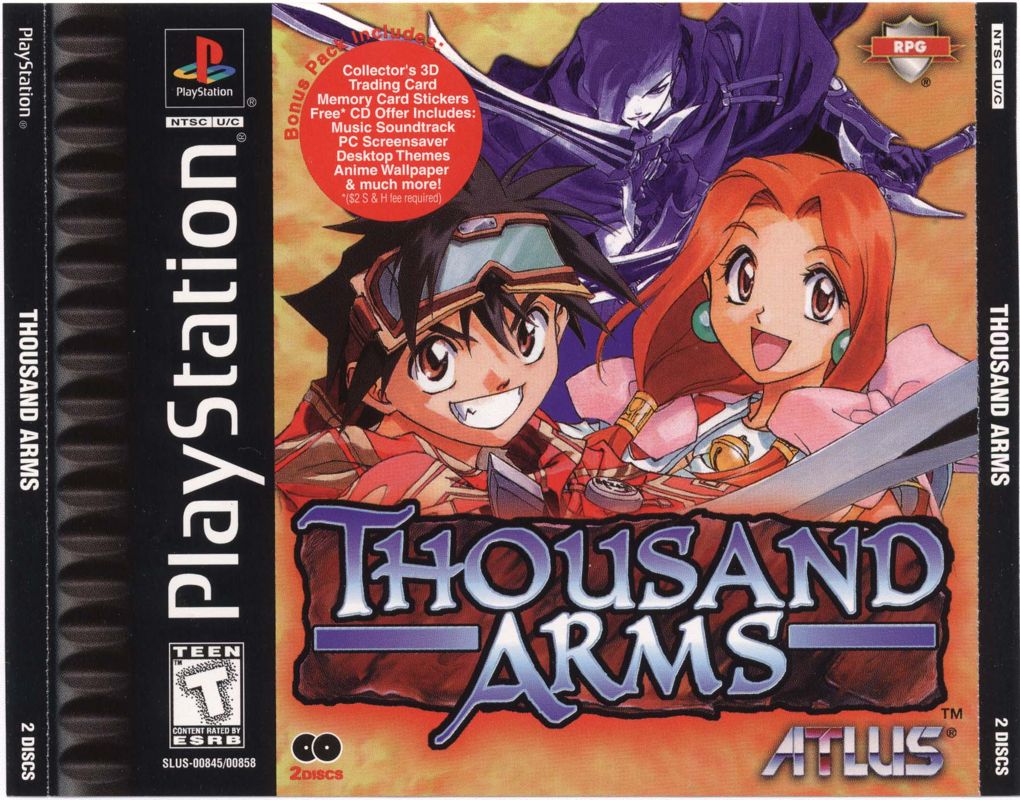
 [NTSC-U] [SLUS-00858].png)

 (Bonus Disc).png)