SETTING UP
Set up your PlayStation 2 computer entertainment system according to the instructions in the Instruction Manual. Make sure the MAIN POWER switch (located on the back of the console) is turned on. Press the RESET button. When the power indicator lights up, press the open button and the disc tray will open. Place the DEVIL MAY CRY™ disc on the disc tray with the label side facing up.
Press the open button again and the disc tray will close. Attach game controllers and other peripherals, as appropriate. Follow on-screen instructions and refer to this manual for information on using the software.
MEMORY CARDS
To save game settings and progress, insert a Memory Card (8MB) (for PlayStation 2) into MEMORY CARD slot 1 or MEMORY CARD slot 2. You can load saved game data from the same memory card, or from any memory card containing previously saved DEVIL MAY CRY™ games. At least 420Kb of free space must be available in order to save. If less free space exists, erase older data before saving. Do not remove the memory card or turn off the power on the PlayStation 2 while data is being saved or loaded. Your game data may be lost if you do. STARTING A GAME
When you turn ON the PlayStation 2 computer entertainment system with the DEVIL MAY CRY disc inserted, you may see a notice that a Memory Card (8MB) (for PlayStation 2) set up to save your games is not inserted. Turn OFF the system, insert a blank memory card (or one with previously saved DEVIL MAY CRY™ games), and then turn the power ON. If you do not have a memory card, the software allows you to play without saving game data. Press the START button to continue. This game requires 420Kb of free space on a memory card in order to save games.
The goal in this game is to complete missions by solving puzzles, collecting items and powering-up Dante. In the Title Screen, press the START button to display the Main Menu.
Press the directional buttons or move the left analog stick/ to make selections, and press the START button to confirm.
•
LOAD DATA - Resume a previously saved game from the beginning of the last-played mission.
•
NEW GAME - Start a new DEVIL MAY CRY™ experience from the beginning.
•
OPTION - Adjust various game settings. To enter Option mode from gameplay, press the SELECT button to pause the game.
SUB SCREEN
Press the START button during gameplay to display the Sub Screen. Then press the L1 or R1 button to turn pages.
ACTION
Check out how to execute Dante's skills. Select an ability or special move to see the details and/or control for it. (The buttons are default setting Type A.) As you acquire more abilities, more items will be added to the Action list.
•
YOU CAN check how to execute Dante's acquired skills.
•
Note: The buttons displayed correspond to the default settings.
WEAPON
When you select WEAPON, you'll see the weapons you have acquired. Highlight a weapon to see information about it. To equip the weapon, press the X button, answer YES and press the X button again.
•
DEVIL ARMS - Sword and Gauntlet for close range combat.
•
WEAPON - Gun type weapons for long-range combat.
You can use a Devil Arms and Gun at the same time. See page 25 for more details.
ITEM
This screen appears first when you display the Sub Screen. Highlight an item to see information about it. To use the item, press the X button, answer YES and press the X button again.
MAP
Check the Map to examine the layout of the stage you are currently in. Select a floor of the Map to see the layout of that floor: The section related to your current mission is highlighted.
Map colors indicate the following:
•
GREEN - Door can be unlocked by solving a puzzle.
•
RED - Door you cannot currently open.
Use the controls shown on the Map screens to roll and move the Map.
FILE
Look at your current Mission file and various Enemy files. Highlight a file and press the X button to look at it.
•
MISSION FILES - See information about your current mission.
•
ENEMY FILES - Review information about enemies you have encountered. Select an enemy name and press the X button to display its information.
When you encounter a new enemy, its name is added to the files. The first time you meet it, you only know the name. As you fight the enemy and discover its abilities, weaknesses, etc., more information is added to the file. Try various attacks during combat to find out more about the enemy.
EXIT
Return to gameplay.
POWERUP SYSTEM
RED ORB
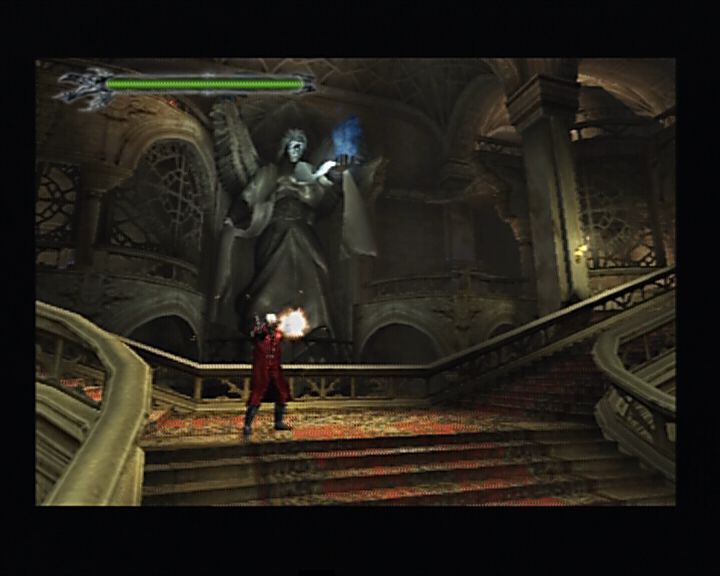
Collecting a certain amount of Red Orbs allows you to open sealed doors. After collecting Red Orbs, check a Divinity Statue to purchase power-ups and items by spending the orbs.
The following items are available at Divinity Statues:
•
ALASTOR - Learn special moves and abilities for Thunder Sword.
•
IFRIT - Learn special moves and abilities for
.png)


.png)



_1.png)

_1.png)

_1.jpg)


_1.png)

_1.png)



.png)




.png)