Getting Started
DUALSHOCK 2 ANALOG CONTROLLER CONFIGURATIONS
•
left analog stick (L3 button when pushed down)
•
right analog stick (R3 button when pushed down)
SETTING UP YOUR PLAYSTATION®2 CONSOLE
Set up your PlayStation®2 console according to the instructions in the manual. Make sure the MAIN POWER switch (located in the back of the console) is turned ON.
Press the [RESET] button. When the [POWER ICON] indicator turns green, press the [OPEN ICON] button and the disc tray will open. Place the Rogue Galaxy™ disc on the disc tray with the label side facing up. Press the [OPEN ICON] button again and the disc tray will close.
Attach a DUALSHOCK 2 analog controller and other peripherals, as appropriate. Follow on-screen instructions and refer to this manual for information on using the software.
MEMORY CARD (8MB) (FOR PLAYSTATION®2)
To save game settings and progress, insert a memory card (8MB) (for PlayStation®2) into MEMORY CARD slot 1 or 2 of your PlayStation®2 console.
You can load saved game data from the same card or any memory card (8MB) (for PlayStation®2) containing previously saved Rogue Galaxy™ games. A memory card (8MB) (for PlayStation®2) with at least 130 KB of free space is required for a "Save Game" file.
Note: Any mention of a "memory card" in this manual refers to the "memory card (8MB) (for PlayStation®2)."
STARTING A NEW GAME
To begin a new game, select NEW GAME at the Title Screen.
Continue
To load a previously saved game, Select CONTINUE at the Title Screen, and choose the MEMORY CARD slot save data from which you want to load.
Note: In order to resume a previously saved game, you must have a memory card inserted in MEMORY CARD slot 1 or 2.
Saving a Game
When you use a Transporter during the game, you can save your progress up to that point onto a memory card. For more about Transporters, see page 16.
Game Flow
MOVING AROUND THE FIELD
On Fields like the Pirate Ship Dorgenark and various towns, you can talk to people to proceed in the story and uncover useful information and secrets. For more about the Dorgenark see pg. 15. For more information about Fields see pg. 16.
EVENTS
As you proceed through the story, Events will occur. You can skip Events by pressing START to pause the game and then pressing A, but be careful. Skipping Events can result in missing important information.
BATTLES
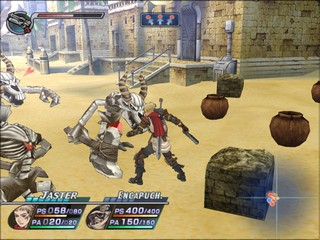
When you encounter an enemy on the Field, the battle will begin. For more information about battles, see pg. 25.
Pirate Ship Dorgenark
The Pirate Ship Dorgenark is split up into two floors.
BRIDGE
The Bridge contains the Control Room and Dorgengoa's Room.
•
Control Room: used to steer the Dorgenark. Press in front of the helm to open up the Galaxy Map.
•
Galaxy Map: As you proceed through the story, you can freely choose the path of the Dorgenark.
•
Captain's Cabin: The Captain's room.
DECK FLOOR
The Deck floor contains the Bar and the Deck.
•
Bar: The place where the pirates take time off. The Bar contains an elevator that will take you to the Bridge floor.
•
Deck: When anchored at a planet or nebula, the Deck can be used to look outside. When docked at a Space Dock, the Deck contains a landing gondola that can be used to go ashore.
The Field
The Field contains the following items.
TREASURE CHESTS
Press in front of a Treasure Chest in the Field to acquire the item inside. Some chests can only be opened if you have a specific key, while other chests are booby-trapped. There are also beasts that take the form of chests. You can remove traps on chests by using the "Trap Canceller" item.
TRANSPORTER
Transporters are devices that take you to various places. If a character passes over one, the Transporter will glow blue, and the HP, AP, and Secondary Weapon energy of all allied characters will be completely restored.
If you walk over a Transporter during a non-combat situation and press, you will be able to choose from the following commands.
•
Save: Save your current progress to a memory card.
•
Teleport: Move to another Transporter you have already accessed on the same planet. There are times when this function will be unusable, such as during an Event.
•
Exchange Points: Total up the Hunter Points you have recorded in your Battle Recorder, or add Hunter Points from Quarries and Hunting Records to them. For more information, see pg. 23.
•
Item Storage: Transfer items
.png)

.png)
.png)
.png)


_1.png)
_1.png)


.png)






_1.png)