GETTING STARTED
ASTRO BOY is a 1 Player game. Connect either a DUALSHOCK® or DUALSHOCK®2 analog controller to controller port 1. The controls expressed in this manual assume the default configuration based on the DUALSHOCK®2 analog controller.
Controllers other than the DUALSHOCK® or DUALSHOCK®2 analog controllers are not supported by this game.
Set up your PlayStation®2 computer entertainment system according to the instructions in its Instruction Manual. Make sure the MAIN POWER switch (located on the back of the console) is turned ON.
Press the RESET button. When the power indicator lights up, press the OPEN button and the disc tray will open. Place the ASTRO BOY disc on the disc tray with the label side facing up. Press the OPEN button again and the disc tray will close.
Attach game controllers and other peripherals, as appropriate. Follow on-screen instructions and refer to this manual for information on using the software.
DUALSHOCK 2 Analog Controller Configurations
•
left analog stick (L3 button when pushed down)
•
right analog stick (R3 button when pushed down)
Controls are set in ANALOG mode (mode indicator: ON) and cannot be switched to digital mode by using the ANALOG mode button. The LED display is always lit in red.
This game supports the vibration function present on the DUALSHOCK®2 analog controller. This can be set ON/OFF from the Vibration option in the OPTIONS menu (P.14).
Memory Card (8MB) (for PlayStation®2)
ASTRO BOY is a memory card (8MB) (for PlayStation®2) compatible game. Insert the memory card into MEMORY CARD slot 1 before you turn on the game. A previously saved game of ASTRO BOY will be loaded automatically during start up.
ASTRO BOY requires a minimum of 356KB on your memory card to save each game. You may only insert the memory card into MEMORY CARD slot 1 for this game, and do not insert or remove the memory card while saving or loading your game.
See P.18 on details on saving and loading your data.
GAME START
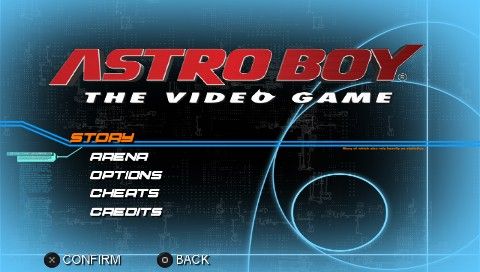
Press the START button when the Title screen appears to display the Main Menu and start your game.
MAIN MENU
Play a new game from the very beginning.
Please note that when you already have a previously saved game (P.18), starting a FROM THE BEGINNING and saving your progress will overwrite and erase your previous data.
Continue the game from the last point you saved.
Adjust various game settings such as controls of the game.
Set audio output: STEREO / MONAURAL
Set the vibration function of the analog controller: ON/OFF
Set control options for Arm Cannon and Digibeam targets: NORMAL/REVERSE
Set control options during Spin Attack: NORMAL/REVERSE
•
NORMAL: Movements correspond to the direction you enter.
•
REVERSE: controls are reversed (↑ will move down).
GAME SCREEN
MAIN GAME
Various information is displayed during gameplay. The screen below can also be viewed via the Pause Menu - SCREEN SETTINGS.
The gauge will decrease whenever Astro is attacked - game is over when the gauge is empty. Pick up Items or go to Sammy (energy robot) to recharge the gauge. •
TIME COUNTER (BOSS) / COUNTDOWN (ENEMIES)
*One of the above is displayed accordingly.
*Map displayed when Astro is in Metro City. •
SPECIAL MOVE ICON (P.11)
*Displayed only during the Boss Stage. Deplete this gauge to defeat the boss.
PAUSE MENU
Press the START button during gameplay to display the Pause Menu with the following selections. Press the START button again to return to your game.
Identify Astro's Forces (abilities) currently available for use Display the controls using the analog controller
Explains each on-screen gauge that appears during gameplay
GAME FLOW
STORY - MAIN EVENTS
The below chart shows the basic flow of this game.
•
Astro can travel freely around Metro City (P.17). •
State of emergency! Fly to the area where Astro is needed! •
Defeat enemies (bosses) or solve mystery to bring peace to the city!
•
Event completed - return to the city.
After troubleshooting an Event, you can return to any area of the city you have completed or fly,
.png)

.png)
.png)
.png)

.png)



_1.png)




_1.png)
.png)
.png)

.png)


