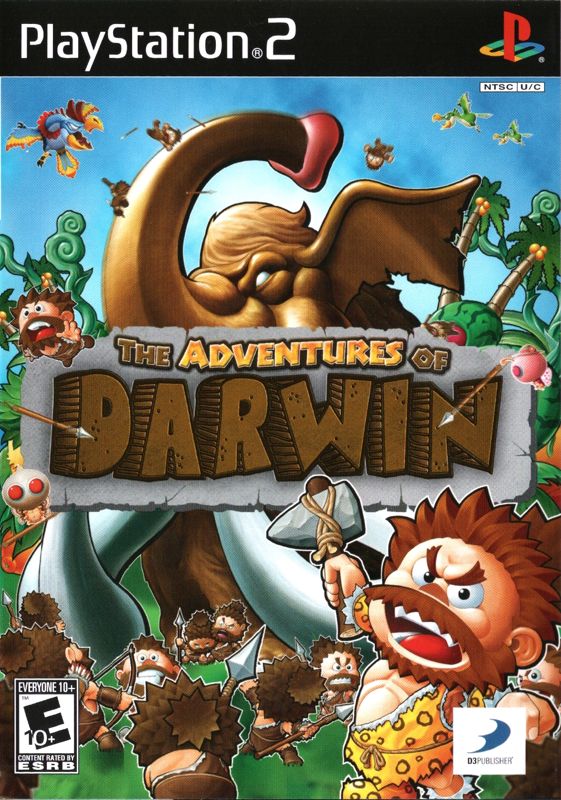
This is a strategy/survival game where players guide
Darwin and his ape tribe to find "keys to evolution" and prevent a prophesied meteor-induced extinction event. Players will manage their small group of apes, making decisions to ensure their survival and progress towards their goal.
GETTING STARTED
Set up your PlayStation®2 computer entertainment system according to the instructions supplied with your system. Check that the system is turned on (the on/standby indicator is green).
Press the OPEN button to open the disc cover. Place The Adventures of Darwin disc with the label side facing up in the disc holder, and then close the disc cover. Attach game controllers and other peripherals as appropriate. Follow the on-screen instructions and refer to this manual for information on using the software. Memory Card (8MB)(for PlayStation®2)
To save game settings and progress, insert a memory card (8MB) (for PlayStation®2) into MEMORY CARD slot 1 of your PlayStation®2 system. You can load saved game data from the same memory card or any memory card (8MB) (for PlayStation®2) containing previously saved games.
Starting the Game
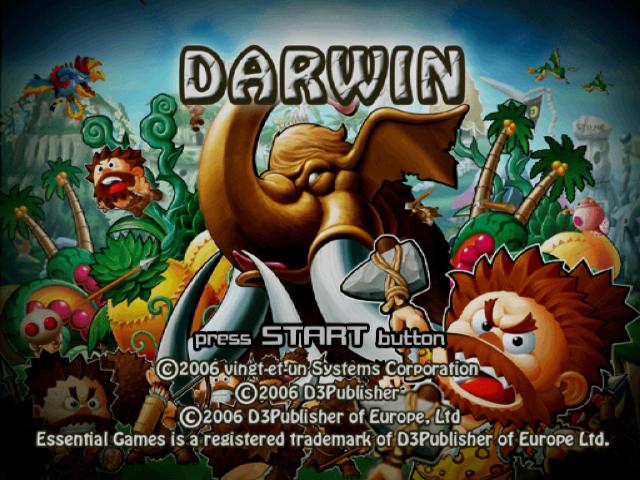
To start Darwin, press the START Button at the Title Screen. If you have not played before, choose New Game, then select your difficulty level. The difficulty affects the damage the various enemies in the game will do, and the speed of development of your Village.
Saving Your Game
To continue your game, the game will create a profile when you first save the game. This is done by going to Darwin's House from the Village screen and then selecting the Save option. You must do this each time you wish to save the game. Loading Your Game
To load data, you may go to the Continue option on the Main Menu, then choose the desired save from this menu.
MAIN MENU
•
Escennal Games is a registered trademarka
This is the Main Menu for Darwin. To begin a new game select the New Game option and press the X button. From here you may also Continue a saved game, view your discoveries in the Picture Book, or go to the Settings Menu. GAME OPTIONS
You can change the following Game Options by choosing Settings from the Pause Menu or Main Menu:
•
Text Speed - This option sets how fast text scrolls in the game.
•
Vibration Function - This option turns on/off the vibration feature.
•
BGM Volume - To set the volume level of the background music move the slide bar to the left to lower the volume and to the right to raise the volume.
•
SFX Volume - To set the volume of the sound effects move the slide bar to the left to lower the volume and to the right to raise the volume.





.png)

.png)
.png)


.png)
.png)


.png)
_1.png)

_1.png)



_1.png)