Starting the Game
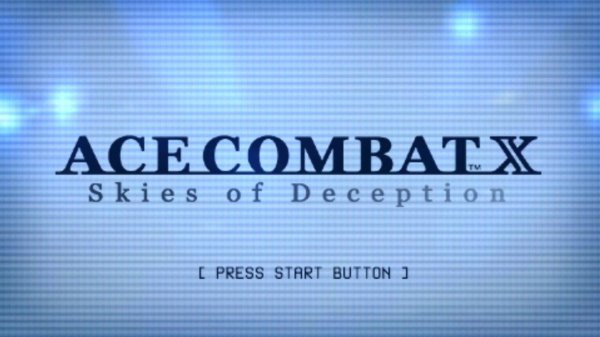
The Title Screen is displayed when you start the game. Press the START button to go to the Main Menu.
Main Menu
Use the directional buttons or the analog stick to select one of the seven items, then press the X button or the O button to confirm your selection.
•
Campaign: A one-player mode where you advance through missions as you follow the story. Tactical situations and available aircraft vary based on the chosen mission.
•
Multiplayer: Use the WLAN function to play competitively or co-operatively with up to 4 players across six game types.
•
Free Mission: Select and play cleared missions from Campaign mode. Press the SELECT button at the Mission Selection Screen to change the difficulty level.
•
Options: Change various game settings.
•
Data Viewer: View earned medals, decorations, battle stats, and other information.
•
New Player: Create a new player file for saving play data, or switch between files.
Campaign Menu Options
Begin a Campaign game by choosing from the following four menu items:
•
New Game: Play from the beginning. Choose from Easy, Normal, or Hard difficulty. The difficulty level cannot be changed mid-game.
•
Continue: Pick up from where you left off using displayed player data.
•
Save: Save your progress. You can save up to three data files for each user.
•
Load: Choose the data you wish to load and resume.
About Saving
Save progress by selecting "Save" in Campaign mode, or at the conclusion of Options or Multiplayer modes. A Memory Stick Duo™ with at least 256 KB of free space is required before starting. Saving a replay requires at least 700 KB of free space.
Note: You must register a player under "New Player" before play data can be saved.
Campaign: Game Flow
As a member of the border defense squadron "Gryphus," you will clear missions to free Aurelia from Leasath forces.
Starting with "New Game" takes you directly to the Briefing. From the next mission onwards, the Tactical Report Screen will display, allowing you to choose your own missions.
Strategic AI System
Your mission choices cause war conditions to change. Fulfilling certain conditions in some missions will add parts that can be used for tuning in the Hangar.
Tactical Report Screen
After receiving a tactical report, the following menu appears:
•
Select Mission: Proceed to the Mission Select Screen.
•
Strategic Briefing: Go over the Tactical Report Screen again.
•
Hangar: Buy, sell, or upgrade aircraft.
•
Save: Save your progress thus far.
•
Load: Load data and pick up where you left off.
•
Options: Change various game settings.
Mission Select Screen
Use the directional buttons or the analog stick to select your next destination. Press the X button or the O button to confirm your selection and proceed to the Briefing Screen.
Icons on this screen indicate:
•
Occupied by Aurelian forces
•
Occupied by Leasath Forces
•
Location of ground forces or bases
•
Location of an air fortress
Briefing Screen
The details of the mission are explained, after which a menu is displayed. Press the ⓧ or ⓞ button to advance messages, or press the START button to skip the explanation.
•
Mission Start: Move to the Aircraft Selection Screen.
•
Briefing: Review the contents of the briefing.
•
Hangar: Buy, sell, or upgrade aircraft.
•
Save: Save your progress.
•
Options: Change game settings.
Aircraft Selection Screen
Use the directional buttons or the analog stick to select an aircraft, then press the ⓧ or ⓞ button to confirm. Increase available aircraft by purchasing them in the Hangar. Press the SELECT button to change aircraft colors if they have been obtained.
The screen displays:
•
Aircraft name/aircraft type
•
Number of missiles/special weapons that can be equipped
Aircraft Types
Aircraft Capabilities
Longer meters indicate higher capabilities in these areas:
Special Weapon Selection Screen
Choose one special weapon to arm your aircraft. Use the directional buttons or the analog stick to select, then press the ⓧ or ⓞ button to confirm. Pressing the ▢ button enters Display Mode to view special weapons (only available when viewing aircraft in Data Viewer Mode).
The screen displays:
•
Offensive Capabilities (Air-to-Air / Air-to-Ground)
•
Missiles/Special Weapons capacity
Aircraft Confirmation Screen
After choosing an aircraft and special weapon, a confirmation screen is displayed. Press the ⓧ or ⓞ button to sortie and begin the mission.
Mission Rules
Pilot your aircraft to fulfill the required objectives. Completing a mission awards credits to purchase new aircraft. You may also earn "Kill Rate" experience points to unlock new aircraft colors.
The following conditions result in mission failure:
•
Damage rate reaches 100% from enemy attack
•
Crashing into the ground or sea
•
Meeting specific failure conditions
•
Failing to complete the mission within the time limit
Pause Screen
Press the START button mid-mission to pause. Return to the mission by pressing the △ button.
Pause Menu
•
Options: Change various game