PlayStation 2 Setup
Set up your PlayStation®2 computer entertainment system according to the instructions in its Instruction Manual. Make sure the MAIN POWER switch (located on the back of the console) is turned on.
Starting the Game
Press the RESET button. When the power indicator lights up, press the open button and the disc tray will open. Place the ONIMUSHA™2 disc on the disc tray with the label side facing up. Press the open button again and the disc tray will close.
Attach game controllers and other peripherals, as appropriate. Follow on-screen instructions and refer to this manual for information on using the software.
Console Ports
DUALSHOCK®2 ANALOG CONTROLLER CONFIGURATIONS
•
ONIMUSHA™2 is best played with the DUALSHOCK®2 analog controller.
•
For one player, the controller should be connected to Controller Port 1.
•
With this controller, the ANALOG mode button and mode indicator are always set to ON, indicating that the controller is in Analog mode.
•
When Vibration is set to ON, the controller will vibrate in response to game events. You can turn Vibration ON/OFF in Option mode.
Controller Buttons
•
left analog stick (L3 button when pushed down)
•
right analog stick (R3 button when pushed down)
Ending the Game
To end the game and return to the Title screen, select QUIT GAME and then YES in the Pause menu. In this case, your game data will not be saved.
Main Menu
Press the START button at the Title screen. The Main Menu will appear. Use the directional buttons to select an option and press the button.
•
NEW GAME - Start a new game.
•
CONTINUE - Resume a previously saved game.
•
OPTION - Adjust various settings. You can also access the in-game Option mode from the Pause menu.
•
SPECIAL - Watch special movies from the ONIMUSHA 2 story.
Game Over
Your game is over when your character's vitality drains to zero by enemy attacks, or your character is caught in a critical trap.
After your character is defeated and your game is over, the Title screen will appear. If you want to continue the game, choose CONTINUE and play on from the point where you last saved your game.
Saving
Find and check a Magic Mirror (located in various places in the game world) to save your game.
•
You must be using an optional memory card (8MB) (for PlayStation®2) in order to save your game.
•
Do not press the Power button of your PlayStation 2 or remove the memory card while saving or loading. Doing so may destroy saved data. •
This game requires 462KB of free space in a memory card in order to save game data.
Loading
Select CONTINUE in the Title screen to resume a previously saved game.
Using OHGI
When your equipped weapon has Ogre Power, you can charge the power by pressing the R1 button firmly. Once you have charged power, press the button to attack with OHGI.
•
OHGI doesn't consume Ogre Power.
•
OHGI varies depending on the attribute of the weapon.
•
You can use even more powerful OHGI by obtaining OHGI books.
Inventory
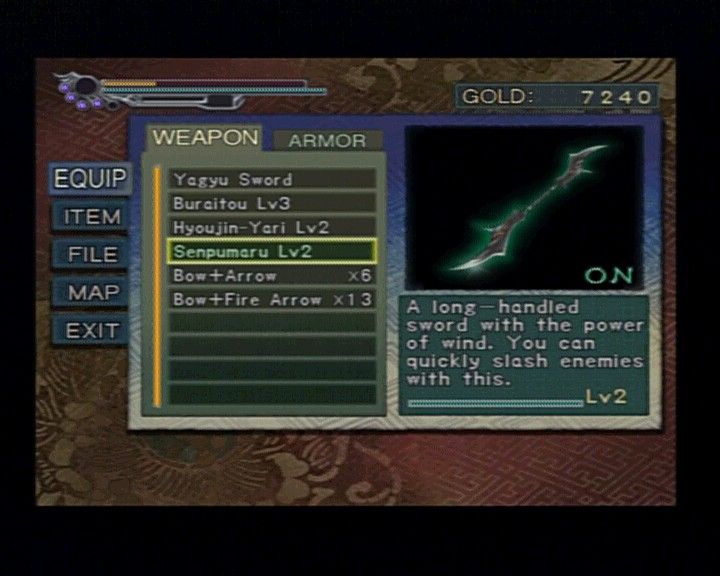
Press the START button to display your character's Inventory.
•
Press the directional buttons to toggle between sections.
•
Press to see an image and description of the selected item.
•
Press the X button to use/equip/read/check the selected item.
•
Certain characters cannot use certain Inventory items. In these cases, the item will be dimmed.
Inventory Sections
•
WEAPONS/ARMOR - This screen appears first when you display the Inventory. It shows the weapons and armor you have acquired.
•
ITEMS - This screen shows the objects and gifts you've acquired and items you bought in a shop or received from people in town. During play, when you see a certain message on screen, you can press the START button to give a gift to another character.
•
FILE - Here you can read books you've acquired and examine pieces of art you've collected.
•
MAP - View the maps you've acquired. Highlight a map and press the X button to see its details. Use the left analog stick or directional buttons to move the map. During play, push down the right analog stick to check your current location. If you don't have the map of the area, you'll only see the rooms you've already explored.
•
EXIT - Highlight EXIT and press the X button to close the Inventory and return to gameplay. You can also close the Inventory by pressing the START button.
Souls
Acquiring Souls
When your character defeats an enemy, a soul may appear. There are four soul colors, each with a different effect:
•
RED SOUL - Enhances ogre Gauntlets or a Gem.
•
BLUE SOUL - Increases your character's Ogre Power.
.png)


.png)
