Starting Up the Game
Turn on the power of your 3DO™ Interactive Multiplayer and verify that the power lamp has lit up. Press the open/close button, place the CD on the disk tray, and then press the open/close button again. The 3DO logo and the Tetsujin title logo will appear, and a demo display will begin to reel. Interrupt the demo display by pushing the P-button on the control pad.
See 'How to Operate the Game' for explanations of control buttons.
1. Start Up
When playing Tetsujin for the first time or when having not yet saved data, the opening sequence will automatically begin and you will advance to stage 1. 2. Main Menu
If you have saved data, the main menu will be displayed. Select with the direction pad and load by pushing the A-button. If the X-button is pushed, you will start from stage 1.
•
Using the direction pad, select this item from the Main Menu if you wish to begin Tetsujin from the beginning at stage 1. •
After the opening sequence, stage 1 will start up. If you press the X-button, you will skip over the opening sequence.
•
Select this item from the Main Menu if you wish to start from a position that you have previously saved.
•
Adjust the pointer to LOAD DATA and push the A-button. A list of saved data will be displayed.
•
The pointer will indicate the data that has been saved most recently. With the direction pad, select the data that you wish to load and then press the A-button.
•
If you wish to cancel, press the B-button. You will return to Main Menu. If you press the X-button, you will start from stage 1.
•
Select this item if you wish to delete all the saved data that is listed in the LOAD DATA display.
•
If you press the A-button, you will be asked if you really want to delete everything.
•
If you press the A-button once more, all the items from DATA 1 to DATA 4 will be deleted.
•
If you press the X-button, you will start from stage 1.
3. Saving Data
Data can be saved at the Supply Room in each stage. Nowhere else is it possible to save data. Also, when you enter a Supply Room, you will be able to replenish expended ammunition and recharge shield energy. There is at least one Supply Room on each floor.
● SAVE DATA
When Saving Data for the First Time
If there is no other saved data, all you need do to save is, with the pointer at SAVE DATA in the Save Menu, press the A-button. Blank settings for the data-save files DATA 1 through DATA 4 will be indicated in each instance by XXX. If any of the files is selected with the direction key and A-button pressed, your present position will be saved. You may then select EXIT or you may return to your position by pressing the B-button.
When Saving Multiple Data
If data is already in the data-save file you have selected, you will be asked if you want to replace the old data with the new. If you wish to replace the data, press the A-button, but if you wish to designate a different data-save file, press the B-button to cancel.
Tetsujin data saved at a Supply Room is stored as Backup Memory in static RAM of your Interactive Multiplayer. The data is retained in Backup Memory even when the power is switched off. However, as Backup Memory contains other data besides that of Tetsujin, it may become full, making it impossible to store Tetsujin data. If this should be the case, activate the Backup Memory Control Tool and delete data of software other than Tetsujin. •
If Backup Memory is full, a message will be displayed when you activate Tetsujin. If you select DELETE, the DELETE GAME DATA display will appear. If you select START, Tetsujin will start up without the capacity to save data. •
Stored-data file names will appear on the lefthand side of the DELETE GAME DATA display. Using the direction pad, select data you wish to delete. The color of selected files will be reversed.
•
When you have designated data for deletion, select DELETE with the direction pad. If you then press the A-button, the designated data files will be deleted and Tetsujin will start up. If you select CANCEL, the files will not be deleted. •
Repeat steps 2 and 3 until Backup Memory is able to store Tetsujin data. Button Controls
•
Basic Commands: If the P-button is pressed during the Canopy Screen, the Basic Commands will be displayed.
•
Skip the Movie Screen: If the P-button is pressed while a movie is in progress, you will skip over that movie to the next stage.
•
Start Stage 1: If the X-button is pressed while Main Memory or its items are displayed, you will start up from stage 1.
How to Read the Screens
1. Canopy Screen
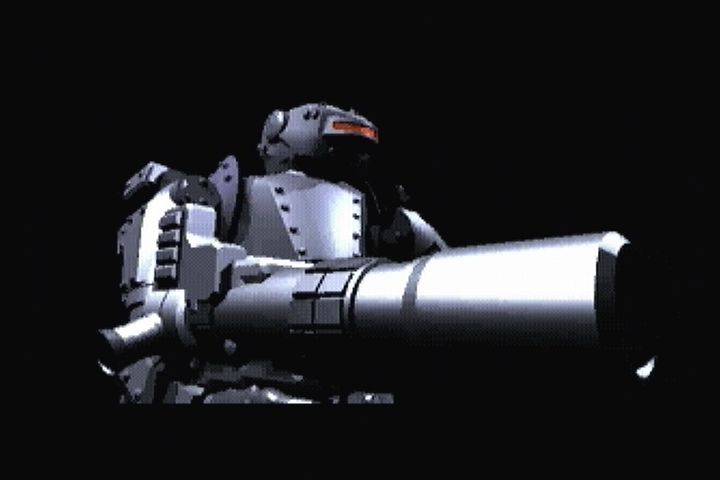
If you press your control pad's P-button when the canopy screen is displayed, the basic commands will appear. Select a command with the direction pad and enter it by pressing the A-button.
The following options are available:

.png)







.png)


_1.png)
.png)

.png)
