The Adventure Begins
To start your adventure, insert the Pinobee game pak into the Game Boy® Advance system and turn on the power. After a brief opening sequence, the title screen will appear. You can skip the opening sequence at any time by pressing the A Button or B Button.
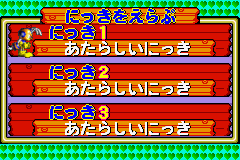
From the title screen, press the A Button, B Button, or START to bring up the Diary menu. Use the Control Pad to select a diary file and the A Button to confirm your selection.
•
New Diary: Starting a new game.
•
Previous Diary: Replay any level passed or continue from where you last were. If no checkpoints were reached, you will start from the beginning of the level.
The Goal of the Adventure
Pinobee's goal is to find and rescue Grandpa Bee. Your job is to guide Pinobee past innumerable challenges as you try to clear each level. Along the way, checkpoints will restore your health to full and give you a new starting point if Pinobee's life meter runs out.
Each time you clear a level, Pinobee will write a new diary entry. These entries are very important and contain his thoughts, hints, and more.
Using the Menu Screens
There are four sub-menus on the Main menu that let you choose levels, read diary entries, view your item collection, and communicate with another Game Boy Advance system. Use the Control Pad to highlight a menu item, and the A Button to select it.
•
Select Stage: Choose the level you want to play.
•
Check Items: View and manage your current items.
•
View Diary: Read Pinobee's diary entries.
•
Trade Items: Trade items with friends via Game Link Cable.
Selecting a Level
To choose the level you want to play, use Up and Down to scroll through the level names, then press the A Button to play the selected level. The B Button will take you back to the Main menu.
Managing Items
This screen shows you the items you currently have. You can also get information about your items here, or choose to throw away any items you don't want. This screen can also be accessed from the Pause Mode menu.
Viewing Your Diary
At the end of each level he completes, Pinobee writes a diary entry. To go through your current diary, use Left and Right to flip through the entries. Up and Down will scroll through the entries so you can read everything.
•
Press the A Button to replay a level from the Diary Entry screen.
•
Press the B Button to return to the Main menu.
Deleting Diaries
You can delete unwanted diaries by pressing SELECT from the Select Diary screen which appears when you start the game. This will bring up the Delete Diary screen. Choose the diary you want to erase and press the A Button to delete that entire Diary.
Bingo! Item Effects
Inventory Items can produce a variety of different effects, depending on how they line up in your Item Holder. You can carry a maximum of 24 items. To manage your item collection, bring up the Item Manager screen by pressing START during gameplay, then select Items from the Pause menu.
To throw away an unwanted item, highlight the item and then press the A Button. Selecting Effects will bring you to the Item Effects screen. Select the color category you want to view, and all items you own of that color will be displayed.
Press the A Button to select the buttons on the top and left of the grid to see what effect the items will have once every item in the selected line is collected. When you collect the right items to fill one horizontal or vertical line, it is bingo time: the aligned items will become activated.
Pink Item Effects
•
Pink Spades (1-4): Life meter will increase.
•
Pink Hearts (1-4): You will take less damage.
•
Pink Diamonds (1-4): You can carry more Energy Units.
•
Pink Clubs (1-4): Energy will go down slower.
Additional effects include increased Dash Power, decreased enemy strength, ability to recognize Capsule types, and doubled Flower energy value.
Replaying Previous Levels
To replay an earlier level, press the A Button from the Diary Entry screen. The Select Stage screen will appear. Use Up and Down to select the level you want to replay, then press the A Button. You will take all of your current inventory items with you when you go back to replay earlier levels.
Trading Items with Your Friends
If you have friends who also own Pinobee, you can swap items with them by connecting two Game Boy Advance systems with a Game Link® Cable (sold separately).
1. Both players should select Trade Items from the Main menu.
2. A message will appear on both screens to let you know that communication is being established. Do not manipulate the controls while this screen is showing.
3. If a player doesn't have any exchangeable items, communications will be terminated.
4. If communication is successfully established, the Item Exchange screen will appear. Each player selects an item on their screen and presses the A Button.
5. A dialog box will appear asking you to confirm that you want to trade the selected item. Both players must confirm their choices.
6. If both players confirm the exchange, the items will change hands, and communications mode will shut down.
How to Connect the Game Boy® Advance Game Link® Cable
What You Will Need
•
2 Game Boy Advance systems
*


.png)


.png)
_1.png)


_1.png)
.png)
.png)

.png)