Intermission Options
At the end of a stage, the Intermission screen provides these options.
Player
•
LEGION EQUIP - Select the crest of the legion to be equipped (max: 2).
•
PLAYER STATUS - Check equipped legions, maximum life gauge value, and SOUL gauge maximum attack/defense power.
•
PLAYER ACTION - Check actions that can be used and methods of operation.
•
EXIT - Return to the Intermission screen.
Legion
Use EXP points to increase the levels of legion power. When a legion is selected, you can increase its levels of ENCHANT, ASSIST, FORCE, ATTACK and DEFENSE independently.
•
Press the X button to choose a legion.
•
Use the directional buttons/left analog stick to select the power you want to increase, and press the X button.
•
A confirmation message will be displayed. Select Yes to accept.
Item
View your items. The maximum number you can have depends on the difficulty level of the current game. When Gem is selected, the legion screen appears, and you can use Gem.
Memory Card
•
SAVE - Save a game file by selecting a file slot to save to, and then selecting Yes on the next screen. Note: You must be using a memory card with at least 277KB of free space in order to save a game file.
•
LOAD - Load a game file by selecting a previously saved file, and then selecting Yes on the next screen. Note: You must be using a memory card with saved CHAOS LEGION™ games in order to load one of them.
•
EXIT - Return to the Intermission screen.
Game End
•
End the game and return to the main menu.
Next Stage
View the next stage map. After playing more than one stage, you can replay previous maps.
•
Use the directional buttons/left analog stick to choose a map and press the X button to select.
Other Screens
Results
When you finish a scene, the results screen shows the following information:
•
STAGE TIME - How long it took you to clear the scene.
•
SMASH COUNT - The number of enemies you annihilated in the stage.
•
HIT COUNT - Your HIT count gained.
•
EXP POINTS - Your EXP points gained.
End Game
When Sieg's life gauge drops to zero, the game ends and a menu appears offering these options:
•
RETRY - Resume from the beginning of the stage in which the game ended. You cannot change equipment. Player status returns to the status at the point when you entered that map.
•
RETURN - Return to the Intermission screen of the stage in which the game ended. You can change equipment. In easy difficulty games, all EXP points you gained up to game over are counted; in normal difficulty games, half of the EXP points are counted; in hard difficulty games, none are counted. Items captured during play are reset.
•
GAME END - Return to the main menu. If you have retry data, you can save it to the memory card before turning off the power.
Pause Menu
Press the START button during gameplay to view the Pause menu, offering these options:
•
PLAYER - View your character's current status.
•
LEGION - View the currently selected legion's status.
•
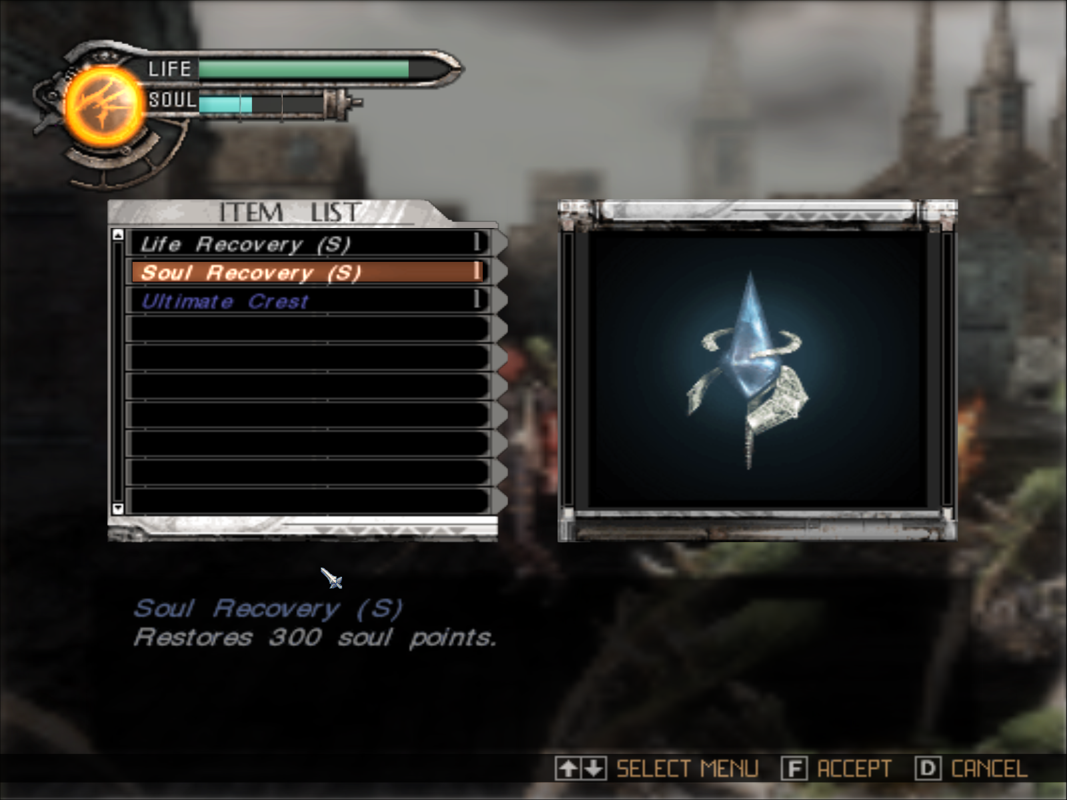
ITEM - Select an item from the list in order to use it. Available items are brightly lit. Use the directional buttons/left analog stick to highlight an item, and press the X button to use it.
•
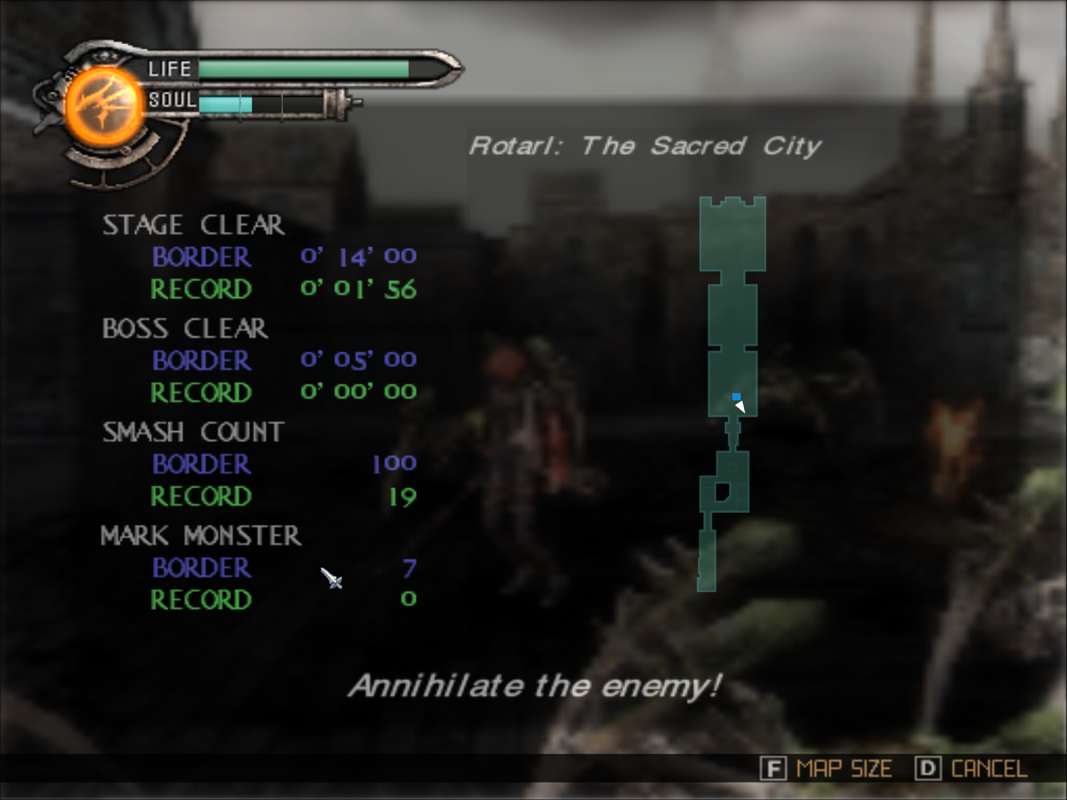
MAP - Display the stage map to confirm your present location.
•
OPTIONS - Change various game settings.
•
RETURN - Return to the Intermission screen for your current stage.
•
EXIT - Return to your current game.
Game Setting
Option Mode
•
Select various functions during gameplay.
•
Move the directional buttons/left analog stick to select items, and to change settings.
•
STATUS - Select constant display or battle only display.
•
MAP - Toggle between map display/off.
•
ENEMY LIFE - Toggle enemy force display on/off.
•
COUNTER - Toggle between EXP points, hit count and smash count display.
•
STAGE TIME - Toggle area time on/off.
•
TUTORIAL - Toggle tutorial on/off.
•
DEFAULT - Restore the original settings.
•
EXIT - Return to the option menu.
Movie
•
Select the language for gameplay. Note: Movie setting can only be changed when you select Option from the main menu.
Caption
•
Toggle the caption display on/off.
Control
•
BUTTON TYPE - Select your control configuration from four different types.
•
VIBRATION - Toggle the controller's vibration function on/off.
•
CAMERA DIRECTION - Use the right analog stick to change the direction of your view movement.
•
CAMERA RELEASE - After changing the view direction using the right analog stick, toggle between current and original view.
•
DEFAULT - Restore the original control settings.
•
EXIT - Return to the option menu.
Sound
•
Move the directional buttons/left analog stick to select items, and to change settings.
•
SOUND - Toggle between stereo/monaural.
•
SE VOLUME - Adjust the sound effect volume.
.png)

.png)
