Starting the Game
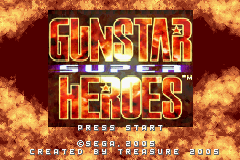
During the Title Screen, press START (or A Button) to display the Main Menu.
Menu Controls
Use the following controls to navigate the menu:
•
Select Menu Item: Control Pad
•
Enter Selected Menu Item: A Button/START
•
Cancel/Go Back One Step: B Button
Software Reset
Any time during the game, press the START, SELECT, A, and B Buttons simultaneously to reset the game and return to the Title Screen.
Main Menu
Select either RED or BLUE to play the game with the selected character. Next, select the difficulty level of the game (EASY, NORMAL, HARD). Then select one of the following options:
•
NEW DATA: Available only when you play the selected Character/Difficulty Level combination for the first time. Select to start the game.
•
CONTINUE: Continue the game from any stage you have already completed or entered. Select this to display the Stage Select Screen.
•
DELETE DATA: Delete the game data for the selected Character/Difficulty Level. When confirmed, select YES to delete; NO (or B Button) to cancel.
Game data is created for each Character/Difficulty Level. The game data contains information such as the stages cleared, the top score for the stage completed, and amount of life left at certain areas in the stage.
Options
•
CONTROL: Change the button assignments for the weapon attacks (see p.12).
•
BRIGHT: Change the brightness level of the screen.
Stage Select
When you CONTINUE the game or after you complete a stage, the Stage Select Screen will be displayed. You may select and start from any stage available, including the stage you just completed. Each stage consists of a multiple number of areas. If a stage has been played before, partially or completely, you can start from any area you have completed. Use the Control Pad left/right arrows to select the stage, and up/down arrows to select the area (if available).
If you started with NEW DATA, you will automatically start the game from EARTH (first stage). The screen displays:
1.
Selected Stage
2.
Areas available to start
3. Stage / Continue Records: Displays the Stage Record when the Area cursor is at 1; otherwise the Continue Record is displayed.
4. Amount of Life at the start of the Stage / Area.
Stages - Controls & Game Screens
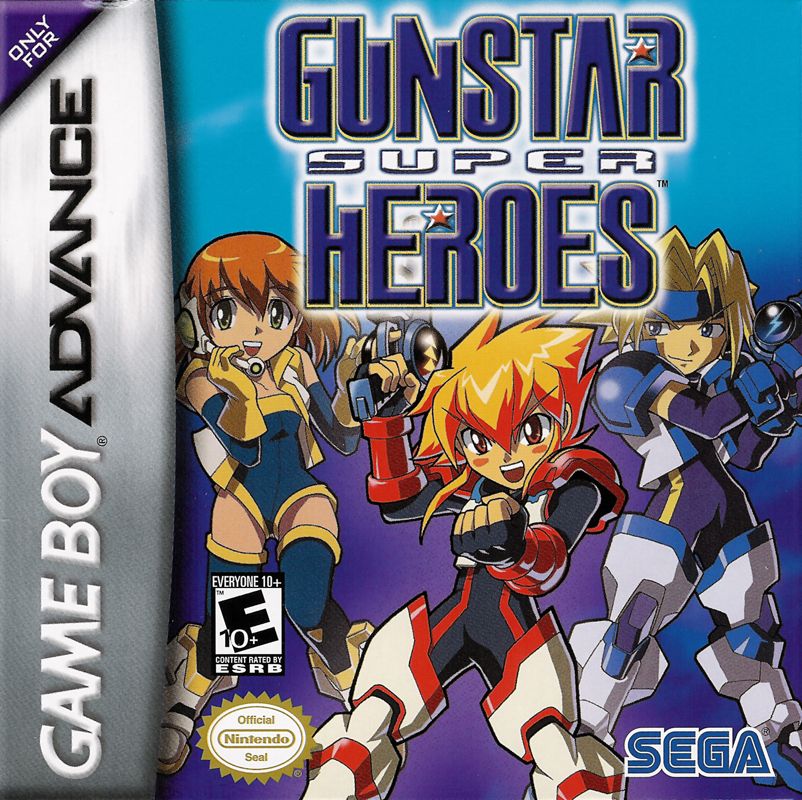
In Gunstar Super Heroes, the stages consist of 2 to 5 action areas of different types, with different controls. Here, the controls and the screens for each type of action area will be explained separately.
Normal Action Areas
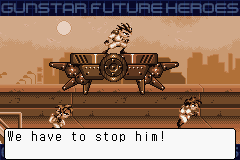
These are the basic action areas, moving sideways (and up and down if needed). The majority of this game features this area type. The screen displays:
1. Player's Life: The game will end if this is reduced to zero.
2. Weapons: The highlighted icon is the weapon currently in use.
3. Supercharge Gauge (p.11).
4. Score.
5. Enemy's Life: Displayed when the Stage Boss appears (and also when you shoot at some of the stronger enemies in the area).
Result Screen
After the completion of each stage, information pertaining to your performance will be displayed. If you did not complete the stage, the result screen will show information up to your last point. If either the Initial Area Score or the Elapsed Time to start certain areas is better than the previous record, you will be prompted to enter your name.
Use the Control Pad up/down to scroll the screen. Press the B Button to view the previous record. You can also use the Control Pad left/right to view records of other stages. Press the A Button/START to advance.
Name Entry
If you break record(s) in any category, you can enter your initials (up to 3 letters) here. When done, select SAVE to save your record. If you select DON'T SAVE, your new record will not be saved.
Note: When your progress is saved, the game saves both the starting area where you last left off and the Life you had remaining at the time. So be careful when saving, otherwise you might be saving your game where you have very little Life.



.png)
.png)


_1.png)
.png)
.png)
_1.png)