INTRODUCTION
The fate of a young, unsuspecting farm boy changes forever when he discovers a dragon egg in the deep forests of the Spine Mountains. When the dragon Saphira hatches, their destinies unite.
Eragon is thrust into a new and dangerous world where enemies lurk at every turn, intent on destroying him before he can take hold of his legacy. Lead Eragon and Saphira down the path of destiny. Help Eragon become....a DRAGON RIDER.
GETTING STARTED
TITLE SCREEN
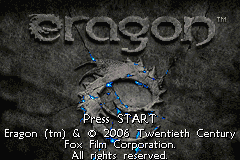
Insert the Eragon Game Pak into the Game Boy® Advance and turn on the system. Press START on the Title Screen to begin the game.
MAIN MENU SCREEN
To select one of these options, press Up or Down on the +Control Pad and press the A Button:
•
NEW GAME: Start a NEW GAME
•
CONTINUE: Choose a previously SAVED GAME to play
•
OPTIONS: Go to the OPTIONS menu
Available save slots include:
•
Spine Tutorial (Time 00:01, Level 65)
•
Carvahall (Time 00:44, Level 4)
To Continue a Previously Saved Game:
1. Use the +Control Pad to highlight the slot of a previously saved game.
2. Press the A Button to select your previous game.
OPTION MENU
To Adjust Game Options:
1. Music Volume: Highlight the Music Volume option using the +Control Pad. Press the L Button to decrease the volume or the R Button to increase it.
2. Sound Effect Volume: Highlight the SFX Volume option using the +Control Pad. Press the L Button to decrease the volume or the R Button to increase it. The slider will adjust accordingly.
3. Screen Brightness: Highlight the Gamma option using the +Control Pad. Press the A Button to toggle between Normal and Bright settings.
4. Return to Menu: Press the B Button to return to the Main Menu.
PLAYING THE GAME
Combat Mode
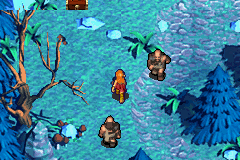
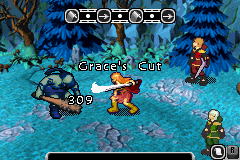
Running into an enemy in the Overworld will bring up Combat Mode. Party members' health meters appear at the top of the screen. When a character's turn comes up, they step forward ready to attack.
Use the +Control Pad to select an enemy target and press the A Button or B Button to initiate Melee or Ranged Combat, or press the R Button to bring up the Combat Menu.
Attack (Melee and Ranged Combat)
•
The “Time Unit” system allows party members to attack multiple times every round and chain attacks together into devastating special attacks. Characters can earn additional time units as they progress through the game.
•
After selecting an enemy target, the moment either the A or B Button is pressed, the character's Time Units appear at the top of the screen.
•
Once the Time Units are filled with Light (A Button) and Heavy (B Button) Attacks, the character will execute the series of attacks. Certain combinations of Light and Heavy attacks will unleash Special Attacks.
•
Each character has a melee or ranged weapon type specific to that character. As the characters level up, they learn special attacks unique to those weapons.
•
The enemies are positioned in ranks. Melee weapons can only hit the front rank, but many characters can choose to use a bow that will allow them to hit either the front or the back rank.
•
Players can customize their combat style and develop new tactics.
Magic Combat
For characters that can use magic, choose Magic from the Combat Menu, then select an enemy or ally target with the +Control Pad to bring up the Radial Magic Menu. Choosing an enemy target will bring up attack spells only, while choosing an ally target will bring up support spells only.
•
The Radial Magic Menu allows for quick navigation of the variety of available spells.
•
After selecting a target and pressing the A Button, hold the +Control Pad in the direction of the desired class of spell and press the A Button to select.
•
This will bring up the Magic Strength Meter. Press the A Button to release the spell at the desired Magic Strength.
•
The Magic Strength Meter makes it challenging to cast a spell at a specific power level until the character is an experienced magic user.
•
Health is directly tied to the spell's strength; the more health that is used to cast the spell, the greater effect the spell has. Conversely, the greater strength of the spell, the more health is drained from the character.
Other Actions
Use Item
•
To access an item, select Use Item and use the +Control Pad to select one of the party members.
•
Press the A Button to bring up a menu and use the +Control Pad to select a consumable item.
•
Press the A Button to use that item on the selected character.
Retreat
•
In some battles, the party can retreat from combat. However, there are certain encounters in which retreat is not an option.
Rest
•
The player can end a character's turn by choosing to rest. Resting will increase the player's defense for the next attack and regenerate some health.
Defending
•
During the enemy's turn, the player is not powerless. With good timing, the player can block or dodge incoming enemy attacks to reduce the amount of damage taken.
•
Press the B Button at the moment of impact to block melee attacks.
•
Press the A Button at the moment of impact to dodge ranged and magic attacks.
Focus Menu
There are 5 paths that characters


.png)
 (En,Fr,De,Es,It).png)
.png)
