MULTIPLAYER SETUP
Linking the Game Boy® Advance Game Link® Cable
To link systems for multiplayer, you need the following:
•
2 Game Boy® Advance systems
•
2 MEGA MAN BATTLE NETWORK 4 Game Paks
•
1 Game Boy® Advance Game Link® Cable
Follow these steps to connect:
1. Make sure the power of both Game Boy® Advance systems is OFF.
2. Insert a MEGA MAN BATTLE NETWORK 4 Game Pak into each Game Boy® Advance system.
3. Link the Game Link® Cable to the external extension connector on both systems. The system connected to the smaller plug is 1P.
4. Turn on the systems.
The Game Link® Cable may malfunction if:
•
It is not for the Game Boy® Advance system.
•
It is not connected correctly or has become disconnected.
•
More than two Game Boy® Advance systems are connected.
MAIN MENU
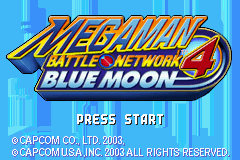
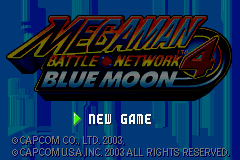
On the Title screen, press START to see two options for starting the game. (If this is the first time you are playing and you have not yet saved a game, the CONTINUE option will not appear.)
•
NEW GAME: Start a new game from the beginning.
•
CONTINUE: Start the game from the point where you saved it.
SOFT RESET
Press START, SELECT, and the A and B Buttons simultaneously anytime during gameplay to soft-reset the game. This returns you to the Title screen and is useful when you want to start over from where you last saved the game.
MEGA MAN TRANSMISSION
When you jack-in to Lan's room, you can go to the Internet and explore this fascinating world.
•
SECURITY CUBE: This item protects the Internet against viruses and other enemies. It guards the entrance to homepages, so if you can get the homepage owner's P Code, you can disarm the Security Cube.
•
SHOP: When you speak to a Net Merchant, a Shop screen appears. Move the cursor over an item you want and press the A Button. Chips and Navi Programs you do not yet have are displayed in green. Press the R Button to see an explanation of the item.
•
NOTICE BOARD: Mayl, Dex, and Lan's friends' homepages are all connected on the Internet. Check the Notice Board to read the homepages and collect valuable information.
Enemies and viruses often invade the Real World's electronic devices. When this happens, jack-in to the Cyber World and send Mega Man to do a number on the evil-doers. Even if dangerous events don't occur, you can still jack-in to explore the Cyber World. Check all over the Field screen for different places and things where you might be able to jack-in. CUSTOM SCREEN
If you meet an enemy in the Cyber World, you'll enter into battle. First you'll be transported to the Custom screen where you can choose a chip to send to Mega Man. Five chips are chosen at random from the Chip Folder and displayed in the Chip Select area. From these, choose a chip to send to Mega Man. Move the cursor over the chip you want and press the A Button. Press the R Button to see an explanation of the chip before choosing it. Rules for Choosing Battle Chips
Usually you choose one chip at a time. But if you fulfill the conditions shown at the right, you can choose up to five chips at once, and use them strategically in battle. (Chips that are not chosen in a group are dimmed in the Chip Select List.)
•
Sending Data: Once you choose a chip, move your cursor to OK and press the A Button. You will be transported to the Battle Action screen where you will operate Mega Man. •
Unison Command: This command lets you "unite" Souls. After choosing a chip that meets the conditions of a Soul that wants to transform, select the Unison Command to change it to the Unison Chip.
•
Emotion Window: Mega Man's Emotion status is displayed in this window. His status begins at NORMAL, but if he gets hit or takes a Counter, his condition will worsen. •
Run Away: Press the L Button to run away. Whether you'll be successful or not depends on luck - the stronger the enemy is, the more difficult it is to outrun it.
Folder Editing Rules
•
By all means fill your folders with their maximum of 30 chips.
•
You can put a max of four chips of the same kind in the folder. (If their names are the same, the chips are the same, even if their codes are different.)
•
You can put a max of five Mega Class chips in a folder and only one Giga Class chip. All of them must be different from each other.
Regular Chips
Regular Chips definitely appear on the Chip Select List on the Custom screen. If you do a good job of incorporating these into your game, you are sure to be victorious in battle.
On the Folder screen, move your cursor over the chip you want to designate as a Regular Chip and press SELECT. When the frame comes up, that chip will be a Regular Chip.
If the data size of a chip is smaller than the regular memory, you will not be able to designate it a Regular Chip. Use Items to increase the capacity of regular memory.
Sub Chips
Sub Chips are used on the Field screen in the Cyber World. You acquire them from the Shop and from Mystery Data. Unlike Battle Chips, they can only be used once.
•
MINI ENERGY: Revives your HP to 50.
•
FULL ENERGY: Revives your