SETTING UP THE GAME
Before you are granted entrance into the most exclusive 'Toon T.V. show, you must first make some choices and get familiar with how things work.
MAIN MENU
The Main menu is your gateway to the dangerous world of Cel Damage. Choose your options, create a driver or jump right in to the lunacy of your new favorite play world.
•
OPTIONS: View progress and adjust audio settings
•
PLAY: Just Play or Create/Load a game
•
MOVIES: Enjoy clips of your favorite 'toon personalities
START A NEW GAME
To begin a new game:
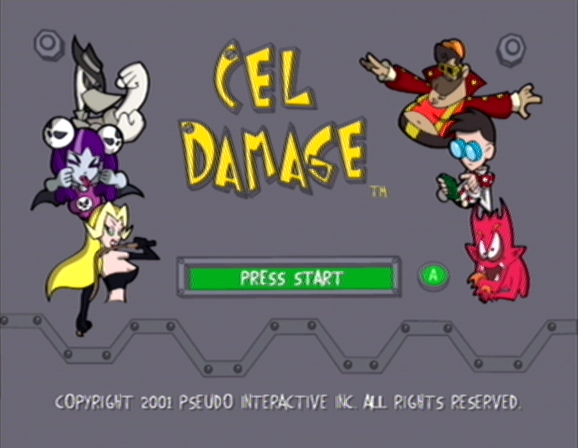
1. From the Main menu, select PLAY.
2. Press The A Button to join the game.
3. To begin a Cel Damage game without selecting special characters and other unique options, select JUST PLAY. To load an existing game, or create a new game, select CREATE/LOAD.
4. Once you start a new game or load an existing game, use the + Control Pad and press The A Button to select the desired character.
5. After the character is selected, the event select screen appears. Press The A Button to continue. The select arena screen appears.
6. Scroll through the levels using the + Control Pad and press The A Button to select the desired level to begin your Cel Damage battle.
GAME EVENTS
At first, Smack Attack is the only available game event. Win one Smack Attack game to unlock the Gate Relay event. Win four games of Smack Attack and/or Gate Relay to unlock the Flag Rally event.
OPTIONS
Customize your Cel Damage experience.
•
VIEW PROGRESS: Don't let those special characters and games go until your friends have seen 'em.
•
MUSIC VOLUME: Fine-tune to ease your inner musician.
•
SOUND F/X VOLUME: Adjust the volume percentage to fit your tolerance level.
•
VOICE VOLUME: Listen to 'em talk smack or tune 'em out.
•
ADJUST SCREEN: Blind or 20/20 - we all have a chance to win with this option. Position the screen to suit your preference.
MOVIES
Check out cinematic footage of our favorite leading 'toons.
CREDITS
Get to know the talent behind the creation.
SAVING AND LOADING
The Nintendo GameCube allows you to save and load games to or from the Nintendo GameCube Memory Card. To create or load a character:
•
Select LOAD EXISTING, CREATE NEW or DELETE EXISTING.
•
Press The A Button to continue.
To save a game (Using existing nicknames):
1. Select "Create/Load" from menu (by moving the Control Stick up and down) and press the A Button.
2. Select "Create New" from menu (by moving the Control Stick up and down) and press the A Button.
3. Select the Memory Card Slot A or Memory Card Slot B to save the game (by moving the Control Stick left and right) and press the A Button.
4. Select a Nickname for the game (by moving the Control Stick left and right) and press the A Button.
5. Select an icon for your game (by moving the Control Stick left and right) and press the A Button.
6. After game is created press the A Button to continue.
To save a game (Using new nickname):
1. Select "Create/Load" from menu (by moving the Control Stick up and down) and press the A Button.
2. Select "Create New" from menu (by moving the Control Stick up and down) and press the A Button.
3. Select the Memory Card Slot A or Memory Card Slot B to save the game (by moving the Control Stick left and right) and press the A Button.
4. Select "New Name" for the game (by moving the Control Stick up and down) and press the A Button.
5. Moving the Control Stick up, down, left and right to select the letters you want by pressing the A Button. Then select "Done" and press the A Button.
6. Select an icon for your game (by moving the Control Stick left and right) and press the A Button.
7. After game is created press the A Button to continue.
To load a game:
1. Select "Create/Load" from menu (by moving the Control Stick up and down) and press the A Button.
2. Select "Load Existing" from menu (by moving the Control Stick up and down) and press the A Button.
3. Select the Memory Card Slot A or Memory Card Slot B to save the game (by moving the Control Stick left and right) and press the A Button.
4. Select the game to load (by moving the Control Stick left and right) and press the A Button.
NOTE: Never insert or remove a Memory Card when loading or saving files.
.png)


.png)





_1.png)
