GETTING STARTED
Before turning the power ON, make sure you have inserted the Nintendo GameCube™ Game Disc, Controllers and other peripherals (if you are using any). WARNING
Never try to insert or remove a Game Disc when the power is on!
THE NINTENDO GAMECUBE™ CONTROLLER
THE NINTENDO GAMECUBE™ MEMORY CARD
Defender® lets you save accumulated data to a Memory Card inserted in Slot A. This will come in handy when you want to save your game data and play it in a friend's Nintendo GameCube™. Each time you start Defender on your Nintendo GameCube™, the game will read any inserted Memory Card (in Slot A) then load your saved settings and other saved data. This saves you from having to go through the menus to adjust the settings to your liking each time you want to play the game. NOTE
Please refer to the Nintendo GameCube™ instruction booklet (pages 18-20) for directions on how to format and erase Memory Card files. MENU NAVIGATION
Throughout this manual, ↑, ↓, and will signify pressing Up, Down, Left and Right on the Control Stick or Control Pad.
To navigate through the game menus (i.e. Options), press the Control Stick or Control Pad (Up, Down, Left or Right depending on the menu) to highlight a selection.
To activate a selection or access the next menu, press the A Button. To go back to the previous menu and/or cancel the previous selection, press the B Button.
The following page contains the game controls for Defender. Please refer to the image above for button locations on your Nintendo GameCube™ Controller. QUITTING A GAME IN PROGRESS
To quit a game in progress, press START/PAUSE during the game. The Pause Options screen will appear.
•
Select QUIT and press the A Button.
•
Next select YES and press the A Button once again and you'll be brought to the Mission Failed screen.
OPTIONS MENU
At the Main menu, highlight OPTIONS and press the A Button to access the game's Options menu. The Options menu lets you adjust the sound volumes in the game, select different controller configurations and more.
NOTE
Each time you make a change in any of the Options sub-menus, the game will "autosave" this data on your Memory Card. If you don't have a Memory Card inserted, your data will not be saved. Press the A Button to continue back to Options menu.
SOUND
The Sound sub-menu includes options for VOLUME and MUSIC.
In VOLUME, you can set the level for Music, FX (sound effects), and Voice.
•
Select a particular feature to adjust by pressing or on the Control Stick to highlight.
•
Next, press or on the Control Stick to slide the bar left or right. The bar settings will control the volume with the far right being the highest setting and the far left being the lowest.
•
When you are finished, press the A Button to lock in your changes and return to the Sound sub-menu.
In MUSIC, press or on the Control Stick to highlight your music choice. Press the A Button to complete your selection.
CONTROLS
Choose between several different controller configurations and turn the Rumble setting ON/OFF in the Control sub-menu.
•
To adjust the configuration, press or on the Control Stick to highlight the control features you'd like to adjust.
•
Press or on the Control Stick to cycle through your various choices.
•
When you are finished making adjustments, press the A Button to accept or the B Button to cancel.
This Control menu can also be accessed by Player 1 and Player 2 when in the 2 PLAYER menu.
DIFFICULTY
Here you will be able to decide how skilled a Defender pilot you are.
•
Choose from Rookie, Veteran or Elite pilot.
•
Press or on the Control Stick to highlight the level you'd like to play, then press the A Button to accept.
CREDITS
Looking for the amazing people who brought you this game?
•
Simply highlight CREDITS by pressing or on the Control Stick and press the A Button to watch the presentation.
VIDEO EXTRAS
Here in the Video Extras section you can watch bonus material that includes Defender: A Historical Perspective and The Making of Defender.
STARTING A NEW GAME
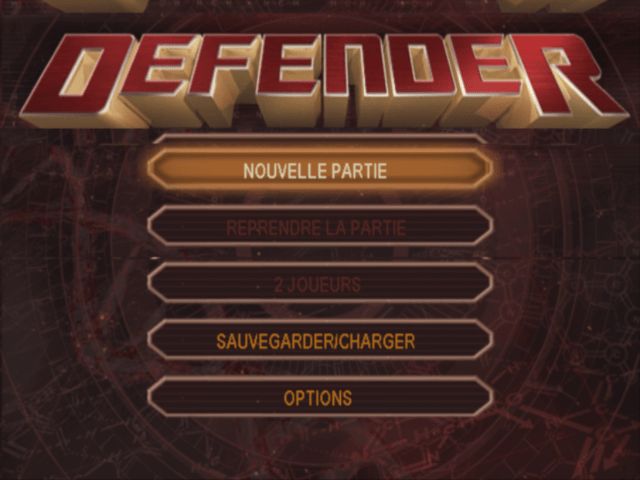
From the Main menu press or on the Control Stick to highlight NEW GAME. Next press the A Button to make the selection and begin a new game.
The Difficulty menu will appear. Press or to choose between Rookie, Veteran or Elite. Press the A Button to accept.
The Mission Select Screen is where you'll choose your mission.
•
Start off by selecting a planet. Press or on the Control Stick to move through each planet.
•
Press or on this same control to scroll through the various missions which are available for each planet.
•
As you advance levels in Defender, more missions will unlock.
•
Once you have selected your mission press the A Button to accept.
NOTE
Throughout this game, when making a selection from any of the sub-menus, each time you finish making a selection a smaller window will pop up to confirm this is your decision. Press the A Button to accept or the B Button to cancel.
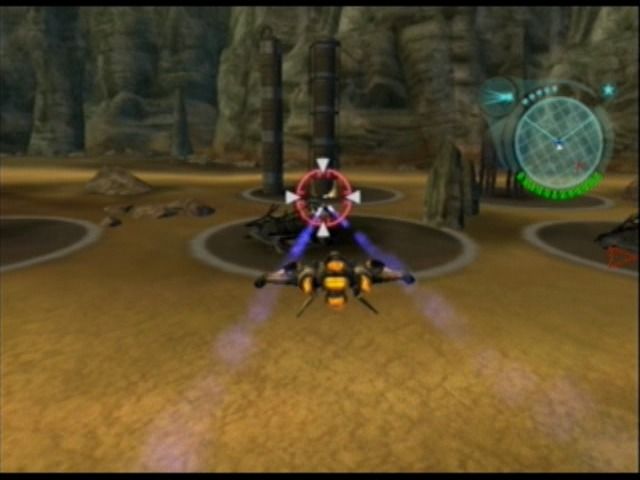
SPACESHIP SELECTION
After selecting the planet and your mission, it's now time to
.png)


.png)



.png)



.png)

.png)

_1.jpg)