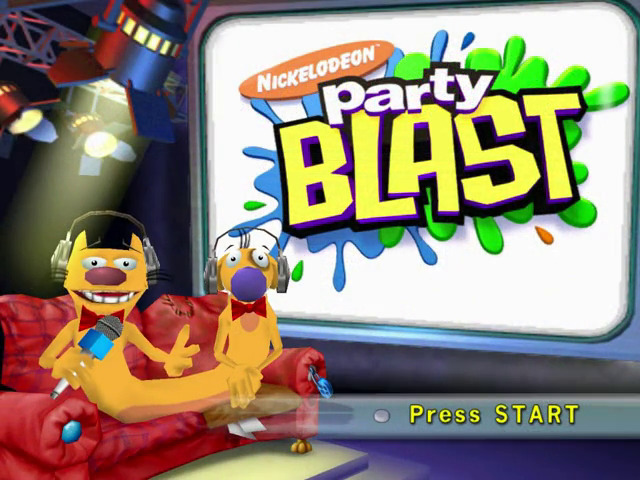
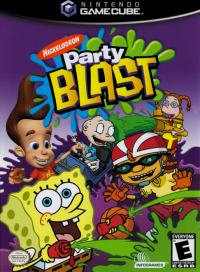
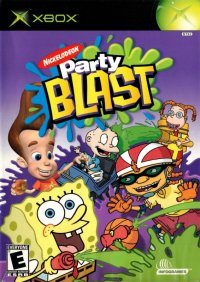
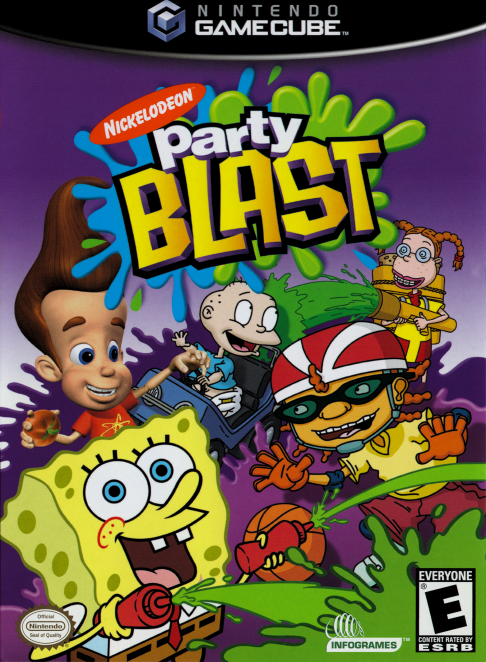
WELCOME TO NICKELODEON PARTY BLAST!
Choose your favorite Nicktoons star and let the multiplayer mayhem begin! Lob food at Tommy, race Otto Rocket down rapids, shoot hoops and pull tricks wearing in-line skates, blast Goooze at SpongeBob SquarePants and a whole lot more! It's round after round of insane, competitive action!
GETTING STARTED
•
Turn OFF the POWER Button on your Nintendo GameCube. •
WARNING: Never try to insert or remove a Nintendo GameCube Game Disc while the power is ON. •
Make sure a Nintendo GameCube Controller is plugged into Nintendo GameCube Controller Socket I on the Nintendo GameCube. •
If you're playing against friends, plug additional Controllers into additional Controller Sockets.
•
Insert the Game Disc into the Nintendo GameCube Optical Disc Drive. •
Turn ON the POWER Button and proceed to the title screen.
•
If you can't proceed to the title screen, begin again at step 1.
•
At the title screen, press START/PAUSE. Next, you will be prompted to start a new game or load a previously saved game (see "Saving/Loading"). You will then continue on to the Main Menu.
NINTENDO GAMECUBE CONTROLLER
SAVING/LOADING
Nickelodeon Party Blast uses an Autosave feature to save your current progress to an available Nintendo GameCube Memory Card with at least 2 blocks of free space. SAVING
At the Autosave prompt when the game starts, press the A Button to start Autosaving to the Memory Card in Memory Card Slot A or in Memory Card Slot B. Press the B Button to cancel the Autosave. If you choose not to Autosave, then your game progress will not be saved.
However, you can at any time go to the Main Menu and save your game via the Load/Save menu. Once you save your game, then the Autosave feature will be active. Multiplayer games cannot be saved.
Note: Do not remove the Memory Card from the Nintendo GameCube while the power is ON, especially when the game is being saved. Do not press the POWER Button during this time, either. The Memory Card could be damaged by either of these actions. If you wish to change where the saved game file is located, select one of the available Memory Cards, then enter a name for the new saved game file. This will now become your current saved game file, and all future Autosaves will now be saved to this file.
LOADING
To load a saved game, go to the Load/Save screen from the Main Menu. All of the available Memory Cards will be displayed. Choose the Memory Card from which you wish to load the game, then select the title of the saved game you want to load and press the A Button.
MAIN MENU
Use the Control Stick or + Control Pad to highlight a selection. Press the A Button to confirm.
•
START GAME - Go to game mode selection.
•
OPTIONS - Access the Options Menu described below.
•
LOAD/SAVE - See "Saving/Loading".
•
CREDITS - See the names of the people who helped to create this game.
OPTIONS
Use the Control Stick or + Control Pad to highlight a selection. Press the A Button to confirm.
•
SOUND OPTIONS - Adjust the Sound Effects and Music levels.
•
REDEFINE PAD - Change button controls by choosing your favorite configuration.
SELECT PLAYER
Choose your favorite Nicktoons character to play. Use the Control Stick or + Control Pad to highlight a selection. Press the A Button to confirm.
If you are playing a Multiplayer game, each player should select a character using this method. If you are playing a Single-Player game, the other three characters will be randomly selected as computer-controlled players.
SELECT MODE
Use the Control Stick or + Control Pad to highlight a selection. Press the A Button to confirm.
SINGLE PLAYER
•
Blast - This is the main Single-Player mode. Progress through five different game categories, each with five levels. You must win and complete each game category before you can play the Finale. All game levels that you successfully complete will then be available for all other game modes.
•
Replay - Play any level that is currently available to you. These are the levels that have already been unlocked in Blast mode. Star tokens collected here will not count toward opening Cup Challenge games or bonus levels.
•
Cup Challenge - Choose one of two available Cups (mini-tournaments) to start. (Note: You can unlock additional Cups for this mode by playing Blast mode and collecting Bronze Stars. See "Star Tokens" for details.)
MULTIPLAYER
•
Party Play - Play any level that is currently available to you. These are the levels that have already been unlocked in Replay mode (see "Single Player" for details).
•
Cup Challenge - Same as single player, but with multiple players.
GAMES
Available games show up as pictures on the rotating cubes. Unavailable (locked) games are greyed out. You can choose any starting game, but you must finish all cubes before you can win the game. Press the Control Stick or + Control Pad up and down to highlight the show categories (such as Jimmy Neutron). Press the Control Stick or + Control Pad left and right to highlight the available games (such as Food Fight). Press the A Button to select.
THINGS YOU'LL FIND ON EVERY LEVEL
HEADS-UP DISPLAY (HUD)
•
Meter Goooze Meter Remaining
Note: Not all aspects of the HUD are seen in every game
.png)

.png)