Finding a Clue
A clue may be hidden within a screen when Blue enters. Press the X button when you see a flashing clue to hear the words, "A clue! A clue!" just like on the show. This lets Steve know to look for the clue.
The clue is then drawn in our handy-dandy notebook and appears in the upper left corner of the screen as a small icon.
Inviting Friends
When Blue gets close to any of her friends, she can invite them to the big musical by pressing the X button and automatically giving them a ticket.
Picking Up an Object
Blue can pick up an object by simply moving up close to it and pressing the X button. When Blue speaks to a friend in need of the object she is carrying, press the X button and Blue automatically hands it over.
Activating Items
When Blue approaches an item which can be activated, press the X button to activate the item for Blue.
Puppeteering Blue
You can use your controller much like a puppeteer to trigger a variety of movements. When the X, O, A, or button is pressed, Blue performs a silly dance of lively moves.
Introduction
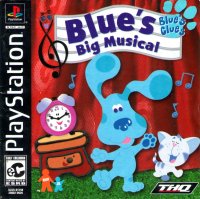
Hi, it's me Steve. Blue is so excited! She could hardly wait for you to get here. Are you ready for Blue's Big Musical™? Great!
Blue and I want to put on a music show. We need to set up the stage, get our props and instruments together, choose songs to sing, performers to sing them... there is so much to do!
How will we figure out all the things we need to do before the show can go on? That's it! We'll play Blue's Clues to figure out what we need to do for Blue's Big Musical™! Will you help? Great! Come on!
Main Menu
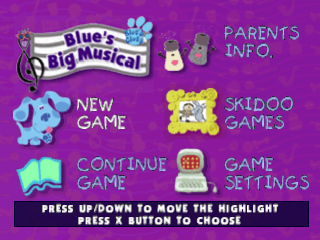
To select menu options, use the up/down directional buttons to highlight the desired option, and press the X button to select it.
New Game
Select this option to start a new musical adventure with Blue!
Continue Game
Choose this option to continue a game saved on a Memory Card. The game automatically checks both Memory Card slots for a Memory Card and loads the first game it finds.
Skidoo Games
You too can skidoo into any one of the three Skidoo Games without going on a Big Musical adventure. After selecting Skidoo Games, a sub-screen listing all three games (Music & Motion, Birdsong Sing-Along, and Rhythm & Blue) appears.
Use the up/down directional buttons to highlight the game of your choice, and press the X button to select it.
Parent Info Menu
If you have a favorite Blue's Clues clueset or activity, or if you just want to hear the songs, you can access them from the Main Menu by selecting the Parent Info Menu. From here you can choose your favorite Blue's Clues game or play any of the musical numbers.
Game Settings Menu
There are five options that appear on the Game Settings Menu screen: Music Volume, SFX Volume, Playback Mode, Center Screen and Vibration.
•
Music Volume— Use the left/right directional buttons to move the slider bar to increase or decrease the music volume from 0% to 100%.
•
SFX Volume— Use the left/right directional buttons to move the slider bar to increase or decrease the sound effects volume from 0% to 100%.
•
Playback Mode— Stereo/Mono—Use the X button to toggle between Stereo and Mono.
•
Center Screen— Press the X button to select this screen. Use the directional buttons to adjust the screen. Press the X button again to accept the change and return to the Game Settings Menu.
•
Vibration— On/Off. If you have a DUALSHOCK™ analog controller, you must be in analog mode to enable this feature before you can select it. Once you are in analog mode, press the X button to activate.
Pause Menu
Press the START button to pause the game while you are playing. This displays the Pause Menu.
Now you can access the Game Settings Menu and the Memory Card Menu, where you can save your game or load a previously saved game. You can also quit the game and go back to the Main Menu from here.
Gameplay Screen
The Gameplay Screen offers helpful icons that let you check your progress and help guide Blue and you to the Big Musical.
Clues
Each time a clue is found, a small picture of a notebook containing that clue appears in the upper left corner.
Tickets
There are three ticket icons in the upper right corner of the screen. Each time you invite a friend to Blue's Big Musical™, a ticket is removed from the screen to show that a ticket has been given away.
Items
If Blue is carrying an item, the item appears centered at the top of the screen in between the brackets.
Exploring and Interacting
Playing Blue's Clues
We are looking for Blue's Clues... and I could really use your help finding them before Blue's Big Musical™! We need to find the three clues Blue left around the house and surrounding areas. Just look for items marked with flashing pawprints.
As you collect each pawprinted clue, it appears in our Handy Dandy Notebook in the upper left corner of the screen. Once all three clues are found, we are ready to figure out Blue's Clues!
Figuring Out Blue's Clues
Once all three clues are in our Handy Dandy Notebook, it's