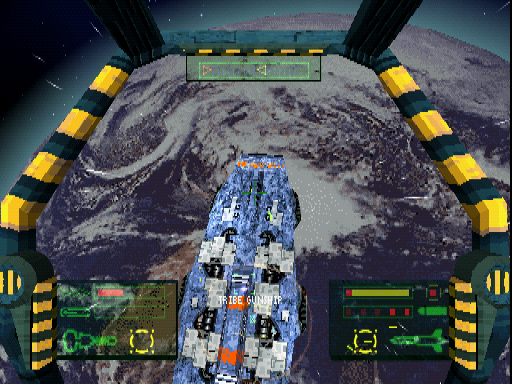
Cockpit HUD
Reverse thrust is useful in dogfights. When used with Directional buttons, it allows quick turns without the enemy flying past.
Most enemy craft have shields. Use anti-shield weapons until shields are down, then switch to hull-damaging weapons. The shield/hull integrity gauge on the Info Lock turns from yellow to red when shields are down.
The cockpit is the default viewpoint. Other viewpoints can be selected using the SELECT button in-game.
Using a DUAL SHOCK™ Analog Controller
The DUAL SHOCK™ Analog Controller enhances precision and expertise. It offers analog control and vibration feedback when the vibration function is ON.
Controlling the Game with a DUAL SHOCK™ Analog Controller
In addition to regular game controls, the following apply to the DUAL SHOCK™ Analog Controller:
•
Push forwards to accelerate.
•
Push backwards to brake and reverse.
Mission Briefings
Mission briefings are given before each active mission. You must understand your objectives before combat.
The Briefing Screen is accessed by choosing 'COMMENCE GAME' from the Game Menu. 'START BRIEF' downloads the current briefing, while 'LAUNCH' begins the launch procedure immediately.
Briefings contain information on the struggle's status and detailed objectives. Objectives are also displayed once your craft begins its launch procedure.
Selecting and Upgrading Your Craft
To select and upgrade craft, choose 'ENTER HANGAR' from the Briefing Screen. This takes you to the Craft Setup Screen.
Using Tokens
Tokens are earned by successfully completing missions. These can be exchanged for craft upgrades in the Hangar. Only experienced pilots will have a full choice of craft or be able to implement maximum upgrades.
Selecting Craft
Only the most experienced pilots can select the most powerful craft. You must earn the right to pilot them in battle.
When more than one craft is available, choose 'SELECT CRAFT' from the menu. Use the Left and Right Directional buttons to cycle through them. Press the button to confirm your selection.
Upgrading Craft
Choose 'ASSIGN POWER' from the menu. Use the Left and Right Directional buttons to cycle through the 4 upgradeable craft attributes, which appear as a circle divided into 4 sections:
•
Shields (Yellow) - Increases your craft's resistance to damage.
•
Engines (Red) - Increases your craft's basic top speed.
•
Afterburner (Blue) - Increases the afterburner's maximum duration.
•
Gyros (Green) - Increases your craft's maneuverability.
Your current token balance is in the center of the circle. Rotate the circle until your chosen attribute is at the top. Use the Up and Down Directional buttons to increase or decrease the attribute's power. Press the button to confirm when all attributes are set. Once confirmed, tokens cannot be retrieved.
Flying Your Craft
Forward Thrust
Forward thrust is engaged using the R1 button.
Reverse Thrust
Reverse thrust is engaged using the L1 button.
Afterburners
Engage maximum forward thrust rapidly by holding the L1 and R1 buttons together. Afterburners cut out with constant use. Afterburner status is shown by a blue bar that replaces the red weapon temperature gauge while in use. You cannot fire weapons while using the afterburner.
Piloting Your Craft
•
Use the Left and Right Directional buttons to bank your craft left or right.
•
Use the Up Directional button to dive and the Down Directional button to climb.
•
The L2 and R2 buttons will roll your craft to the left and right respectively.
Targeting and Firing Weapons
Using Gun Weapons
Press the button repeatedly to cycle through available gun weapons. The selected weapon can be fired by pressing the button.
Using Secondary Weapons
Press the button repeatedly to cycle through available secondary weapons.
Missiles
Arm the missile by pressing the button. The weapons lock will appear yellow while targeting an enemy. Keep your target towards the center of the screen. Once locked and ready to fire, the weapons lock turns red. Press the button again to fire.
If a lock is lost, the craft must be re-targeted. If a missile is fired without a locked target, it will fire straight ahead. Press the button to disarm the missile.
Torpedoes
Torpedoes need to charge before firing. Press the button to arm and begin charging; the secondary weapon icon on the HUD changes from blue to yellow when charged. Press the button again to fire. Press the button to disarm the torpedo.
Grapple Gun
The grapple gun shoots straight ahead from the front of your craft when you press the button.
Mines
Disrupt enemy homing missiles with mines. They will draw enemy weapons away from your craft. Drop mines by holding the L2 and R2 buttons together for a reverse view, then pressing the button to release a mine. This should be done when the incoming missile alarm activates, requiring a quick response for effective disruption.
Mission Debriefings
At the end of each mission, you receive a full debriefing from Navy Command. The progress of the struggle will be reported.
To continue the game, select 'EXIT DEBRIEF' to go to the Game Menu, then 'CONTINUE GAME'. Other options on the Debrief Screen are 'PAUSE DEBRIEF', 'UNPAUSE DEBRIEF', and 'RESET DEBRIEF' to repeat the debrief.
Memory Card Options
The Memory