SETTING UP
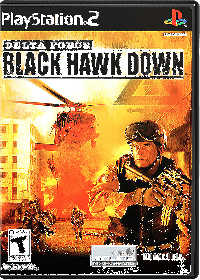
Set up your PlayStation game console according to the instructions in its Instruction Manual. Make sure the power is off before inserting or removing a compact disc. Insert the Delta Force Urban Warfare disc and close the Disc Cover. Insert the game controllers and turn ON the PlayStation game console. Follow on-screen instructions to start a game. It is advised that you do not insert or remove peripherals or memory cards once the power is turned on. Make sure there are enough free blocks on your memory card before commencing play.
OPTIONS
The following Options are accessible from either the Main Menu or the Pause/Options Menu. The Pause/Options Menu is accessed by pressing the START button while playing the game.
Use the ▲ and ▼ directional buttons to highlight a selection and the ◄ and ► directional buttons to change the setting. Press the X button to accept the highlighted setting. At any time press the △ button to return to the previous screen.
Audio Options
Use the ◄ and ► directional buttons to switch between 'On' and 'Off'.
Use the ◄ and ► directional buttons to set the volume of the music in the game.
Use the ◄ and ► directional buttons to set the volume of the sound effects in the game.
Video Options
On some televisions the game screen can be off-center. This option allows you to adjust the position of the game screen to suit your television.
Controls how fast you can look up and down when moving the 'Look' controls. Set to 1 to look slowly and 9 to look fast.
Controls how fast you rotate your view. Set to 1 to turn slowly and 9 to turn fast.
Adjusts how much you have to move the analog sticks before they take effect. Set to 1 for a small dead zone and 9 for a larger one.
Game Configuration
Use the ◄ and ► directional buttons to switch between 'On' and 'Off'.
Adjust the level of gameplay by making enemies tougher. This must be selected before loading a game.
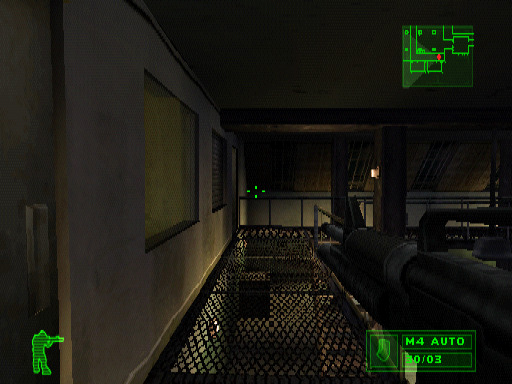
When turned 'Off', the Radar Map is fixed and the larger central blip and cone indicating the player's position and field of view turns. When 'On', the Radar Map rotates as you turn so your current heading is always facing up.
When 'On', your view will sway realistically as you move.
When 'Off', this removes the crosshair completely from your screen.
Keep this 'On' to get on-screen advice on playing the game.
•
Radio Messages On/Text Only/Audio Only
Enables or disables radio chatter text messages that appear on your screen.
•
Explosives Help Text On/Off
Keep this 'On' to get on-screen advice on placing and using explosives from your inventory.
When 'On', the HUD will place a green box around the handles of doors that you can open normally or with a lock pick.
•
Cutscene Subtitles On/Off
Turn 'On' for subtitles during movies.
Pressing the A button quits the Gameplay Options Menu and returns to the previous menu.
SAVING YOUR GAME
To save a game you must have a memory card with one empty memory block inserted in MEMORY CARD slot 1 of your PlayStation Game Console. See the manufacturer's instructions for details on how to use your memory card. After each mission there is a 'MISSION COMPLETE' debriefing screen containing the following options:
Continue to the next mission in the game.
Save the current game.
PLAYING THE GAME
Mission Briefing and Objectives
Press the START button to bring up the Pause/Options menu. Select the Mission Briefing/PDA option to take you to the Personal Data Assistant screen where you can view your mission briefing.
Select the "Objectives" icons to review your objectives. As you complete objectives they will be marked off in your PDA.
Interaction Marker Boxes
Items you can interact with are usually highlighted by a marker box that appears when you get close enough to the object.
Unlocked Doors
Just push against unlocked doors to open them.
Locked Doors
Push against them and you will receive a text message indicating that you are picking the lock. After a few seconds the door will swing open.
If a lock cannot be picked, you will only hear the handle rattle and you will not get a text message.
Security Doors Requiring a Keycard
Certain doors require the correct security keycard. If you don't have the proper card, you will be told which one you need. They are most often found on the enemy.
Once you have the required keycard, approach the door and, while looking at the keypad, hold down the A button for a couple of seconds to access the card reader pad and unlock the door. If you press the A button and do not have the correct card, a text message will tell you which card