BASIC INFORMATION
CREATE AND FIGHT!
FIGHTER MAKER lets you create an unlimited number of custom fighters to battle in your own 3D fighting game. Assemble dozens of sequences, including punches, kicks, throws and blocks, to create hundreds of unique fighting moves. Pit your ultimate warriors against the fighters your friends create. You can even trade data and play one fighter with another fighter's moves. Let your creativity run wild. You and your imagination are in control!
SETTING UP
Set up your PlayStation® game console according to the instructions in the Instruction Manual. Make sure the power is off before inserting or removing a compact disc. Insert the FIGHTER MAKER disc and close the disc cover. Insert one or two game controllers and turn on the PlayStation game console. Follow on-screen instructions to start a game. PlayStation Console Diagram
USING FIGHTING COMMANDS
These commands are used for characters facing right. Reverse the left/right Directional buttons when your character is facing left.
•
Move to background (away from you)
•
Move to foreground (toward you)
ATTACKS
•
Upper-level attack: Attack an opponent's head.
•
Mid-level attack: Attack an opponent's body in mid-section.
•
Low-level attack: Attack an opponent's legs and knees.
GUARDS AND BLOCKS
•
R1: Upper and mid-level guard. Block an opponent's upper- or mid-level attack. Cannot be used to block low-level attacks or a throwing sequence.
•
Low-level guard: Block an opponent's low-level attack. Also, use this combination to evade upper-level attacks and normal throws.
THROWS
•
R1 + Throw: Toss an opponent. Throws are successful only when your character is close to an opponent.
DASHES
•
Tap the left or right Directional button twice quickly. Use this tactic to dive into your opponent's chest, or to run toward an opponent or retreat rapidly.
•
Tap the up or down Directional button twice quickly. Use this tactic to avoid an opponent's attack, or to circle around behind an opponent.
DEFENSE
If your character is attacked and knocked to the ground, go on the defensive by pressing the R1, or button before landing.
READING THE SYMBOLS
•
Hold down the Directional button in the direction indicated.
•
Tap the Directional button in the direction indicated.
Note: See page 66 for information about downward attacks on fallen opponents.
RESETTING DURING GAMEPLAY
To reset the game to the Title screen during gameplay, press the SELECT, START, L1, L2, R1, and R2 buttons simultaneously.
SELECTING GAME MODES
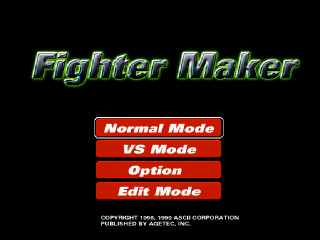
Press the START button at the Title screen to display the Main Menu. Use the Directional buttons to select a game mode and its following options, and press the ☑ button to confirm.
NORMAL MODE
Battle against the computer. Select your character and a fighting style: NORMAL uses the data originally programmed for that character; CUSTOM uses another character's data or edited data. If you are using an edited character, insert a Memory Card with that character's data. Select CONTROLLER to control the character yourself, or CPU to instruct the computer to play both characters in CPU Random or CPU Logic.
VS MODE
Battle a friend for fighter supremacy. Select your characters and the data for their movements (as in Normal Mode). If the battle is between two edited characters, insert a Memory Card for each character.
OPTION
Adjust various game settings. See the following page for details.
EDIT MODE
Create new character profiles and edit your character's movements. See Chapter 2 for instructions.
CONFIGURING OPTIONS
Use the Main Menu's OPTION feature to adjust various game settings. On the Option Menu, use the Directional buttons to select items and press the button to confirm.
DIFFICULTY
Set your CPU opponent's skill level for Normal Mode battles. Choices range from easy to hard.
TIME
Set the time limit for each round. Choices range from 15 seconds to infinite (no time limit).
NORMAL/VS ROUNDS
Set the number of rounds per match for Normal Mode battles and VS Mode battles.
1P/2P LIFE
Set the value of each fighter's Stamina Gauge. If you choose (0∞), the character will not suffer any damage.
CHARACTER SELECT
Set to ON for the option of selecting a different character between matches.
HYPER MODE
Set to ON to minimize character movements made after an attack sequence. This makes it easier to launch continuous, rapid attacks.
BUTTON CONFIGURATION
Change the controller button assignments for gameplay. On the Configuration menu, choose from four pre-set configurations.
Or, choose CUSTOM, highlight a button, and then select a move to map to that button. Moves include: U (upper-level attack), M (mid-level attack), L (low-level attack), G (guard).
BGM/SE VOLUME
.png)

.png)
.png)
.png)





.png)



.png)





.png)
.png)
.png)
