Getting Started
Console Front View
Console Setup
Set up your PlayStation® game console according to its instruction manual. Starting the Game
Follow your system directions to open the Disc cover and place the CD onto the drive, ensuring the printed side faces upwards. Close the Disc cover.
Plug a controller into Controller port 1. If the unit is switched off, press the POWER button (ON) to begin play. If the unit is already on, press the RESET button.
Now follow on-screen instructions to start the game.
Warning
Do not insert or remove Controllers or any other peripherals once the power has been turned on.
Changing Discs
During the game, a screen may appear with the message "Please insert Heart of Darkness DISC 1" or "Please insert Heart of Darkness DISC 2".
Without switching off the Console, open the Disc cover and insert DISC 1 or DISC 2, then close the Disc cover.
Saving Games
To save your position in the game, you'll need a Memory card.
Select "Load" to reload a previously-saved game or "Save" to save your position in the current game.
Accessing Menus and Options
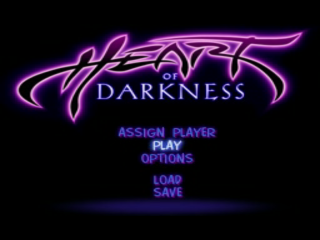
From the main menu, choose "Options". You can then access the option menus to choose the difficulty level, configure the Controller, adjust the sound volume, access saved levels, start a new game, or view a cinematic.
Pause
The START button can be used to pause the game. From the pause menu, you can quit the current game or save it on the Memory Card. To continue the game, select "continue".
TV Screen Format
If your TV screen format is wide (16/9), the game images will be horizontally distorted. To fully enjoy Heart of Darkness and its graphics quality, set your TV to the 4/3 screen format. Refer to your TV manual for more information.
Allocating a Player Number
This option cannot be used to save or reload game data on a Memory card. Use the "Save" or "Load" option in the main menu for this.
The "Assign Player" menu, accessible from the main menu, can be used to record saved games for 4 different players in a summary table.
Selecting a Player
When you want to start or resume a game customized by a player number, use the Directional button to go to the "Select" option, then confirm by pressing the X button. Use the Directional button again to select your player. A view of the restart point is displayed.
By default, the first user of Heart of Darkness is recorded as Player 1.
Deleting a Saved Game
To delete a saved game, select the "Delete" option, then confirm by pressing the X button. Use the Directional button to select the game you want to delete, then validate and confirm the deletion by selecting "YES".
You can cancel your choices at any time by selecting "Cancel".
Save / Load (Memory Card)
•
Select "Load" and press the X button to reload a saved game.
•
Select "Save" and press the X button to save the game you are playing.
Do not insert or remove a Memory card while the Console is switched on, as this might damage the data stored on the Memory card.
Menus and Options
You can access the option menus from the main menu by selecting "Options". You can also access the various option menus by exploring Andy's tree house.
Select the menus you want by using the left and right Directional buttons and confirm by pressing the X button. To go back to the main menu, press the START button.
New Game
Confirm by pressing the X button or the START button to start a new game.
Current Game
Confirm to resume a current game at the restart point closest to where you stopped. Restart points are saved automatically as you play the game, as long as your PlayStation is switched on. Load Game
When you confirm, you access a menu where you can choose a restart screen within a restart level. The accessible ones depend on your game progression.
•
Use the up and down Directional buttons to select the level you want to access, then confirm by pressing the X button.
•
Next, use the left and right Directional buttons to choose the screen where you would like to restart, then confirm by pressing the X button.
Note that this option cannot be used to save game data on a Memory card. You must use the "Save" option in the main menu for this.
Show Cinematics
When you confirm, you access a menu where you can choose a cinematic scene from the game that you want to see again. The accessible scenes are those you've already viewed.
•
Use the Directional button to choose a scene, then confirm by highlighting OK and pressing the X button.
Quit
Confirm by pressing the X button to go back to the main menu.
Options
When you confirm, you access the menu that you use to set up the game Controller, choose the difficulty level, and adjust the sound volume.
Control
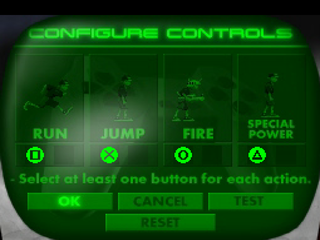
Select one of Andy's actions (run, jump, fire, special power) and press the button on the Controller to which you want to assign the action.
•
To test your choices, use the "Test" function.