Game Setup Menu
Use the Game Setup menu to choose the game mode, rules, and level of difficulty you want to play. Different options become available depending on which mode is selected.
•
Control Pad ↑ to highlight options.
•
Control Pad ↔ to change the highlighted option.
•
Press A to go to the highlighted submenu. (A is the primary action button in all menus.)
•
Press START to continue.
Game Modes
•
EXHIBITION MODE: Play a single game with any NBA, All-Star, or Custom teams.
•
SEASON MODE: Start a new Season where you control an NBA team.
•
PLAYOFF MODE: Start a new Playoff tournament.
•
LOAD SERIES: Continue a Season or Playoff saved in one of the two memory slots.
•
2 ON 2 or 3 ON 3 HALF COURT practice: Work on your individual skills in a competitive practice session with two or three players per side. If selected, the RULES option becomes POINTS, the QUARTER option becomes OUTS, and SET RULES changes to BASKET POINTS.
Rules Options
•
ARCADE RULES: Freeform basketball where the players never tire or get injured, and fouls and other violations aren't called by the refs.
•
3 IN THE KEY: Toggle three second calls ON/OFF.
•
FOUL OUT: Toggle player foul outs ON/OFF. When ON, players are ejected when they commit their sixth foul.
•
SHOT CLOCK: Toggle 24 second shot clock ON/OFF.
•
INBOUND CLOCK: Toggle 5 second inbound clock ON/OFF.
•
HALF COURT CLOCK: Toggle 10 second backcourt clock ON/OFF.
•
FATIGUE: Toggle player fatigue ON/OFF.
•
INJURIES: Turn player injuries ON/OFF. When Injuries are ON, every time a player gets knocked down there is a slight chance he will be injured. In an Exhibition game, an injured player is only affected during the current game. In Season or Playoff mode, he is out for 1-7 games.
Set Options Menu
Set sound and control options.
•
OVERALL VOLUME: This slider sets the volume of the sound effects and music that play during menu screens.
•
SFX VOLUME: Set game sound effects volume.
•
CROWD SOUND: Turn crowd sound ON or OFF.
•
SLOW MOTION DUNKS: Turn automatic slow motion for spectacular slams ON or OFF.
•
SHOT CONTROL: Toggle shot control between PLAYER and CPU (computer). In PLAYER mode, the chance the shot will go in is determined by the distance, angle, and release point of the shot. In CPU mode, the shot's probability is determined by the NBA player's statistics and attributes rather than player control.
•
CPU ASSISTANCE: Turn CPU Assistance ON or OFF. When ON, the computer increases the statistical percentages of the team that's behind to help them get back in the game.
•
SCORE OVERLAY: Turn the Score Overlay ON or OFF. The Score Overlay displays the current score of the game in the upper left corner of the game screen.
•
ERASE CARTRIDGE: This function erases all saved data and resets the battery-backed memory to the original factory settings. To perform this function, press START + SELECT from the Erase Cartridge screen. Or to exit this screen without any changes, press any other button.
Team Select Screen
The Team Select screen appears before every Exhibition game. The visiting team is shown on the left side of the screen, and the home team is shown on the right. Team rankings appear below the team logos when NBA teams are selected.
•
To toggle the highlight between the home and visitor teams, press A.
•
To change the highlighted team, Control Pad ↔ to cycle through the NBA, All-Star, and Custom teams.
•
To sort the teams by ranking, highlight a rating. You then cycle through the teams as sorted by that rating.
•
To go to the Team Info screen to view information for the highlighted team, select TEAM INFO.
•
To allow the computer to randomly match up two NBA teams, press L+B.
•
Press START to continue to the Player Setup screen.
Team Info Options
•
To cycle through NBA teams, Control Pad ↔.
•
To change the home or visiting team to the currently selected team, press START. When prompted to confirm your choice, select NO (cancel) or YES (confirm).
Player Setup Screen
An icon representing every Controller plugged into the system appears on this screen. Up to five players may play if a Multi-Player Adapter is attached. In addition to selecting the team you control, you can select, enter, and delete user names to personalize your controller to track your user stats.
•
To change the setting for your Controller, Control Pad ↔ to position the Controller symbol under either team to select that team or in the middle to select computer control.
•
To toggle the control method, press the L/R buttons. When the control arrow points up, Control Pad diagonally to move up and down the court. When the control arrow points diagonally, Control Pad ↔ to move up and down the court.
Multiplayer Games
The Multi-Player Adapter lets up to five players play competitively or cooperatively. Just plug the adapter into Controller Socket 2 on the Super NES, and you're ready to go.
The Multi-Player Adapter is not designed for use with the Super NES Super Scope, the Super NES Mouse, or Controller Socket 1.
Playing the Game
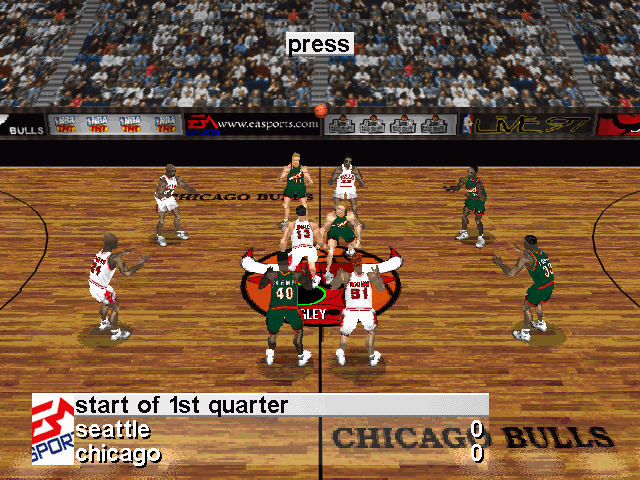
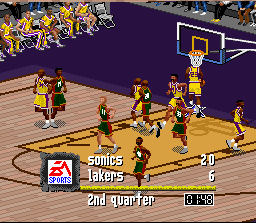
You control the man over the star/
.png)


.png)








 (En,Fr,De,It).png)

.png)




.png)



.png)