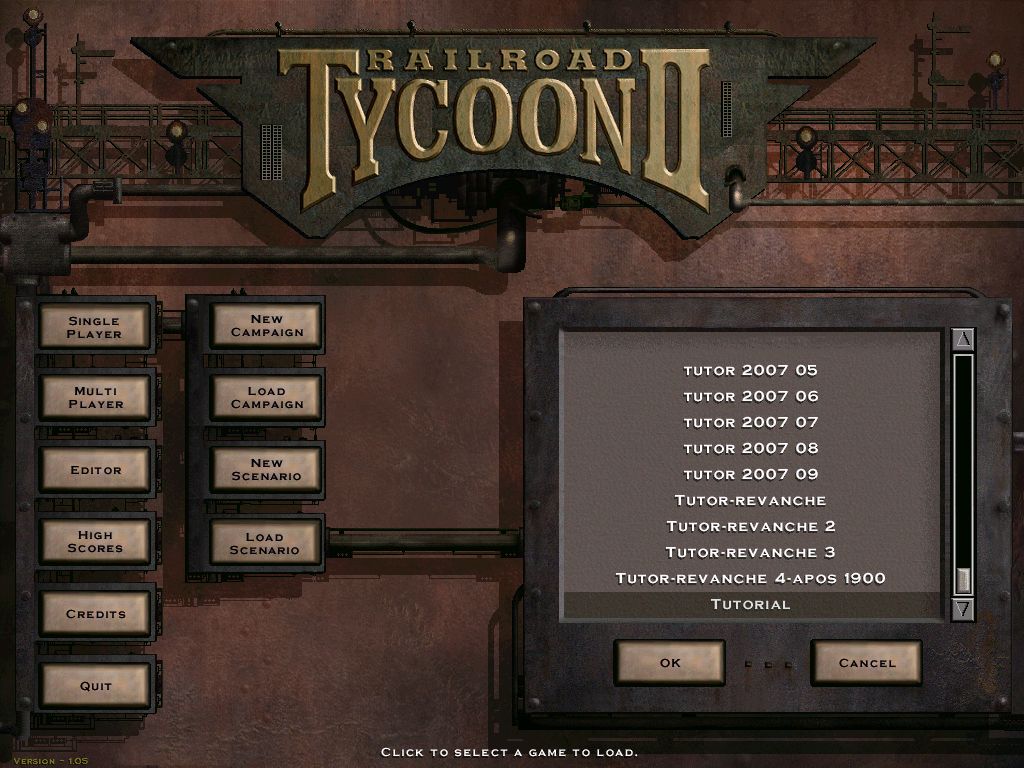
Main Menu Options
•
Campaign: Play 18 consecutive campaigns to become a true railroad Tycoon.
•
New Scenario: Lets you create a game scenario in various locations around the world.
•
Settings: Adjust the overall parameters of the game.
•
Credits: Displays credits.
Tutorial
Railroad Tycoon is a complex game. We recommend reviewing the manual completely before starting to play the game.
For those who want to plunge right in, a tutorial is available. To access it, choose New Scenario, then Tutorial, and then OK.
Campaign
Railroad Tycoon II's campaign mode features 18 individual campaigns designed to be played consecutively. The first few scenarios are simple and gradually increase in difficulty.
To Start a New Campaign
•
Choose a campaign map. You will have to at least try the campaigns in order. If you fail on one, you can move on to the next, and retry the failed one later.
•
Choose a difficulty. We suggest Normal difficulty if you're experienced with strategy games, or Easy difficulty if you're not. Avoid Hard difficulty until you've mastered normal difficulty. •
Choose a Bonus modifier. The bonuses available change per campaign. Choose wisely, as the bonus affects your strategy. •
Choose Play to start the campaign.
•
Choose Load if you've played before and would like to continue your career as a Tycoon.
•
Choose Save after you've completed a campaign.
To Quit a Game
•
Press the Select button.
•
Highlight and select Quit.
•
Highlight and select YES.
New Scenario
Railroad Tycoon II's Scenario mode provides detailed control over various game maps to design challenging gameplay.
Skill Levels
•
Easy: Basic Financial and Industrial models are selected. Human player receives a +20% Revenue Modifier, while the computer receives a -10% Revenue Modifier.
•
Medium: Advanced Financial and Industrial models are selected. No Revenue Modifiers for either computer or human players.
•
Hard: Expert Financial and Industrial models are selected. Human player receives a -10% Revenue Modifier, while the computer receives a +10% Revenue Modifier.
•
Expert: Expert Financial and Industrial models are selected. Human player receives a -20% Revenue Modifier, while the computer receives a +20% Revenue Modifier.
•
Custom: Control the Financial Model, Industrial Model, and Revenue Modifiers for the scenario.
•
Sandbox: In this mode, you simply build and run trains. Money and competition are non-factors, as all Financial and Industrial settings are toggled off.
•
Tutorial: Starts the game tutorial.
Main Interface
Main Window
This is where the actual gameplay takes place, serving as your window on the world. This area contains icons for interacting with the world.
As you change the skill level or other Options settings, the Difficulty Rating at the bottom of the screen alters to reflect your changes.
Control Menu
The series of buttons along the left side of the main window represent the primary actions you can perform within the game.
Navigation Menu
Bulldoze
Things won't always go as planned, and you can demolish track and buildings. When you select the bulldoze button, the cursor changes to a bulldoze brush.
To change the brush size, select the button at the right end of the Navigation menu. You can bulldoze almost any object, including resources, so use caution. You must have enough cash to pay for demolition. To stop bulldozing, select the Bulldoze icon to deactivate the cursor.
Economic Overview
To see what resources are demanded and supplied where, select the Economic Overview button. This brings up a list of all potential cargo.
If you scroll through the list and choose a cargo, that resource will be highlighted on the main map. This feature helps determine what to transport to where.
Lay Track
Selecting the track icon activates the lay track cursor. Move the cursor over the map to where you want the track to start. Press and hold the button to begin laying track.
Move the track section to your destination and release the X button when you have the desired layout. Track can be laid between any two points but not over oceans or through buildings. It will also not be laid if you cannot afford it; the current cost is displayed at the bottom of the screen as you lay track. To stop laying track, select the lay track icon to deactivate the cursor.
Track Laying Choices
•
Type of Track: Select your preference by toggling the track type button on the right end of the Navigation Menu.
•
Single track: For short routes likely to be used by only one train.
•
Double track: A must for busy routes, especially those connected to large stations.
•
Electrified track: Available in later scenarios, costs more but allows fast, efficient electric engines.
•
Bridge Type: Wooden, Stone, and Steel bridges become available as the game progresses. Select your preferred type from the icons on the right side of the Navigation Menu.
•
Wooden bridges: Cheap to build, but only support single-wide track and force trains to slow down greatly. Upgrade them later.
•
Avoid building bridges whenever possible; they can be up to ten times as expensive as regular track.
•
Cost: When laying track, the total cost for the section is displayed at the bottom of the screen. Keep track cost down to spend money on more routes. Track cost increases with steep grades, heavy forests, deserts, and other hostile terrain.
•
Grade: Numbers representing track grade are displayed along the sides of the track sections as you lay it.
.png)

.png)
