GETTING STARTED
INSTALLATION
Set up your PlayStation® game console according to the instructions in its Instruction Manual. Make sure the power is off before inserting or removing a disc. Insert the Spec Ops: Airborne Commando® disc and close the Disc Cover. Insert the game Controller and turn on the PlayStation® game console. Follow the on-screen instructions to start the game. If you wish to save your game you will need a MEMORY CARD. Spec Ops: Airborne Commando only supports MEMORY CARD slot 1. It is advised that you do not insert or remove peripherals or MEMORY CARDS once the power is on. Make sure there are enough free blocks on your MEMORY CARD before commencing play.
Console
Menu Screens
Main Menu
•
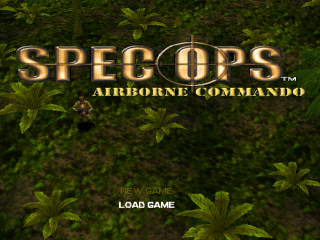
SPEC OPS™ AIRBORNE COMMANDO
New Game
Selecting this function will start a new game. You will begin the game with only the Training Mission and Mission 1 available. In order to unlock a Mission you must complete the preceding Mission first.
Load Game
By selecting this function, you will be given the opportunity to load a previously saved game. To Load a saved game, highlight the saved game and press the button.
Soldier Name
When starting a New Game, you will be given the option to enter your soldier's name. Use your Up/Down directional buttons to scroll through the alphabet and the Left/Right directional buttons to select the letter space.
Press the button to select the highlighted letter and use the button to remove the letter.
Mission Selection Screen
When starting a new game, only the Training Mission and Mission 1 will be available. The Mission selection screen is laid out in three sections.
•
Section 1 (upper left) - Total points combined, Soldier name, rank and medals awarded during that Mission.
•
Section 2 (lower left) - Total points accounted for during the mission, in the following four categories - Recon, Hostage Rescue, Enemy Killed, and Demolition.
•
Section 3 (right panel) - Mission number and title, Mission category, Mission Status (open/closed), a map showing the location of each mission, and if you scroll up, you will enter your Soldiers Career Status Screen.
The Career Status Screen shows the number of extra lives remaining, and all awards and medals received while in battle.
Options
•
Audio: Used to adjust the sound volume in the game.
•
Music: Used to adjust the volume of the music/background sounds in the game.
•
Skill: Used to adjust your skill level - Super Easy, Easy, Normal, Hard and Super Hard.
•
Violence: This feature allows the player the option of three violence settings - None, Normal, and Gory.
•
Vibration: Allows you to turn the DUALSHOCK™ analog controller vibration on or off.
Mission Map Screen
•
THE HALLMARK OF THE SPECIAL OPERATIONS SOLDIER IS SUPERIOR TRAINING. BEFORE YOU CAN BE SENT ON REAL MISSIONS YOU MUST COMPLETE THIS SPECIAL OPERATIONS TRAINING COURSE.
The Mission Map screen consists of all the vital information the soldier will need to know before entering the Mission. This screen provides a satellite map image of the area as well as the Mission Briefing, Objectives and Parameters needed to complete the Mission.
This extra information is very helpful and should be followed closely, as these instructions will assist in equipping your soldier and devising a strategy.
Supply
The Airborne Commando carries all essential gear with him into battle. Using your knowledge from what you learned during the Mission Briefing, you are now ready to select your supply.
By using the button you can add and drop up to nine items in order to fill your supply pack. When complete, press the START button to deploy your soldier.
Map
This map helps the soldier to locate enemy soldiers, find check points, locate from which direction the soldier was wounded and to help guide the soldier to the extraction point.
Sight Map Identification
•
Enemies show as red dots if they are facing you, and change through yellow to green as they face away from you.
•
Enemies blink red if they have spotted you.
•
Extraction Helicopter shows as sky-blue dot.
•
Your next check point shows as a dark blue dot. If the next check point is out of the Site Map range then its direction is shown by a dark blue dot on the rim of the view map circle that is flanked by gray dots that indicate distance by converging on the blue dot as you get closer.
•
Hostages show up as white dots.
Inventory Screen
To enter the Inventory Screen press the SELECT button, this will account for all items in your inventory. Items marked with the R2 button are all weapons available through quick cycling using the R2 button while in the game. All others can only be selected by using this screen.
To add/remove an item to the
.png)

.png)
.png)
.png)





 (Es,It,Pt).png)

.png)



.png)