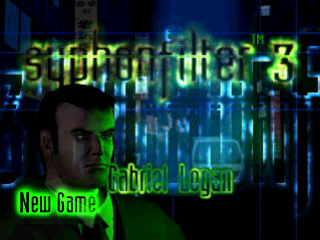
Starting the Game
On the Main Menu, press the Directional button to highlight an option and press the button to select it.
New Game
Play Syphon Filter 3 from the beginning. Load Game
Continue playing a saved Syphon Filter 3 game. •
Note: You must be using a MEMORY CARD containing Syphon Filter 3 game data to use this option. 2 Player Game [Death Match]
Plug a second controller in Controller port 2 to play a 2 Player game. Play a death match against another player with a choice of agents, game rules and mission environments.
•
See "2 Player Mode (Death Match)" on page 21.
Mini Game
Play five Mini Game missions that demand specific agent skills to complete. All mini games are strategically different almost every time you play them. This is a 1 player game and excellent training for the real Syphon Filter 3 game. •
See "Mini Games" on page 24.
Game Screen
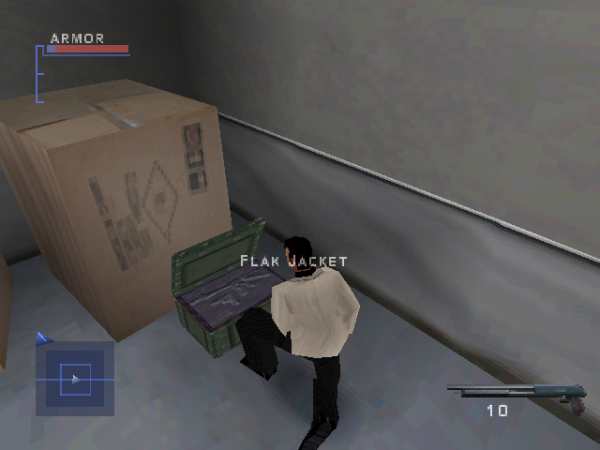
Armor/Health Meter
This meter shows the agent's armor in blue and health in red. When taking hits during battle, his or her flak jacket becomes damaged and begins to lose strength, causing the blue in the meter to drain.
Once body armor protection is gone, the unprotected agent begins taking damage causing the red meter to drain. When the red disappears from the meter, the agent is dead, which results in mission failure. Find flak jackets in weapons boxes or take them from downed enemies.
Weapon/Item in Hand
This is the weapon or item the agent is holding. To change weapons, press and hold the SELECT button to display your Weapons Selector and press the button.
Playing as Gabe, Lian Xing or Other Agents
Gabe, Lian Xing or other agents will take mission assignments with other agents supplying a supporting role. Some missions are taken from the Congressional Record and exactly recount the testimony given by Gabe, Lian Xing or Lawrence Mujari.
Mission Guidelines
The Briefing
The mission briefing will precede each operation to outline objectives, set parameters and provide a threat assessment based on current intelligence. Additional objectives and intelligence may be added during the mission.
Advanced Communication Device (ACD)
The ACD is designed for a dynamic combat environment. It is a text prompt system to command personnel and other partners on the operation team. Changes in objectives, intelligence updates and alerts of immediate danger are sent through the ACD. When alerted, press the button to receive the message.
Agent to Agent Voice Communication
When operating with a partner, you may be contacted either as a heads up or as a call for assistance.
Missions and Objectives
Complete one mission before proceeding to the next. Each mission may include up to 10 objectives. Assignment of new objectives may be received at any time during a mission via ACD. You can review current or updated objective information at any time by pressing the START button and selecting OBJECTIVES or BRIEFING.
Checkpoints
Complete an objective and a Checkpoint display marks the completion. If the mission fails, it restarts at the last Checkpoint.
•
Note: You will restart a saved game at the last checkpoint.
The ACD Display Operation
Press the START button to pause the game and open the ACD display. Highlight a menu selection and press the button to open it. Press the button to close a menu. Press the START button to close the ACD display and return to the game.
Map
Navigate to mission locations using the map. The map shows all current objective positions and is updated as objectives are added. Press the Directional button UP/DOWN to pinpoint objective locations and get a brief description of the objective. Note primary objectives as they are the most important.
Use the map in conjunction with the radar to avoid getting lost in areas without prominent geographic landmarks.
The Map display includes:
•
The agent's location displayed as a flashing arrow. Note the direction the arrow is pointing.
•
Prominent geographical landmarks of the whole mission area.
Weaponry
View detailed descriptions of the weapons the agent is carrying and equip weapons. On certain missions, you will begin without weapons. You have to find them or be guided to them via ACD instructions.
1. Highlight WEAPONRY and press the button.
2. Highlight the weapon you want to view and press the button to display its description.
If you want to equip that weapon and return to the game, press the button.
•
See "Using Weapons" on page 26.
Objectives
View mission objectives here. The screen has two sections: Mission Objectives and Objectives Completed. Any new objectives are added to this screen.
Parameters
View mission parameters here. Following parameters are crucial to mission success.
•
See "Keeping Within Parameters" on page 19.
Mission Briefing
Review the Briefing to make sure you understand the exact nature of the operation.
•
Note: Completed objectives disappear from the Map.
Options
Make gameplay decisions and adjustments here. Press the Directional button UP/DOWN to highlight an option and LEFT/RIGHT to change settings.
•
Restart Mission - Start over at the beginning of the mission.
•
Restart at Last Checkpoint - Start over from the last completed objective.
•
Select Mission - Replay any completed mission.
•
Save and Quit Game - Quit playing and save the game to the last Checkpoint. At the prompt select YES and