GETTING STARTED
Set up your PlayStation®2 computer entertainment system according to its Instruction Manual. Ensure the MAIN POWER switch (located on the back of the console) is turned on.
Press the RESET button. When the power indicator lights up, press the open button to open the disc tray. Place the Dynasty Tactics™2 disc on the disc tray with the label side facing up. Press the open button again to close the disc tray. Attach game controllers and other peripherals as appropriate. Follow on-screen instructions and refer to this manual for information on using the software.
STARTING THE GAME
Loading the Game
If no buttons are pressed at the title screen, the demo screen will appear.
1. Place a memory card (8MB) (for PlayStation®2) with at least 197KB of free space into either MEMORY CARD slot 1 or MEMORY CARD slot 2.
2. Turn on the power to the PlayStation®2 main unit and insert the Dynasty Tactics™2 game disc. The opening will begin to play. 3. When the opening finishes, the title screen will appear. Press the START button during the opening to go directly to the title screen.
4. Pressing the START button on the title screen will bring up the main menu.
Menu Selections
•
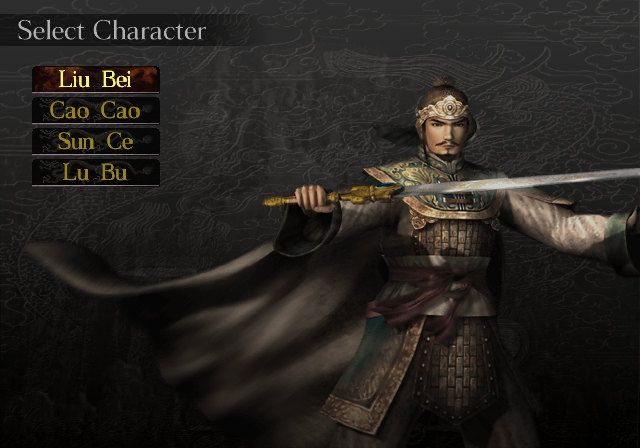
NEW GAME: Start a new game. Select a character: "Liu Bei," "Cao Cao," "Sun Ce," or "Lu Bu."
•
The very first time you play the game, you can only select the Liu Bei Prologue.
•
CONTINUE: Load and continue a previously saved game.
•
BATTLE: Return to a previously saved battle.
•
VERSUS: Two players go head-to-head. Forces are selected at random.
•
HISTORY: Review the stories from the scenarios you have completed. You can also replay your top 10 combos. •
"History" can only be selected after you have finished the game. •
DATABASE: View officer data. You may only view data on officers that have worked under your command.
•
OPTIONS: Alter various game settings.
SAVE, LOAD, AND OPTIONS
Saving Data
During the game, it is possible to save data at both the Strategy Phase and the Battle Phase. You need to save often. Saving During the Strategy Phase
1. Press the START button on the over map.
2. Select "Save." A list of all save data will appear.
3. Select the slot you wish to use. If data already exists in that slot, you will overwrite it. You can use up to 50 slots.
Saving During the Battle Phase
1. During the turn of an allied unit, press the SELECT button.
2. Select "Save Battle."
•
You can only have one battle save at a time. If you already have another battle save, you will be asked if you wish to overwrite it.
Loading Data
Loading previously saved data will allow you to continue the game from the point at which you saved. You can still load even during battle.
Loading Strategy Data
Select "Load" from the main menu, or press the SELECT button during the Strategy Phase and select "Load." Loading Battle Data
Select "Battle" from the main menu, or choose "Resume" during battle.
Options
Alter various game settings.
•
BGM: Turn background music on or off.
•
Sound: Choose mono or stereo sound.
•
Dolby® Digital 5.1 ch: Choose "Dolby Digital 5.1 ch" or "Dolby Surround Pro Logic® II" for the sound during the movie scenes.
•
Vibration: Turn controller vibration on or off.
•
Tactic Animation: Turn tactic animation scenes on or off. You can also choose to view only your own tactic scenes.
•
Screen Adjust: Adjust the position of the screen and the brightness.
•
Default: Return all settings to their defaults.
•
Exit: Put all changes into effect and exit the option screen.
•
Pressing the Circle button allows you to exit without making any changes.
DYNASTY TACTICS™2 SOUND SETTINGS
This game features "Dolby Surround Pro Logic II" encoded content during gameplay, and "Dolby Digital 5.1 ch" and "Dolby Surround Pro Logic II" encoded content during movie scenes. Please select the best sound mode compatible with your sound system.
"DIGITAL OUT (OPTICAL)" should be activated on the PlayStation®2 system settings when using a digital optical cable. If you do not have a sound system with Dolby Digital, Dolby Pro Logic II, or Dolby Pro Logic decoding, then select either "MONO" or "STEREO".
Dolby® Surround Pro Logic® II
If you have a sound system with Dolby Pro Logic II or Dolby Pro Logic decoding, select "STEREO" from the sound options to experience the excitement of surround sound during gameplay and during movie scenes. Connect your game console to a sound system with either a digital optical cable or analog cable.
Dolby® Digital 5.1 ch
If you have a sound system with Dolby Digital decoding, select "STEREO" and "Dolby Digital 5.1 ON" from the sound options. The movie scenes will play back in Dolby Digital 5.1ch, and depending on the features of your sound system, the sound during gameplay will playback in either Dolby Surround Pro Logic II, Dolby Pro Logic or stereo. Connect your game console to a sound system with a digital optical cable.
.png)

.png)



.png)

.png)



.png)
