GETTING STARTED
Set up your PlayStation®2 computer entertainment system according to the instructions supplied with your system. Check that the system is turned on (the on/standby indicator is green).
Press the OPEN button to open the disc cover. Place the Flushed Away disc with the label side facing up in the disc holder, and then close the disc cover. Attach game controllers and other peripherals as appropriate. Follow the on-screen instructions and refer to this manual for information on using the software.
Memory Card (8MB) (for PlayStation®2)
To save game settings and progress, insert a memory card (8MB) (for PlayStation®2) into MEMORY CARD slot 1 of your PlayStation®2 system. You can load saved Flushed Away game data from the same memory card or any memory card (8MB) (for PlayStation®2) containing previously saved games.
Starting the Game
To start Flushed Away, press the START Button at the Title Screen.
Profiles
If a memory card (8MB) (for PlayStation®2) is inserted in slot 1, you will first have to create a profile to save your game settings. This is done by first selecting an empty profile slot on the Profiles Screen and then pressing Button.
You may also load previously saved data by choosing the profile to load and then pressing the Button. You are then taken to the game's Main Menu.
Playing Without Saving
If no memory card (8MB) (for PlayStation®2) is inserted in slot 1, you can still play the game without saving your game options and progress. To do this, select the "Continue without Saving" option. You are then taken to the game's Main Menu.
Main Menu
This is the Main Menu for Flushed Away. To begin a new game, select the "Start Game" option and press the Button.
Other Main Menu options include:
•
Profiles - Selecting Profiles returns you to the Profiles Screen. You can load a different game profile or create a new one from this screen.
•
Select Mission - This is where you can go back and play any level you want in the game.
•
Mini-Games - By selecting Mini-Games you can play the added mini-games for Flushed Away. (For additional information see Mini-Games).
•
Options - From this menu you are able to change game settings. (For additional information, see Game Options).
•
Unlockables - View the game's unlockables.
•
Credits - View the game's credits.
Game Options
You can change the following Game Options by choosing Options from the Pause Menu:
•
Music Volume - To set the volume level of the background music, move the slide bar to the left to lower the volume or to the right to raise the volume.
•
Effects Volume - To set the volume level of the sound effects, move the slide bar to the left to lower the volume or to the right to raise the volume.
•
Subtitles - If you want to read along with what the characters are saying, turn this ON. If not, turn it OFF.
•
Vibration Function - This option turns on/off the vibration feature.
•
Game Controls - In this menu you can invert the pitch and heading of the camera controls.
•
Restore Defaults - This option will reset all the menu options to the original default setting.
Jammy Dodger Stations
There are different stations that you can select while controlling the Jammy Dodger. To switch stations, choose "Select Station" from the Pause Menu.
Below are the different stations you can switch to:
•
Air Cannon - This puts you in the front of the boat. From here you can shoot any enemies in front of you with golf balls.
•
Steerage - This is the default selection for the Jammy Dodger. This station lets you drive the Jammy Dodger and shoot enemies with roman candles. You can also get a boost of speed by selecting the fire extinguisher and pressing the R1 Button.
•
Crossbow - This is the Jammy Dodger's handy crossbow. From this station blast enemies with Crayons and Bottle Rockets.
•
Catapult - This makeshift catapult fires hard boiled eggs or tennis balls at enemies.
Jammy Dodger Crane
Use the Jammy Dodger Crane when you are close to an item that needs to be salvaged. This is done by pressing the Button when an object is in close range.
In order to collect the salvage, rapidly press the Button that appears on the screen until the salvage is safely in the boat. You can also exit the Crane by pressing the Button.
Note: You can purchase ammunition on the fly by selecting "Vendor" from the Pause Menu.
Mini-Games
Castle Siege
You can play this mini-game against a friend or by yourself. To start Castle Siege, select "Mini-Games" from the Main Menu and choose "Castle Siege". In order to win this game, you must destroy your opponent's castle before they do the same to you.
Pathfinder
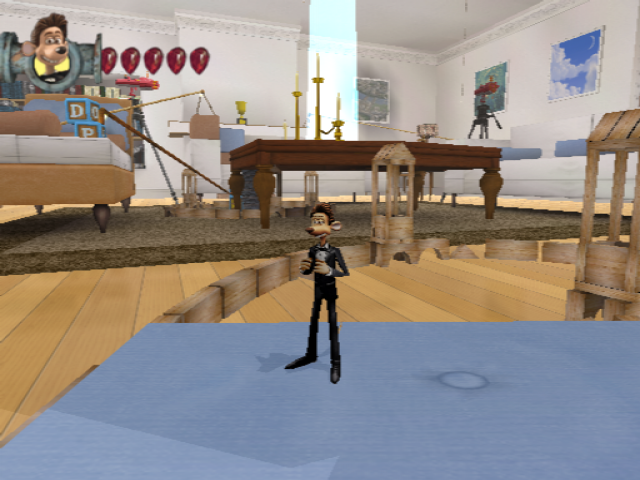
Move boxes using the crane to create a path across the water. To start this mini-game, select "Mini-Games" from the Main Menu and choose "Pathfinder".
Drop exploding onions in the water to move the crates below
.png)

.png)



.png)

.png)


.png)

_1.png)