Console Ports and Buttons
Starting Up
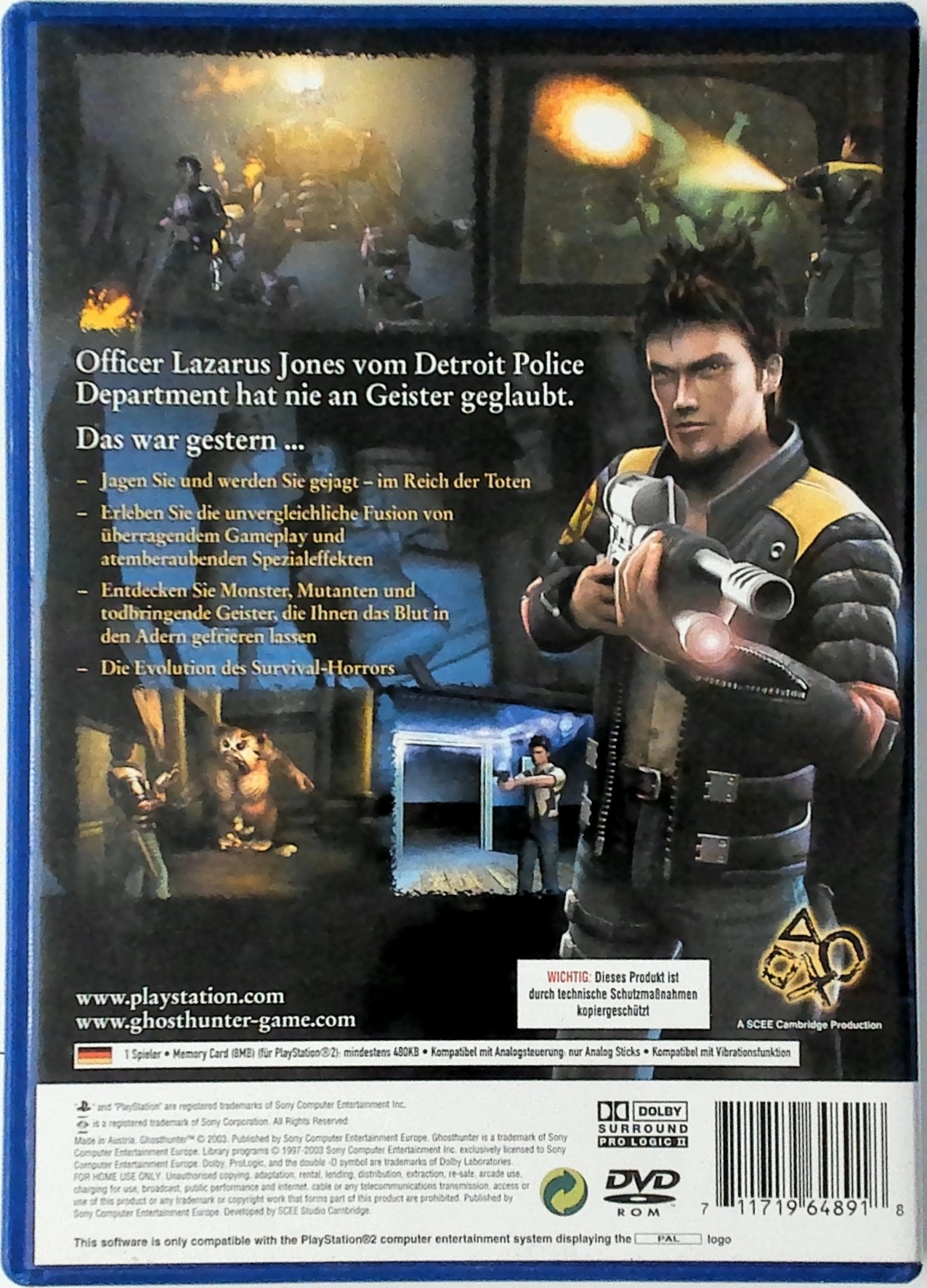
Set up your PlayStation 2 computer entertainment system according to the instructions in its Instruction Manual. Make sure the MAIN POWER switch (located on the back of the console) is turned on. Press the RESET button. When the power indicator lights up, press the Open button and the disc tray will open. Place the Ghosthunter disc on the disc tray with the label side facing up. Press the Open button again and the disc tray will close.
Press the RESET button to reset the game. Attach game controllers and other peripherals, as appropriate. Follow on-screen instructions and refer to this manual for information on using the software.
DUALSHOCK 2 Analog Controller
•
left analog stick (L3 button when pushed down)
•
right analog stick (R3 button when pushed down)
Controller Usage
To select menu options, use the directional buttons to navigate. Highlight the desired option and press the button to accept.
To select a menu option, follow the on-screen button prompts and press the button to accept and the button to go back. Ghosthunter supports the DUALSHOCK 2 analog controller.
When the MODE INDICATOR is on, the left analog stick works the same as the directional buttons.
Note
Ghosthunter™ only supports controller port 1.
Memory Card
Ghosthunter requires a memory card (8MB) (for PlayStation 2) to save your games. A saved game's data takes up 420KB. You can obtain a memory card (8MB) (for PlayStation 2) through the retailer where you purchased your PlayStation 2 computer entertainment system or this game. About Progressive Scan Mode
If you have a Component AV Cable (for PlayStation 2) - (SCPH-10100), along with a Progressive Mode enabled (525p) television with Component Video inputs, you'll be able to enjoy a higher quality picture. If you do not have a Progressive Scan Mode enabled (480p) television, or if you do not use the Component AV Cable (for PlayStation 2) to connect the console to the television, there is a chance that the picture will not be displayed properly. For details on how to set up your console with the Component AV Cable (for PlayStation 2), please refer to the instructions that accompany the Component AV Cable (for PlayStation 2). Set the Component Video Out settings to "Y Cb/Pb Cr/Pr" within the console's internal System Configuration menu. Some television sets are not Progressive Scan Mode-enabled even if they have Component Video inputs. Refer to your television's instruction manual, or contact the manufacturer if you are unsure about your television's compatibility.
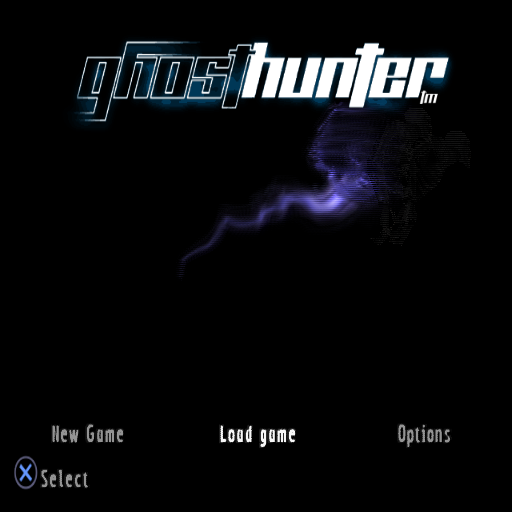
Main Menu
New Game Menu
Press the button to launch directly into a new adventure. Please see the Playing the Game section of this manual for further information.
Load Game Menu
Access previously saved Ghosthunter game data from the Memory Card. A Memory Card must be inserted into MEMORY CARD slot 1.
Options
Choose either On or Off.
Turn the vibration function of your (DUALSHOCK 2) analog controller On or Off.
Select whether the camera's horizontal rotation is inverted during Standard Mode. Choose either On or Off.
Select whether the camera's vertical rotation is inverted. Choose either On or Off.
Press and to turn advance fire On or Off.
Press and to turn minimal icons On or Off.
Audio/Visual Options
Press to decrease and to increase the music volume level.
Press to decrease and to increase the effects volume level.
Press to decrease and to increase the brightness level.
16:9 or 4:3.
Quit
Return to the Main Menu without saving your progress.
Playing the Game
From freakish phantoms to super-quick, sinister specters, one ghost on the loose is one too many. And that's where you come in-with the aid of second sight and a zest for exploration, puzzle-solving and armed combat-being a Ghosthunter is all about hunting and capturing ghosts.
How to Capture a Ghost
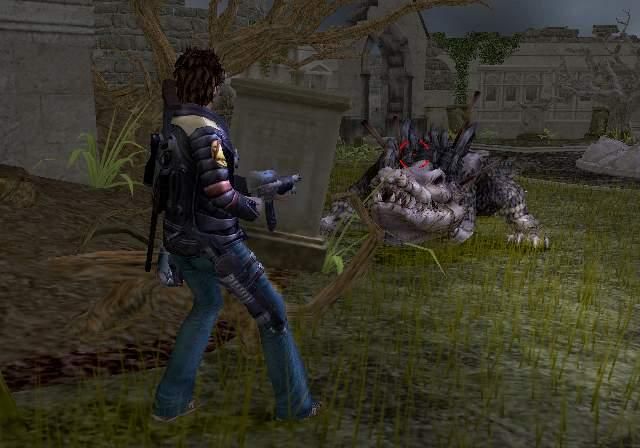
The targeting cursor turns red when aimed at a ghost that can be damaged, and turns blue when aimed at a ghost that's invulnerable. When the ghost has been damaged sufficiently, it can be captured.
The Capture Grenade HUD icon in the top left corner of the screen will flash when aiming at a captureable ghost. Press the 32 button to throw the Capture Grenade.
The Capture Grenade hurtles toward your enemy and lodges itself inside the ghost. The Capture Grenade HUD icon will then display a countdown timer showing how much longer the grenade can stay in the ghost, and also shows the energy level of the
.png)

.png)









_1.png)








.png)
.png)