PlayStation 2 Console Overview
*Note: Illustration may not match all PlayStation 2 console types. For owners of SCPH-70000 series PlayStation 2 systems, refer to the setup instructions supplied with your system.* Setting Up the Game
Set up your PlayStation®2 computer entertainment system according to the instructions in its Instruction Manual. Make sure the MAIN POWER switch (located on the back of the console) is turned on.
Press the RESET button. When the power indicator lights up, press the OPEN button and the disc tray will open. Place the GRAFFITI KINGDOM disc on the disc tray with the label side facing up. Press the OPEN button again and the disc tray will close.
Attach game controllers and other peripherals, as appropriate. Follow on-screen instructions and refer to this manual for information on using the software.
Notebook Whole Menu
Press the O button in the default menu of the Notebook.
•
Color: Select Color Palette (Select colors with the X button)
•
Pen: Select between 3D, Pattern, & Line configurations
•
Return: Go back one frame.
•
Proceed: Continue drawing from the returned frame.
•
Delete All: Delete the entire graffiti.
•
Complete: Save graffiti, Exit Notebook.
•
Quit: Return to Page Menu.
*The various functions included on this page will increase as you go through the game.*
Notebook Parts Menu
Move the cursor to parts you would like to edit and press the button.
•
Color: Select Color Palette (Select colors with the X button)
•
Thickness: Change the Thickness of the Parts
•
Delete Display: Temporarily Hide Part
•
Delete: Delete Selected Parts
•
Function: Change Special Features
•
Shape: Change 3D Shape Type
Starting the Game
Select the following modes from the Title Screen and press the X button to begin the game.
Story Mode
By selecting "Start New Game", you will begin a new adventure. By selecting "Continue", you will load your most recently saved data from the memory card (8mb) (for PlayStation®2) and continue from there.
*In the event you select "Continue", the game will only read the memory card (PS2) that is inserted in MEMORY CARD slot 1.*
VS Mode
Use your Graffiti Creations in either the "Collection Box" or the "Player Box" and fight against all bosses (Player VS CPU) or against another player (2P). If you have not saved your creations, you cannot play this mode. *The Graffiti Creatures in the "Collection Box" can only be read if the memory card (PS2) is inserted in MEMORY CARD slot 1. The Graffiti Creatures in the "Player Box" can be read whether the memory card (PS2) is inserted in MEMORY CARD slot 1 or MEMORY CARD slot 2.* Movie Viewing
Here you can watch all movie segments that you have already come across in the game.
Options
Here you can adjust the Volume or turn the Vibration Setting ON/OFF. You can also turn the Gradation Effect ON/OFF.
Matches
You can use the creatures in the Collection Box or Player Box to take part in 1-on-1 matches against the CPU (1P Mode) or another player (2P Mode). Upon selecting "Match" from the Title Screen, select a VS Boss (1P) or VS Player (2P) match. VS Bosses
1. Select your creature of choice from either the Collection Box or the Player Box. 2. Upon selecting your creature, select "OK" and move to the "Boss Select" option.
3. Select which Boss you would like to fight against, and begin the match.
2 Player Tournament
1. Take turns between Player 1 and Player 2 to select up to 3 different creatures from either the Collection Box or the Player Box. 2. Once Player 2 has made his/her choice and selects "OK", the menu will move to the "Select Stage" option.
3. Select your stage of choice, and begin the match.
Rule Settings
"Rule Settings" can be set for all 2P matches.
•
BOUTS WON: Here you can set the required amount of won bouts to win the match.
•
ROUND TIME: Here you can set the fighting time for 1 round (in seconds).
•
RETURN TO DEFAULT SETTINGS: This returns the above settings to their default positions.
The Game
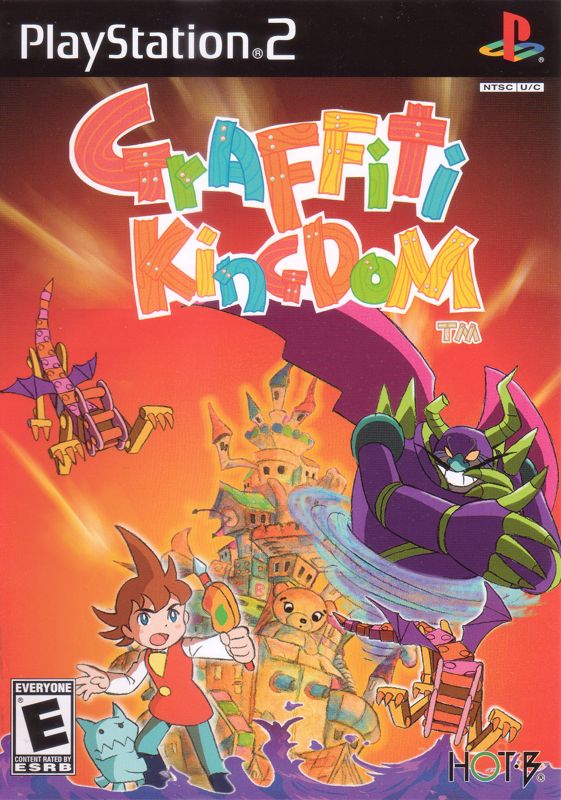
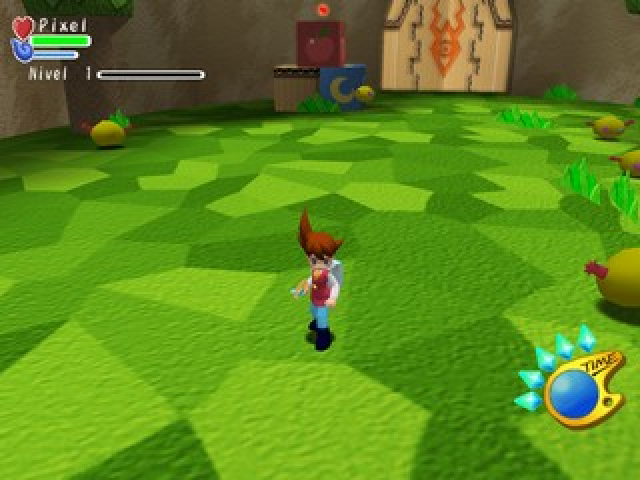
Fight as your own creation! Pixel and Pastel have gone on a mission to liberate their kingdom from the vile clutches of the Demon. However, a number of little devils (evil Graffiti creatures) stand in their way. Only as a Graffiti Creature can Pixel overcome these little devils! Strengthen Your Creature!
While your Graffiti Creation may start out weak at first, as you defeat little devils and raise Pixel's level, you can add body parts to your creature and make it stronger. Do More With Your Graffiti Powers
Pixel can use his Graffiti powers to temporarily disguise himself as one of the little devils, after collecting a Devil Card. In addition to assuming its identity, Pixel also inherits all the powers of the little devil. You can even freely edit the devil's powers or its .png)

.png)
