Starting a New Game
Press the START button at the Title Screen. At the Main Menu, select New Game.
When asked if you would like to create a Jak and Daxter: The Lost Frontier™ save file, choose Yes and press the button. Auto Save
As you progress, a special Save icon will appear on screen indicating your progress is being saved.
While the icon is on screen, DO NOT remove the memory card (8MB) (for PlayStation®2) or turn off your system.
Manual Save
If the memory card (8MB)(for PlayStation®2) is removed or replaced, the application will disable the Auto Save function until a manual save has been performed.
To perform a manual save, access the Save Game option located on the Pause Ring by pressing the START button, then rotating the Ring to the Save Game option.
Loading a Saved Game
If you want to resume a saved game, select Load Game at the Main Menu and then choose the save file you wish to load.
You can also load a different saved game file during play by pressing the START button, then rotating the Pause Ring to the Load Game option.
The Pause Ring
Pressing the START button during gameplay will open the Pause Ring (pressing the START button during a cutscene will pause the cutscene).
Use the left analog stick or directional button to cycle through your choices and press the button to confirm your selection. Press the ▲ button or the START button to return to the game.
Show Map
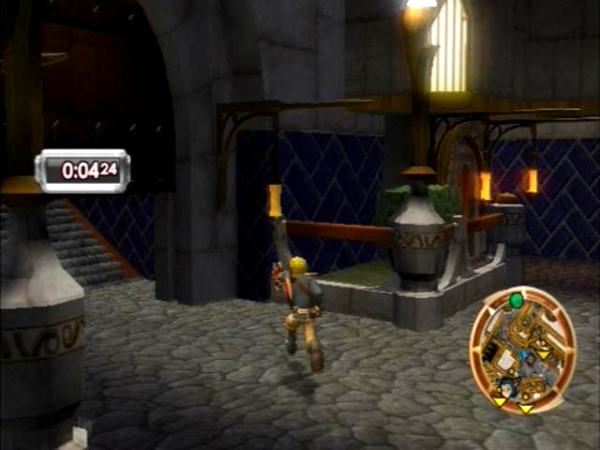
The Map Screen shows the Map of the area you are currently in, important locations marked by icons, as well as your location and the direction you are facing. Missions
The Missions Screen shows your current Mission in Progress, as well as the Missions Completed list. Use the left analog stick or directional buttons to cycle through them.
Inventory
The Inventory option allows you to view your current inventory.
Controls
The Controls Screen will display the control scheme for the current type of mission that you are on.
Make sure to check here if you don't remember how to perform a certain action in the game. Options
You can adjust the Options before or during your game. The Options Screen allows you to access Game, Graphic, Sound, Picture and Camera options.
Game Options
The Game Options Screen allows you to turn ON/OFF the Vibration Function, Subtitles, and choose the Language for the game's speech and text.
Graphic Options
Adjust game display options.
Sound Options
The Sound Options Screen allows you to adjust the volume levels for the Sound Effects, Music and Speech.
Choose each option and use the left analog stick or directional buttons to set the level.
Picture Options
The Picture Options Screen lets you adjust the Contrast and Brightness of the game screen.
Choose each option and use the left analog stick or directional buttons to set the level.
Camera Options
The Camera Options Screen allows you to change both the Horizontal and Vertical Camera Control.
Use the left analog stick or directional buttons to cycle between the Horizontal and Vertical options, press the button to select a choice, then use the left analog stick or directional buttons to choose between the Default and Flipped modes.
The Pause Ring
Load Game
The Load Game Screen allows you to resume a saved game, or load a different saved game file during play.
Save Game
Jak and Daxter: The Lost Frontier™ automatically saves as you progress, but it is also possible to manually save your progress at any time by choosing the Save Game Screen. Jak and Daxter: The Lost Frontier™ has slots for up to 4 different save files. Secrets
The Secrets Screen is where you find rewards for the Precursor Orbs you've collected with a variety of extra goodies and secrets. Each secret can be purchased with a certain number of Precursor Orbs. Once unlocked, secrets can either be accessed through the Secrets option at the Main Menu, or the Secrets Screen on the Pause Ring. Good luck uncovering them all! Restart/Quit
You can restart any mission in progress by selecting the Restart/Quit Screen.
You can also quit the game and return to the Title Screen by choosing the Quit Game option. If you choose to restart during a flight mission, you will be able to refit your plane.
Plane Weapons
You can equip and customize the plane with many different mods and weapons over the course of the game.
All weapons and the amount of ammo left for each is displayed in the upper right corner of the screen. Ammo recharges over time, but only when you're not firing, so be sure to pace yourself with your attacks. In battle, red reticles will appear over enemy units. Some weapons will only fire when you have locked onto this reticle.
Map
The map on a flight mission behaves similarly to the map display while controlling Jak. Enemies appear on the display in red and red arrows indicate objectives.
Scrap Metal Counter
Displays how much Scrap Metal you currently have. Scrap Metal is earned by Downing enemy ships and through successful Daxter Jacking.
Scrap Metal can be used to purchase new parts and upgrade your planes.
Plane mods allow you to add new functionality to your plane such as rear tail armor. Upgrades will improve existing plane parts from increasing the ammo capacity of weapons to increasing max acceleration. Daxter Jack Meter
This displays the remaining amount of times you can use the Daxter Jack Tether. Once it runs out, it must recharge before you can fire it again.
Daxter Jacking allows Daxter to dismantle enemy units and