Game Set-Up
Throughout this manual, "memory card" refers to the memory card (8MB) (for PlayStation®2) - (SCPH-10020 E). Memory cards (SCPH-1020 E) designed for use with PlayStation® format software are not compatible with this game.
Warning
It is advised that you do not insert or remove a memory card or peripherals once the power is turned on.
System Setup
Set up your PlayStation®2 computer entertainment system according to its Instruction Manual.
•
Make sure the MAIN POWER switch (located on the back of the console) is turned on.
•
Press the /RESET button.
•
When the indicator lights up, press the button and the disc tray will open.
•
Place the LEGO Racers 2 disc on the disc tray with the label side facing up.
•
Press the button again and the disc tray will close.
•
Attach game controllers and other accessories as appropriate.
After the introductory movie, the Title Screen will automatically display the Main Menu.
Introduction
After his defeat in the first LEGO® Racers game, Rocket Racer was heartbroken. He thought his racing days were over until he saw an advertisement for the planet Xalax, home of the race-crazy aliens, the Ramas. He found the intergalactic portal and impressed the Ramas with his driving talents, earning their respect and friendship. His skills improved, his confidence returned, and he even built a better car and picked out new clothes. Now, Rocket Racer has challenged the LEGO worlds to come to Xalax and race against him and his alien friends to become Galactic Racing Champion. You live in Sandy Bay and decide to try for the Championship. However, four other local inhabitants also want to represent the town on Xalax, so you must beat them first. Then, you must travel to three more LEGO worlds to improve your skills and win new car parts to help you beat Rocket Racer. Getting Started
Quick Start
If you want to start racing immediately: •
After the game loads, choose 1 Player from the Main Menu using the Up and Down directional buttons and press the button.
•
Choose Arcade, then Sandy Bay, then any available track.
•
Choose the number of laps (use the Left and Right Directional buttons).
•
You'll then be taken to the start of the race!
Menus
To move through the menus in the game, use the directional buttons and press the button to select. To go back, press the button.
Main Menu
The first menu you'll see is the Main Menu, which gives you five options:
•
2 Player - allows you to play against a friend
•
Builder - allows you to build a car or a driver
More information on the 1 Player, 2 Player, and Builder options is available later in this manual.
Game Options
Selecting Game Options presents you with five more choices:
Sound Menu
In the Sound Menu, you can control the volume of the music (Music Vol) and sound effects (SFX Vol) using the Left and Right directional buttons.
Controls Menu
In the Controls Menu, you'll find two more options that allow each player to choose their Controller Configuration.
•
If playing in 1 Player mode, choose the 1 Player option.
•
If using a game controller with a Vibration function, you can switch it On or Off using the Left and Right directional buttons.
•
If you select Choose Buttons, you will be presented with a list of all game functions to which new buttons can be allocated. Use the Up and Down directional buttons to select a function (e.g., Accelerate), press the Ⓧ button, and then the button you would like to use for that function.
Language Option
To change the game's language, select the Language option and use the Left and Right directional buttons to move through the choices, then press the Ⓧ button.
Catch Up Feature
Catch Up automatically sets the game's difficulty level based on your performance. Use the Left and Right directional buttons to toggle this feature On or Off.
Load/Save
The Load/Save option from the Main Menu allows you to save your current high scores, and any cars and characters you've designed to a MEMORY CARD, or load previously saved ones back into the game.
Every time you save, your last save will be overwritten. If you've achieved a new high score or built a new car, make sure you save before exiting LEGO® Racers 2.
Car and Character Builders
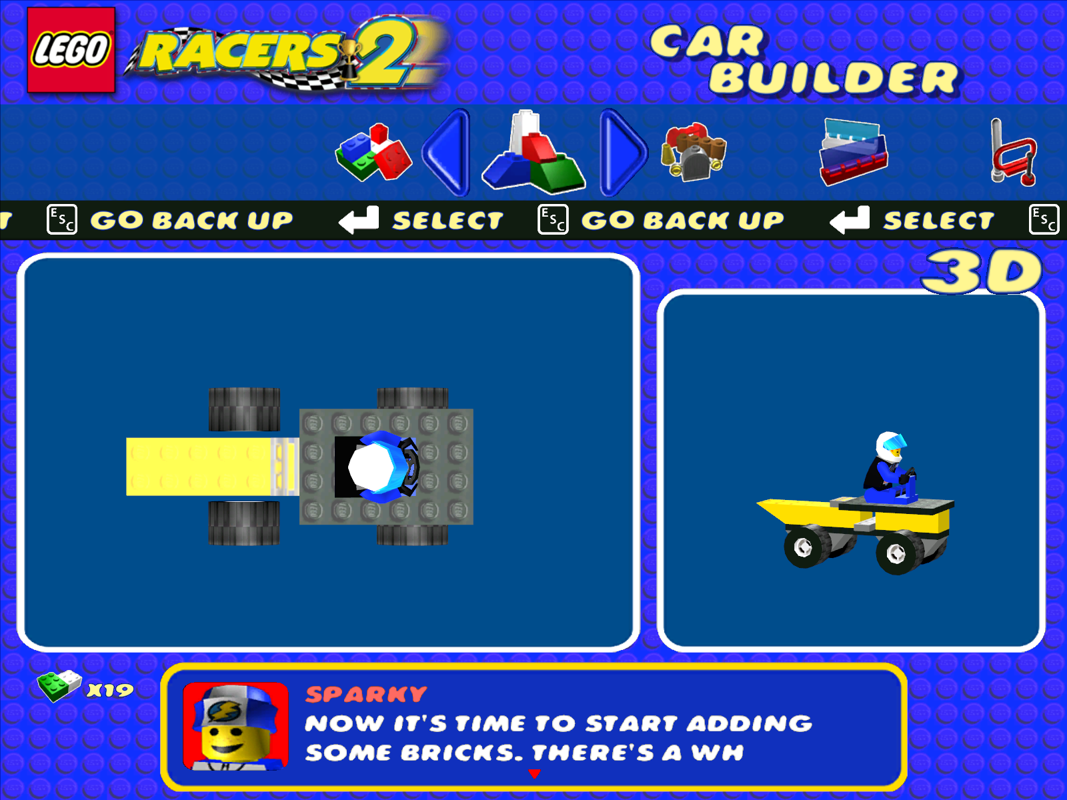
In LEGO® Racers 2, it's easy to build the racing car of your dreams! There are many LEGO bricks to build with, and you can also choose your LEGO driver. When you select Builder from the Main Menu, after selecting your player number, you will be offered two choices:
Car Builder
DUALSHOCK 2 analog controller
•
Select previously placed brick
•
Rotate brick a quarter turn (90°) left/anti-clockwise
•
Select next placed brick
•
Rotate brick a quarter turn (90°) right/clockwise
•
Cancel/Back/Delete Brick
•
Select brick/brick category
•
Cycle through bricks/brick categories
To use the left analog stick, the
.png)

.png)