Bio-Chips
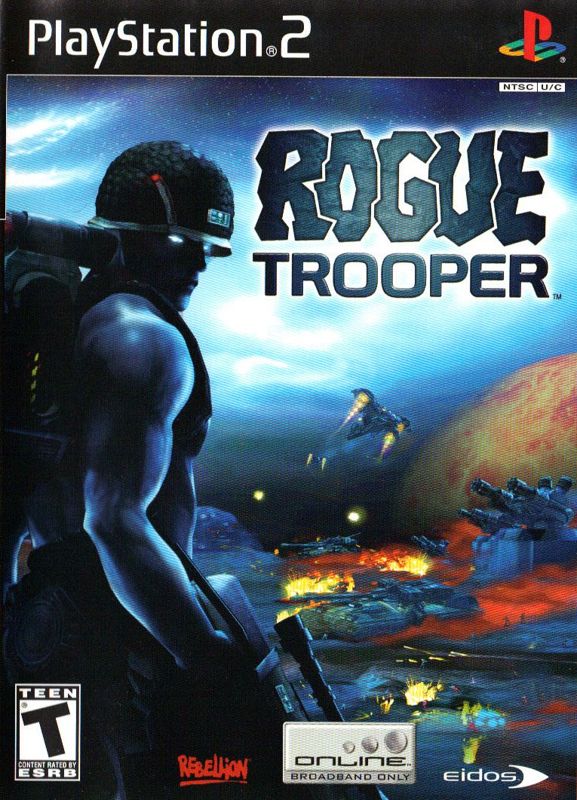
Rogue Trooper is assisted by three computer bio-chips, each containing the unique personality of one of his dead friends: Helm, Gunnar, and Bagman. Each bio-chip personality offers Rogue tactical guidance and physical options, creating a dominating team with the ability to fight its way across Nu Earth. HELM
•
Stored in Rogue's helmet.
•
Updates on-screen radar.
•
Can be used to create distractions for the Norts.
GUNNAR
•
Offers assistance with shooting accuracy.
•
Underslung unit can be fitted with different ammo types.
•
Can be deployed in the field as an Automated Sentry Gun (ASG).
BAGMAN
•
Stored in Rogue's backpack.
•
Manufactures any type of ammo and health paks collected from salvage points around the battlefields.
•
Turns blueprints into upgrades for the entire range of equipment.
Profile Setup
After starting ROGUE TROOPER, you'll proceed to the Profile screen. If this is your first time playing the game, create a new profile by selecting Create New Profile.
Select a profile slot, then enter a profile name via the virtual keyboard. When you're finished, select End to return to the Main Menu.
Main Menu
Use the controls to navigate around the Main Menu and its options.
SINGLE PLAYER
•
New Game - Begin ROGUE TROOPER™. This option is default if no previously saved game is available.
•
Continue Game - Proceed from your last save point on your profile.
•
Select Level - Allows you to replay any level already completed.
•
Cheats - Unlocked as you progress through the game.
MULTIPLAYER
•
Offline - Select Offline to play Multiplayer mode on a single console. From 1 to 2 players can play Multiplayer mode offline.
•
LAN - Select LAN if players' consoles are connected to a Local Area Network. From 2 to 4 players can play Multiplayer mode via a LAN.
•
Online - Play other players on the Internet. From 2 to 4 players can participate.
PLAYER SETUP
Choose the character you want to play as, and the Underslung you want to use.
•
Player 1 Skin - Use the controls to adjust the attributes of Player 1's character.
•
Player 2 Skin - Adjust the attributes of Player 2's character.
OPTIONS
Adjust a range of game settings. You can access the Options menu from either the Main Menu or the Pause menu (press the START button in-game).
PROFILE
Edit your Profile info using the Change Profile, Rename Profile and Delete Profile options.
EXTRAS
Collect the required amount of salvage to unlock new content that you can view in the Extras menu, including:
•
Nu Earth Encyclopaedia - Select an option, then use the L1 R1 buttons to switch screens to browse info about Nu Earth.
ADJUST CONTROLS
•
Configure Controls - Select a control configuration.
•
Invert Up/Down - Select the look up/down controls.
•
Invert Left/Right - Select the look left/right controls.
•
Vibration - Turn the controller's vibration function on/off.
•
Horizontal Sensitivity - Adjust the left/right look sensitivity.
•
Vertical Sensitivity - Adjust the up/down look sensitivity.
•
Crouch Mode - Set the Crouch control either to holding down the L3 button to remain crouched, or to pressing the button to toggle crouch/stand up.
•
Cover Mode - Set the Cover control either to holding down the L2 button to remain in cover, or to pressing the button to toggle cover/no cover.
•
Lookspring - Toggle on/off.
SOUND
•
SFX Volume - Adjust the volume of the game's sound effects.
•
Music Volume - Select the game's music volume.
•
Sound Output - Choose your speaker setup: Stereo, Mono or Surround.
•
Subtitles - Turn in-game subtitles on/off.
•
Chip Speech Level - Choose the frequency of bio-chip talk: Essential or All.
SCREEN SETUP
•
Screen X Offset - Adjust the horizontal position of the screen.
•
Screen Y Offset - Adjust the vertical position of the screen.
•
HUD Opacity - Adjust the brightness of the HUD info displayed on the game screen.
•
16:9 Display - Turn off to set the game for 4:3 display.
•
Enable Hints - Turn in-game hints on/off.
•
Enable Gore - Turn gore on/off.
RETICLE
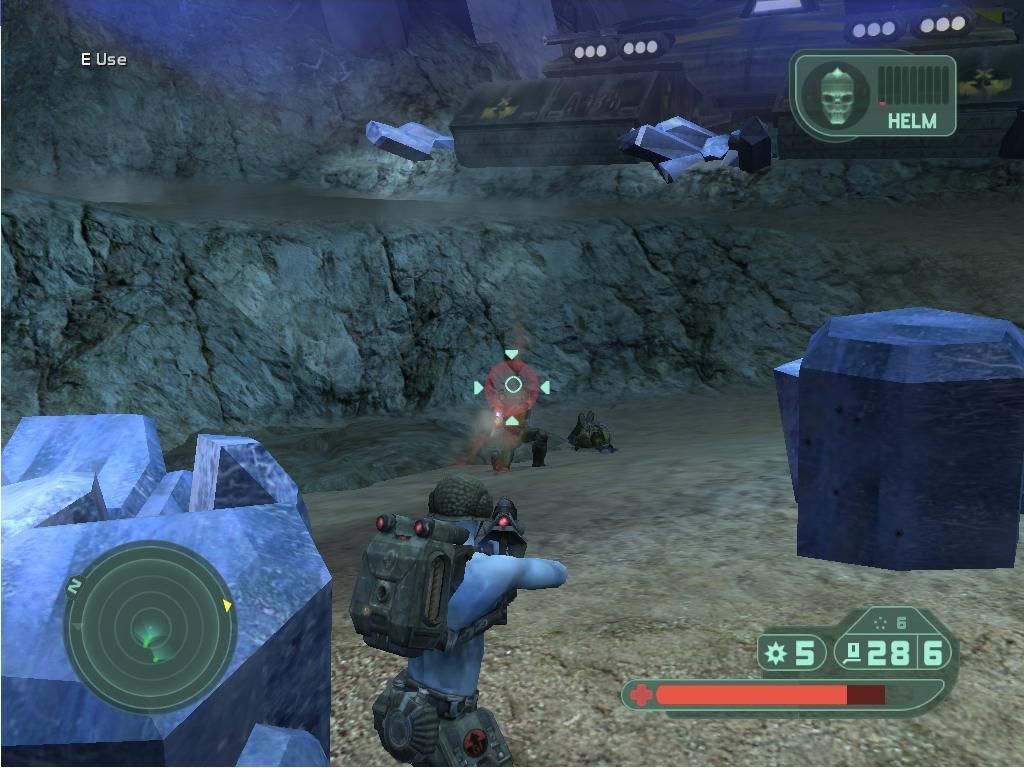
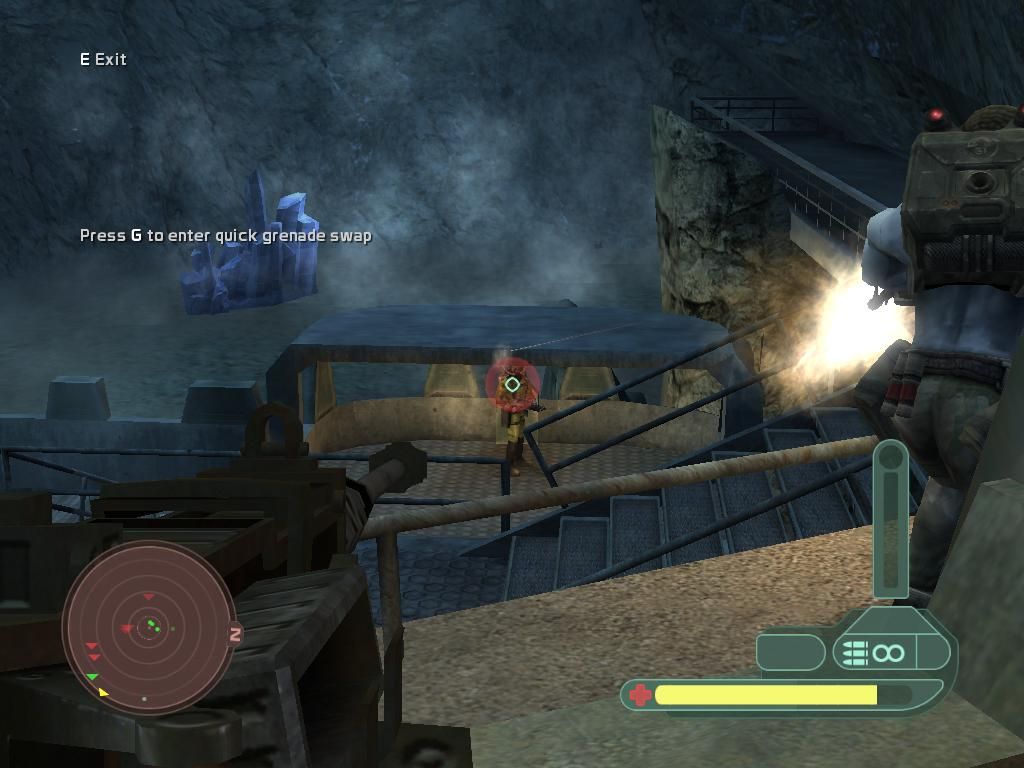
Use the reticle to aim a weapon. The reticle turns red when over a hostile; green when over a friendly.
The shape of the reticle changes according to the weapon selected. The reticle visually indicates a headshot and an air tank shot.
PRIMARY WEAPONS DISPLAY
•
Ammo in the clip of your active weapon
•
Current actual health and potential health if Rogue were allowed to regenerate
SECONDARY WEAPONS MENU
Press directional buttons to display the Secondary Weapons Select tab above the Primary Weapons Display. Continue using the directional buttons to cycle through the available secondary weapons.
Help text to the left ID's the selected weapon. Press the button when a weapon is selected to activate it instantly.
•
A newly selected item becomes the focused weapon.
•
You can also select the Pistol from this menu.
•
Press the button to cancel the
.png)

.png)
