Getting Started
Set up your PlayStation®2 computer entertainment system according to the instructions in its Instruction Manual. Make sure the MAIN POWER switch (located on the back of the console) is turned ON. Press the RESET button.
When the power indicator lights up, press the OPEN button and the disc tray will open. Place "The Suffering" disc on the disc tray with the label side facing up. Press the OPEN button again and the disc tray will close.
Attach game controllers and other peripherals, as appropriate. Follow on-screen instructions and refer to this manual for information on using the software.
Quitting a Game in Progress
During the game, press the START button to display the Pause Menu. Press the directional buttons ↑ or ↓ to select QUIT GAME, then press the Ⓧ button.
To confirm exiting the game, press the Ⓧ button again to go to the Main Menu.
Main Menu
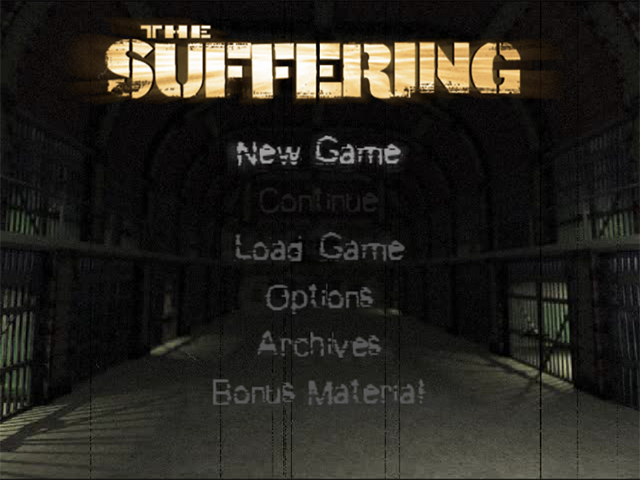
NEW GAME
After choosing to play a new game, select Easy, Medium, Hard or Impossible to set your game's difficulty level.
CONTINUE
Quickly load your most recent save.
LOAD GAME
If you've already played and saved a game, select this option to access your memory card (8MB) (for PlayStation®2). Your saved games will be displayed and available to select.
OPTIONS
See OPTIONS, next page.
ARCHIVES
As you explore the world of The Suffering, you will unlock pages from two books. To unlock the content, you'll need to finish the game and thoroughly explore the game-world.
•
CLEM'S NOTEBOOK - This notebook includes sketches and descriptions of the creatures found in the game.
•
CONSUELA'S JOURNAL - This journal contains photos of various locations around the island, accompanied by descriptions of their relevance to Carnate's history.
BONUS MATERIAL
View upcoming Midway game trailers, a haunted prison documentary, a developer "Behind the Scenes" video and more. Options
CHECKPOINTS
You can set this option to ON, to have the game automatically save your checkpoints to in-game memory. You can also set to Prompt, so you'll be prompted with an option to save to the memory card. Select OFF to not save checkpoints at all.
AUDIO SETTINGS
Press the directional button ⬆ or ⬇ to highlight an option, then press the directional button ⬅ or ➡ to adjust the volume for the game's EFFECTS, DIALOG and MUSIC.
SUBTITLES
If you like, you can turn on subtitles that will be displayed on-screen during in-game conversations.
SPEAKER SETUP
Choose between SURROUND, STEREO or MONO sound, depending on the type of speaker system you're using.
NOTES
If you're using a stereo only (2 channels) television, make sure to change your audio settings to Stereo for best results. Surround Sound users must make sure their receiver is set to PL or PLII.
LOAD SETTINGS
If you have Options settings saved on your memory card, you can use this option to load the settings. When selected, the game will access the memory card and load any saved settings.
SAVE SETTINGS
After you've adjusted your settings, you can save them to your memory card. The next time you start the game, the settings will automatically be loaded.
Saving Your Game
The Suffering lets you save your progress in the game to your memory card at any time. We highly recommend using a memory card to enjoy the features you'll find in this game.
Each time you start a game or load a previous save, the game will read your memory card, making it available for saving future data. Within gameplay the game will let you save your progress to your memory card at any time.
To save, press the START button to access the pause menu. Within this menu, select "Save Game" to view menu options.
Using this menu, you have full access to the data saved to your memory card. Any saved games will be displayed. Select a saved game, then press the X button to load the game.
As you save more and more data to the memory card, you'll need to keep track of the space available on the memory card. To access other memory cards, press the button. Select the memory card, then press the X button.
It is advised that you do not insert or remove peripherals or memory cards once the power is turned ON. Make sure there is enough free space on your memory card before commencing play.
The HUD / Inventory
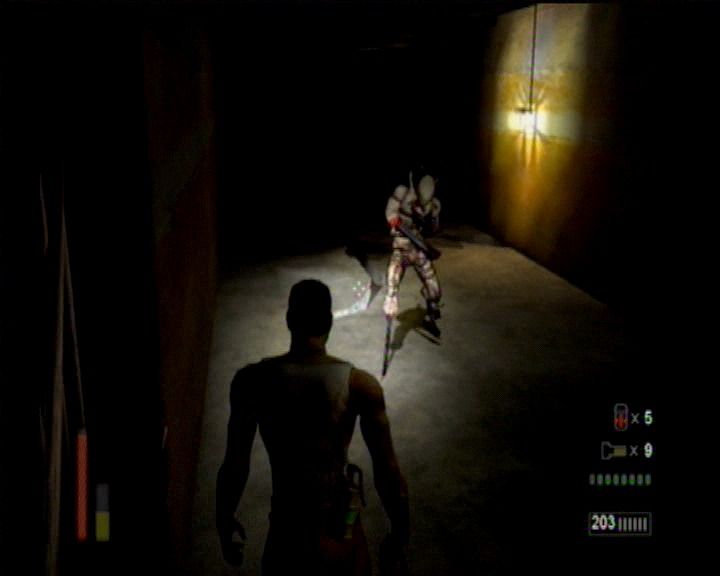
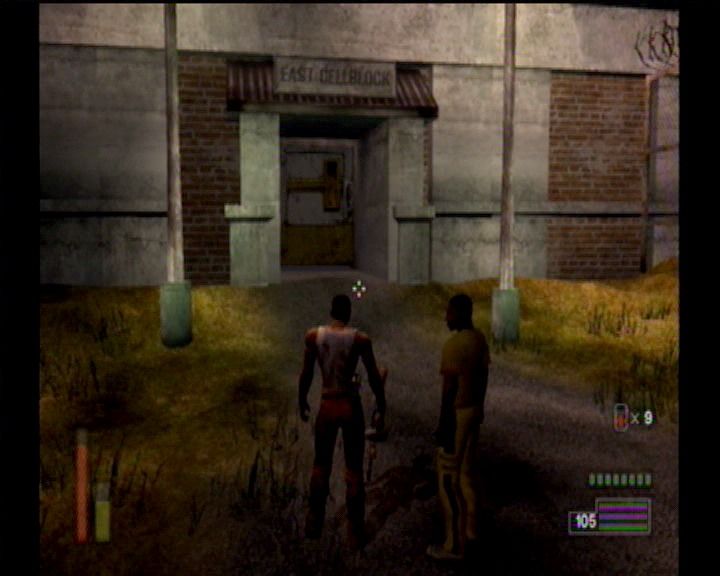
6. FLASHLIGHT & BATTERIES
The yellow bar represents the current battery life of your flashlight. This will diminish over time while the flashlight is on. The number indicates the quantity of additional batteries Torque has. 7. CROSS HAIR
When Torque is equipped with a gun, a crosshair appears on-screen, indicating where Torque will shoot when he fires. It will turn red when it's over a target.
INVENTORY
The Suffering's Inventory lets you manage your collected items, including weapons, notes and the flashlight. While playing, press any of the directional buttons to display the Inventory Menu, then press the directional buttons ↑, ↓, ← or → to scroll through the menu. The top-left corner will display the chosen item in red. Press the L1 button or






_1.png)






_1.png)
_1.png)