Starting Up
This CD-ROM is designed exclusively for the Sega Saturn system. Do not attempt to play it on any other CD player, as this may damage your headphones and speakers. 1. Set up your Sega Saturn system according to the instructions in the Sega Saturn System Instruction Manual. Plug in Control Pad 1. 2. Place the Sega Saturn CD-ROM label-side up in the CD tray and close the lid. 3. Press the Power button to load the game. The game starts after the Sega Saturn logo screen appears. If nothing appears, turn the system OFF and ensure it is set up correctly. Reset and Controls
If you wish to stop a game in progress, or if the game ends and you want to restart, press the Reset button on the console to return to the Title screen.
To return to the Control Panel at any time, press Buttons A, B, C, and Start simultaneously.
Loading and Audio Controls
If you turn on the power without inserting a CD, the Audio CD Control Panel will appear. To play a game, place the Sega Saturn CD in the drive, press the D-Pad to move the cursor to the top left button on the Control Panel, and press Start. The opening screens of a game will then appear. Disc Care and Player Limit
Your Sega Saturn CD-ROM contains a security code that allows the disc to be read. Keep the disc clean and handle it carefully. If the system has trouble reading the disc, remove it and wipe it carefully in a straight motion from the center toward the edge. •
Player Count: This game is for one player only.
Screen Information
The following indicators are displayed on the screen during gameplay:
•
Air Lock/Regulator Indicator: Changes to blue to indicate air supply to the regulator.
•
HP (Hit Point) Gauge: Indicates the character's remaining strength. When this reaches zero, your character has only a few moments left before the GAME OVER screen appears.
•
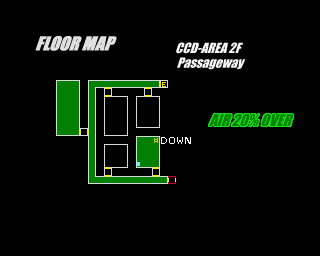
Current Area/Floor/Room: Displays your current location.
•
Current Area's Air Supply: Shows the amount of air remaining in the current location. When the level drops below 20%, the readout turns red. When it reaches zero, the air gauge begins to decrease.
•
Bullet Gauge: Shows the number of rounds of ammo remaining for the currently selected weapon.
Air Color Codes
Game Over
Throughout the game, your character will be targeted by vicious attacks. Injuries gradually reduce your HP level until it reaches zero, spelling the end of your mission.
Your character sustains damage in the following ways:
1. Direct enemy attack (HP Gauge level reduces)
2. Breathing poison gas (Air Gauge level reduces)
3. Area Air Level reaches zero (Air Gauge level reduces)
Starting Your Mission
The first time you play *Deep Fear*, start the game from Disc 1. When you are required to change discs, simply follow the on-screen instructions. If you save a game from Disc 2, that data can be used to play from Disc 2 directly.
Once the game has loaded, the Title screen appears. Press Start to bring up the initial game options:
•
New Game: Start your mission from the very beginning. An opening movie sets the scene (Press Start to skip the movie).
•
Load: Select this option to continue a game using saved data. Select the data you wish to load, and confirm by pressing Button A or C.
•
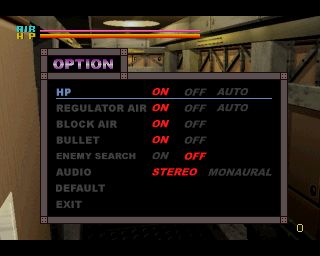
Option: Adjust game settings, such as on-screen gauges and sound output. Press Button B to finish.
Pause Menu
Press Start during the game to bring up the Pause menu. Press the D-Pad up or down to highlight a mode, and Button A or C to select it. Press Button B to exit a mode and return to the Pause menu.
•
ITEM: Inspect, select, prepare, or use objects in your possession.
•
WEAPON: Check or change the currently selected weapon.
•
MAP: Inspect the floor plan of the naval facility or check your current location.
•
FILE: Inspect documents in your possession (e.g., reports, letters).
•
OPTION: Adjust visual and sound settings for the game.
Item Interface
This mode allows you to inspect, use, or set an item in your possession. From the Pause menu, select [ITEM] to bring up the ITEM screen. Press the D-Pad to move the cursor, and press Button A or C to select.
•
SELECT: Use or set an item.
•
EXIT: Exit the ITEM screen and return to the Pause menu.
•
Item List: Displays your inventory.
•
Name of Selected Item: Shows the name of the currently selected item.
•
NOW SET ITEM: Shows the quantity and name of the currently set item.
•
SET/KEY Light: Lights up to indicate a SET item.
•
Quantity: Shows the number of items.
Using Items
Choose [SELECT] from the ITEM screen and use the D-Pad to highlight one of the items in the Inventory Window. Press Button A or C while an item is highlighted to bring up the item's information and Command Icon window. Select a command using the D-Pad and confirm with Button A or C.
Command Icons
 (Disc 1).png)


 (Europe).png)
 (Europe).png)
 (Disc 1).png)
 (Disc 2).png)
