Getting Started
If you want a quick start, refer to the "Tutorial/Quick Start" section of the manual. It provides a step-by-step battle plan to familiarize you with the menus and aspects of an Allied General scenario, and should help you win the first battle of the North Africa campaign. If you prefer to familiarize yourself with the game as a whole, turn to the "Menus" and "Game Play" sections.
Game Controls
This manual uses the word "button" to refer to two different things: game controller buttons and rectangular icons on menus.
•
The NEXT button is the R1 button on the front of the controller.
•
The PREVIOUS button is the L1 button on the front of the controller.
•
The <X> button controls units. Use it to move, shoot, and inspect your own and visible enemy units.
•
The <C> button takes you from the Tactical Map to menus where you can set preferences, issue commands, accept choices, and return to the game.
•
The <S> button exits all menus without accepting any selections. On the Tactical Map, pressing the <S> button also releases the currently active unit. When used by itself, the <S> button returns to play from any menu.
•
Holding down the <T> button while pressing the PREVIOUS button zooms in.
•
The <T> button and NEXT buttons zoom out.
•
Pressing a directional button while holding down the <T> button shifts the Strategic map in that direction to enable you to view larger strategic maps.
Buttons also refer to the rectangular icons found on menus which control many of the game's preferences. They are operated by using the directional buttons to highlight them and pressing the <X> button. This is referred to in the rest of this manual as "pressing" that button.
Saving or Restarting the Game
The CD icon on the Options Menu is called the Load/Save/Quit button and is used for loading or saving games. Only PlayStation systems equipped with memory cards will be able to save games. Pressing the SAVE button presents the Save Menu. There are four save positions, and the game will be saved using the name of the current scenario and the turn number. Once you have selected a save position, press the <X> button. Pressing the <S> button returns to the Options Menu without saving.
Holding down the Select button, and then pressing and holding down the Start button for two seconds abandons the game in progress and returns to the beginning of the game. Using these buttons in the opposite order, that is, pressing and holding down the Start button and then the Select button has the same effect, but prompts for confirmation that the game should be continued or abandoned.
Tutorial/Quick Start
This tutorial provides step-by-step suggestions to familiarize you quickly and easily with the basic menus, options, and units in the first scenario of the North Africa campaign. From the Start Game Menu, your choices are: SCENARIO, CAMPAIGN, LOAD, or INFORMATION. Use the directional buttons to highlight the SCENARIO button, and press the <X> button to activate it.
Setting Preferences
The Set Scenario and Set Control menus appear when you press the Scenario button. The Set Control menu has a human control and computer control button for each side. The Set Scenario menu has buttons for changing the difficulty level, the scenario, Start to start playing, and Exit or <S> to quit without making any changes.
The difficulty level starts out on the EASY setting. Pressing the button next to this setting opens the Set Difficulty and Settings menus. The Set Difficulty menu can be set to EASY, MEDIUM, HARD, or CUSTOM.
The CUSTOM setting gives you the chance to adjust the computer's "Artificial Intelligence" (AI) by choosing how much experience and prestige the computer is given during play. Activating the Enhanced AI setting alters the Allied General's AI by increasing the tendency for a computer player to retreat and take replacements rather than just standing by and slugging it out. In some circumstances, this may make the "Enhanced" player easier to defeat than the unenhanced version.
Later, if you play games between two human players or set the game up to play itself, a two panel screen appears where you can adjust prestige and experience for both sides.
Press Exit to return to the Set Scenario Menu. Once there, press the button next to Sidi Barrani. The Scenario Description menu appears offering the choice of six scenarios. The currently selected scenario is listed in the panel centered at the top of the menu. The scenario description is in the large box and the six other scenario choices are listed at the bottom of the menu. The ? button in the lower right corner of the scenario description box opens a window with the scenario briefing.
From the Set Scenario menu press Exit to return to the Scenario Description menu. With the settings on Easy for difficulty and Sidi Barrani for the scenario, press the Start button to begin play.
Once chosen, the title screen of the scenario appears and displays the turn number, the date, the current weather, and the number of turns remaining. Press any button to proceed beyond the title screen of the scenario and start your first turn.
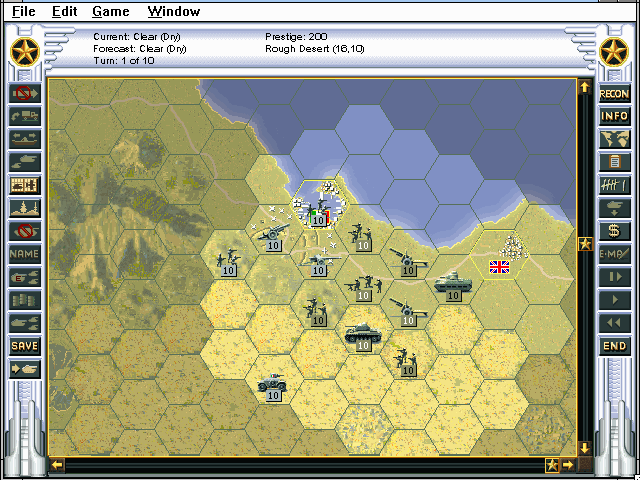
The Tactical Map, which represents the battlefield, appears in the main view. The game begins with the Unit Information preference turned on. As each unit is highlighted, important information is displayed in the corners of the screen. The lighter colored hexes are those visible to your troops. Your British units are green and ready for action.
Game Turns
Each scenario in Allied General is made up of a number of "turns". In each turn, you and your opponent are given a chance to perform many activities such as moving units, attacking enemy units
.png)

.png)

.png)
.png)



.png)




.png)
