Starting The Game
•
Turn OFF the power switch on your Super NES. Never insert or remove a game pak when the power is on.
•
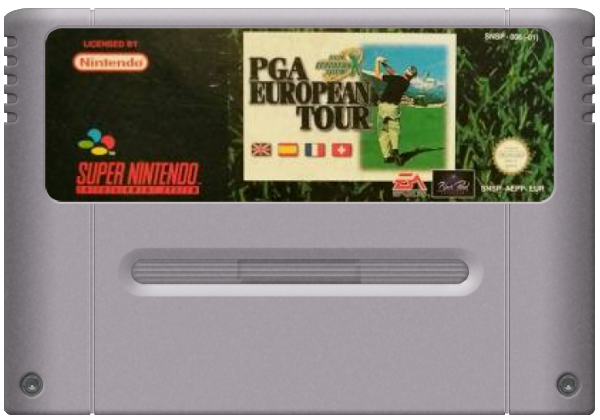
Insert PGA EUROPEAN TOUR into the slot on the Super NES. To lock the game pak in place, press firmly.
•
Turn ON the power switch. The EA SPORTS™ logo appears. If you don't see it, begin again at step 1. •
The PGA EUROPEAN TOUR title screen appears, followed by the game credits screen.
•
If you want to play right away, press START and then press the A Button to go to Game Setup Screen.
The Game Setup
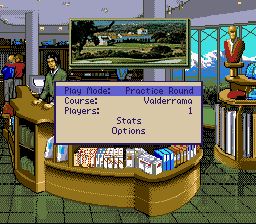
The Game Setup screen is where you choose your play mode, the course and the number of players. You also have access to instant replays and can set your options.
•
To highlight an option, press the Control Pad Up/Down.
•
To cycle through the different choices available in an option, press the Control Pad Left/Right, or press the B Button.
•
To select an option, press the Start Button.
•
To enter the Stats or Option Menu, press the B Button.
Play Mode
The different play modes available are: PRACTICE ROUND, TOURNAMENT, SKINS CHALLENGE, MATCH PLAY, SHOOT-OUT, DRIVING RANGE, and PUTTING GREEN.
Course
The European courses available are: Valderrama, Wentworth, Forest of Arden, Crans-sur-Sierre and Le Golf National.
Pros
The Tournament Players are: Tony Johnstone, Costantino Rocca, Rodger Davis, J.M. Olazabal, Colin Montgomerie, Ronan Rafferty, Sandy Lyle, Ian Woosnam, Bernard Langer and Seve Ballesteros.
Number of Players
Select the number of players. ONE to FOUR players can make up your party. Some play modes require a certain number of players, so you can't change this number.
Restore Game
Restore a previously saved game (only appears if a game has been saved).
Note: Battery backup will store only one game at a time.
Stats
Displays all the stats.
Instant Replay
Play the last shot over. This option appears only if a shot has been made. It appears in the Pause Menu.
Note: The Super NES automatically replays any spectacular shots you make.
Set Options
Change the game options: Auto Overhead, Auto Ball Lie, Auto Green Grid, and Use 2 Controllers. Toggle ON/OFF, or choose YES/NO.
Use SET OPTIONS to activate/deactivate certain options. Before you begin a game, you can turn ON/OFF some of the Automatic Views, and select how many controllers you want to use. During a game, you still have access to this menu from the Pause menu.
To use the Set Options screen:
•
1. From the Game Set Up screen or the Pause Menu, select SET OPTIONS and press the B Button. The Set Options screen appears.
•
2. Press the Control Pad Up/Down to highlight an option.
•
3. Press the Control Pad Left/Right or press the B Button to toggle an option ON/OFF, or between YES/NO.
•
4. Press A to confirm your choices and exit the Set Options screen.
Auto Overhead
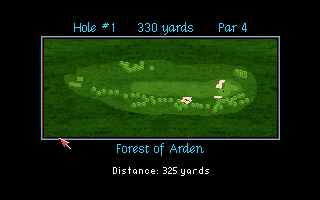
This view appears before your shot every time the ball is more than 100 yards from the hole. It is best used in measuring long shots, particularly when there are hazards or trees involved.
•
To bring up the Overhead view when you're on the course, press START and choose the View option.
•
To exit this view and return to the course, press the B Button.
When in the Overhead view screen, you can move the cursor with the Control Pad to measure the distance between the ball and any spot on the course.
Note: When you reposition the cursor on the Overhead view, the change does not affect your aim on the course.
Playing a Practice Round
Before you enter a Tournament, you might want to try a practice round. The practice round play mode offers flexibility of play without the money pressure. Also, the steps you follow for selecting players, clubs, etc., remain the same for the other play modes.
To Play a Practice Round:
•
1. Select a Practice Round (default).
•
2. Press the Control Pad Left/Right to highlight desired number of players.
•
3. Press the START Button to Start New Game.
The Player Setup Screen
Select a player type for each Player. Press the Control Pad Up/Down to select either a human player or the Super NES. The human player is the default. Press the B Button to confirm.
The Player Setup screen appears. Before hitting the links, you need to choose your players, your clubs, and, when playing a Practice Round, your tee.
•
To exit the Player Setup screen and return to the Game Setup screen, press the A Button.
To take a Mulligan
•
1. Press START. The game pauses and the Pause Menu appears.
•
2. Press the Control Pad Up/Down to TAKE A MULLIGAN, and press the B Button. The program takes you back to your previous lie.
Hitting the Ball
The Ball Lie Window shows you what kind of terrain the ball is resting on. Ball Lie is important when selecting your shot, so it is here that you make that determination.
If Auto Ball Lie is ON, this window appears automatically before every shot whenever the ball lies between the tee and the green. If Auto Ball Lie is OFF, you can