Console Top View
Console Front View
Setting Up
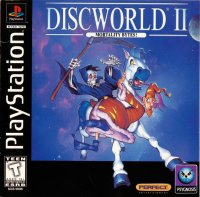
Set up your PlayStation™ game console according to its Instruction Manual. Ensure the power is off before inserting or removing a compact disc. Insert the Discworld™ II disc and close the CD door. Insert game controllers and turn on the PlayStation™ game console. Follow on-screen instructions to start the game. Starting Discworld II
1. Set up your PlayStation™ game Console in accordance with the instruction manual supplied with the system. 2. Follow your system directions to open the Disc cover and place the CD onto the bed of the drive, ensuring the printed side faces upwards.
3. Close the Disc cover. If the unit is switched off, press the POWER button to begin play. If the unit is already on, press the RESET button.
Warning
It is advised that you do not insert or remove peripherals or Memory cards once the power has been turned on.
Make sure you have enough free blocks on your Memory card before commencing play.
Return to Title Screen
You can return to the title screen at any time during the game by holding down the SELECT button, then pressing and holding the START button for 2 seconds.
The Story So Far...
It is a typical night in Ankh-Morpork. The Thieves' Guild is busily making up its socially acceptable quota of thefts and muggings, the Beggars' Guild is busy being truly unwholesome and the Assassins Guild is getting ready to inhume another client.
Tonight's client has been paid for by a very exclusive employer, one who demands something a little more dramatic than the average inhumation.
Hint: Fast Travel
If you are too impatient to wait for Rincewind to walk to an exit, you can press the [button icon] button or double click on the exit tag (a pointing finger) and the scene will immediately cut to the next location.
Interacting
Rincewind's interaction with tags can be broadly broken into three categories.
Taking
Rincewind will take any object on which you press the [button icon] button or double click, as long as he can take it without any apparent danger to himself.
Talking
If you press the [button icon] button or double click on a character, Rincewind will start to talk to them (see Conversations).
Using
If Rincewind is holding an object in his hand (in which case the cursor becomes that object), pressing the [button icon] button or double clicking causes the object to be used on whatever your cursor is over when you pressed the button, if possible. For example, if you are holding a key and press the [button icon] button or double click while your cursor is over a door, the door will be unlocked with the key.
Other Interactions
Pressing the [button icon] button or double clicking on some tags may have some other effect appropriate to the tag. For example, pressing the [button icon] button or double clicking on an open door will close it and vice versa.
Objects & Inventories
There are many objects throughout the game which can be picked up by pressing the ▲ button or double clicking on them. When Rincewind is holding an object in his hand, the cursor becomes that object.
You can still walk around and look at things, but pressing the ▲ button or double clicking on a tag will cause Rincewind to attempt to use the carried object on whatever you clicked on. You may even use objects on Rincewind by pressing the ▲ button or double clicking on his tag while the object is in his hand, although he may not be too happy about doing it.
Most of the time, however, you will want to put an object away for future use. There are two places objects can be stored:
Rincewind's Pockets
This is a small inventory capable of holding two objects at a time. To open up Rincewind's inventory window, press the R1 button or click on Rincewind's tag.
The Luggage
Unlike Rincewind, the luggage has a seemingly infinite storage capacity. The luggage's inventory window is opened by pressing the L1 button or clicking on the luggage's tag.
You may freely move objects within inventories. This allows you to group objects together, if you wish.
Hint: Dropping Objects into Luggage
To drop objects into the luggage without opening the inventory window, press the ▲ button or double click on the luggage while holding the object in question.
Inventory Window Commands
The following commands can all be carried out from the inventory windows:
Pick Up and Put Down
To pick up an object from an inventory, press the [button icon] button or click on it while the cursor is a star burst (that is, when Rincewind is not carrying anything else). To drop an object into the inventory, press the [button icon] button or click inside the Inventory Window.
Look at Object
Press the [button icon] button or right click on the object you wish Rincewind to look at.
Examine an Object
Pressing the [button icon] button, or double clicking on an object causes Rincewind to examine it closely.
Use Held Object on Another
Press the [button icon] button or double click on the second object while