START UP
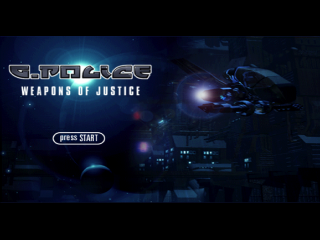
To play G-Police: Weapons Of Justice on your PlayStation® game console: •
Set up your PlayStation® game console in accordance with the instruction manual supplied with the system. •
Open the Disc cover and place the Disc onto the bed of the drive, ensuring the printed side faces upwards.
•
Close the Disc cover and press the POWER button to begin play.
•
Follow the on-screen instructions.
Animated video sequences can be skipped by pressing the button or the START button on the Controller.
Console Warning
It is advised that you do not insert or remove peripherals or Memory cards once the power has been turned on.
Memory Card
Make sure you have enough free blocks on your Memory card before commencing play. G-Police: Weapons Of Justice uses 1 Memory card block.
Console Top View
Console Front View
SECONDARY WEAPONS
A list of available secondary weapons appears here. Your currently selected weapon is at the top. Cycle through secondary weapons using the R1 button.
SHIELD STRENGTH
This gauge displays the strength of your vehicle's shield. Shield strength will be depleted as a result of collisions or weapon hits, though auto-maintenance systems will regenerate shields after a brief period.
However, be aware that these systems will not guard against intense bouts of damage.
TARGETING CROSSHAIR
Use this crosshair for targeting unguided weapons.
MANEUVERING YOUR CRAFT
The G-Police values skilled pilots and makes extensive use of flying vehicles such as the Havoc, Venom and Corsair. As one of our most experienced pilots, you will continue to undertake air-based missions, though occasionally circumstances may demand the use of other vehicles.
All G-Police pilots are now expected to be competent users of both the Rhino and the Raptor.
BRIEFINGS
All missions are preceded by a briefing downloaded from G-Police HQ. You will be given background information and objectives. These briefings may be updated via your communication system during the mission.
Where the briefing takes up more than one screen, press the button to scroll text. When you are ready to continue, press the START button.
WEAPON STATUS
Your briefing is followed by a status report detailing the weapons you will have available. Use the Up and Down Directional buttons to switch between weapon types.
When you are ready to continue, press the button. You will be taken to the start of the mission.
MISSIONS WAYPOINTS
You will be instructed to make your way to a waypoint in order to carry out your mission objectives. The waypoint co-ordinates will be downloaded to your navigation system, which then displays a red arrow next to your HUD targeting crosshair.
This is the waypoint indicator - it will point in the direction of your next waypoint. When you are moving in the correct direction, the indicator will disappear from view. A waypoint may be a location, a suspect vehicle or some other target.
USING YOUR NAVIGATIONAL RADAR
The navigational radar is located in the top center of the HUD. It takes the form of a green circle on which colored dots appear indicating the presence of other vehicles. Locked targets are represented by colored squares. Your own position is marked by the center of the circle.
The colored markers are coded as follows:
If you are using an airborne gunship, the radar also indicates your height above the ground. As you fly higher, the radar separates into 2 circles. The top circle is the plane on which you are flying while the bottom circle represents ground level.
USING THE MAP
The map is accessed by pressing the A button from the In-Game Pause Menu. When you access the map, the dome in which you are currently operating will be highlighted.
Switch between other domes by using the Directional buttons. The highlighted dome can be zoomed by pressing the button. Zoom further in by pressing the button and zoom out by pressing the button. Once the map is zoomed, use the Directional buttons to move around the view.
MISSION OBJECTIVES
Review your mission objectives by pressing the button while on the map screen. Unless you are playing the game in 'EASY' mode, you will be given both primary and secondary objectives.
Primary objectives must be completed in order to progress to the next mission. Outstanding G-Police officers will also complete secondary objectives, although their completion is not vital to the success of the mission. However, if the game is being played in 'EASY' mode, you will only have primary objectives to complete. Press the button again to return to the In-Game Menu.
COMMUNICATIONS
Review your communications with G-Police HQ and other characters by pressing the button while on the map screen. Press the button again to return to the In-Game Menu.
SCANNING AND LOCKING TARGETS
When a suitable target is located towards the centre of your HUD, your targeting systems will scan the object and initiate a lock. When this occurs, the target's data will appear in the top left of the HUD.
Missile guidance systems will use this lock to target guided weapons, though you should be aware that the locked target is not necessarily unfriendly - the system can also lock on to G-Police vehicles and certain innocent civilian craft
.png)

.png)
.png)
.png)


.png)
.png)



.png)







.png)





.png)