Soft Reset
To reset the game and return to the title screen, press the Start and Select buttons simultaneously for two seconds.
Instructions
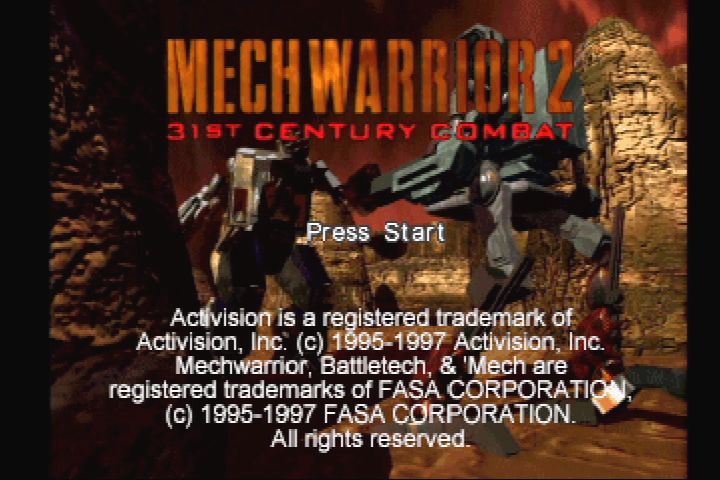
When you turn on the PlayStation game console, you will see an introductory sequence. This sequence can be interrupted by pressing the Start button. Whether you interrupt the introductory sequence or not, you will eventually come to the Title Screen.
The Title Screen
Press the Start button to go to the main menu.
The Main Menu
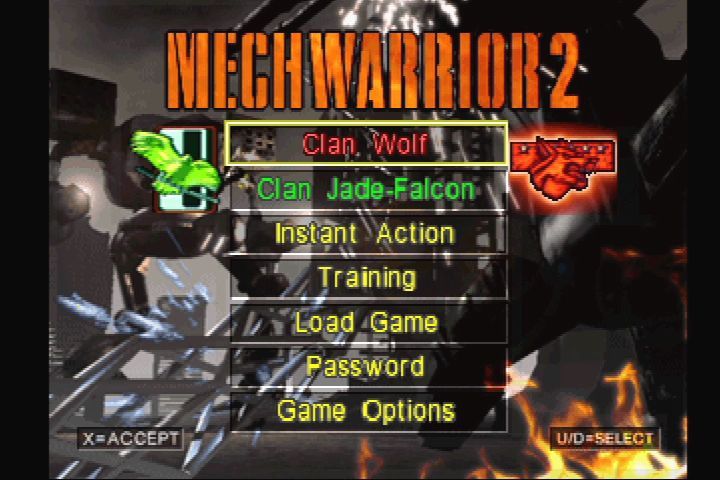
The Main Menu screen has seven menu options which you can highlight and select.
Wolf
When you select the Wolf Clan, you will see an introductory movie for the Wolf Clan and then be taken to the Wolf Clan Hall. In the Wolf Clan Hall, you can select one of three campaigns.
•
Trial of Refusal (16 missions)
•
Wolf's Dragoons (four missions)
•
Freebirth Trials (four missions)
You can D-Pad left/right to select the 'Mech you want to pilot in the first mission. Trial of Refusal is the standard campaign from the original MechWarrior 2 game. Wolf's Dragoons and Freebirth Trials are new bonus mini-campaigns created exclusively for the MechWarrior 2 Arcade Combat Edition.
Falcon
When you select the Jade-Falcon Clan, you will see an introductory movie for the Jade-Falcon Clan and then be taken to the Jade-Falcon Clan Hall. In the Jade-Falcon Clan Hall, you can select one of three campaigns.
•
Trial of Refusal (16 missions)
•
Crusader Trials (4 missions)
•
Inner Sphere Trials (four missions)
You can D-Pad left/right to select the 'Mech you want to pilot in the first mission. Trial of Refusal is the standard campaign from the original MechWarrior 2 game. Crusader Trials and Inner Sphere Trials are new bonus mini-campaigns created exclusively for the MechWarrior 2 Arcade Combat Edition.
Instant Action
For those of you who just can't wait to jump into the action, Instant Action mode is for you. At the Instant Action menu screen, D-Pad left/right to select the 'Mech you want to pilot in combat. D-Pad up/down to choose a planet for battle, and press the X button to go to the 'Mech configuration screen. At the 'Mech configuration screen, you can choose a different 'Mech, choose a different weapon variant, or group your weapons. Pressing the X button again will take you directly into combat.
Training
When you select Training, you will be taken to the Training Main menu. At the Training Main menu, you have six menu options to help you hone your skills.
In each case, you will enter a mission with a trainer who will help you improve your combat skills and get a feel for handling a 'Mech. To successfully complete the training missions, you may want to select a controller configuration with torso twist and targeting from the Options menu.
Load Game
At the Load Game menu, press up/down on the D-Pad to highlight a previously saved game and press the X button to select. To play an old mission from a previously saved game, highlight the game file and press the O button.
D-Pad up/down to select the mission you want to play and press the X button to accept. Remember, your game is automatically saved upon successful completion of a mission if a memory card is present.
Password
Upon successfully completing a mission, a Password is displayed at the top of the debriefing screen. If you do not have a memory card, the password can be used to access previously completed missions.
To enter your Password in the Password screen, select the position of the cursor by pressing right/left on the D-Pad. D-Pad up/down to select the letter for each position. When you have correctly entered the complete Password, press the X button.
Game Options
From the Game Options menu, you can customize the setup of your game. Press up/down on the D-Pad to select an option and left/right to change the selected option.
Control Setup will allow you to choose either the default controller configuration or one of the additional seven configurations. The Difficulty setting lets you change the performance of the game's enemy 'Mechs to an easy, medium, or hard level. You can also set volume levels for music, sound effects, and voices from this screen.
When you are done configuring your game, highlight and select the "Accept All Options" button to return to the previous screen.
Configuring Your 'Mech
To change or configure your 'Mech for the current mission, select "Change Mech" by pressing the button from the Mission Briefing screen. To select a different 'Mech, press up/down on the D-Pad until the desired 'Mech is displayed.
Each mission has a maximum weight limit associated with it. If a 'Mech is overweight for the current mission, "MECH OVERWEIGHT" will flash on the screen and you will not be able to use that 'Mech.
Once you have selected a 'Mech, press left/right on the D-Pad to choose a weapons variant for that 'Mech. 'Mechs come equipped with multiple weapons variants, each providing a different and unique combat experience.
After selecting a weapons variant, you may want to group some of your 'Mech's weapons together in up to three different groups. This will allow you to fire all weapons in a group simultaneously. To place a weapon in a particular group, press the O button, press up/down on
.png)

.png)
.png)
