Setting Up
Set up your PlayStation® game console according to the instructions in its Instruction Manual. Make sure the power is off before inserting or removing a compact disc. Insert the MEGA MAN™ X5 disc and close the Disc Cover. Insert a game controller and turn on the PlayStation game console. Follow on-screen instructions to start a game. Top View
Front View
Memory Cards
To save game settings and results and to continue play on previously saved games, insert a MEMORY CARD into MEMORY CARD slot 1 of the PlayStation game console BEFORE starting play. If you do not have a MEMORY CARD, the game will allow you to play without saving game settings and results.
Starting a Game
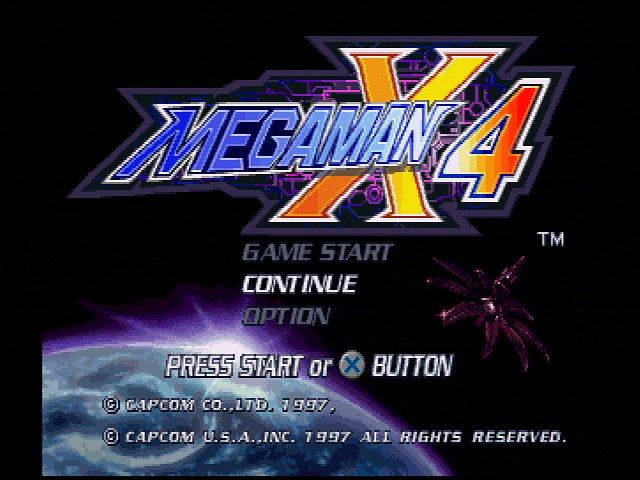
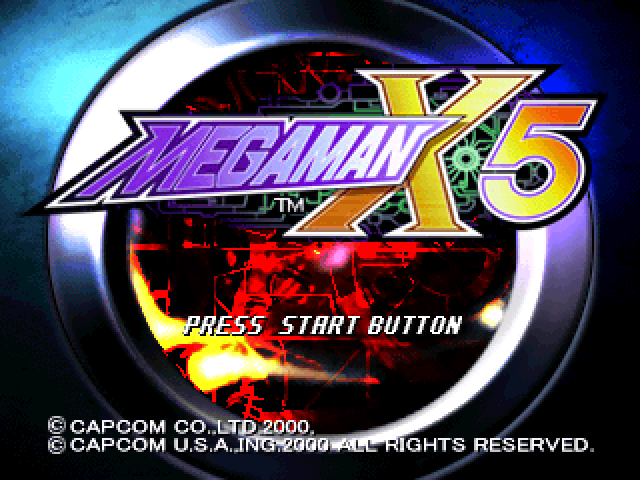
Press the START button in the Title screen and the Mode Select screen will appear. Highlight a game mode by pressing the Directional button / and confirm with the START or X button.
•
GAME START - Start a new game.
•
CONTINUE - Play on a previously saved game, starting from the point where you saved. Insert a MEMORY CARD containing saved game data into MEMORY CARD slot 1 before continuing.
•
OPTION - Adjust various settings.
•
TRAINING - Practice the controls in a training stage, using X or Zero to defeat a boss character. Player Select
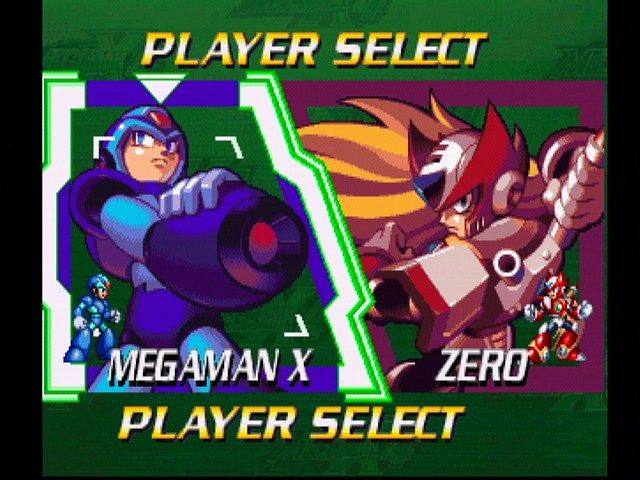
After selecting GAME START, choose MEGA MAN X or ZERO as your character. Each character has different abilities. The story is the same no matter which character you choose.
Mega Man X can use Force Armor from the beginning, but he cannot use Z-Buster. Zero can use Z-Buster but not Force Armor. Stage Select Screen
There are three options in the Stage Select screen: STAGE SELECT, PLAYER SETUP and WEAPON SETUP. Toggle between the modes with the L1 and R1 buttons.
Stage Select
After completing the opening stage, you can choose from 8 stages. Choose a stage and then choose your character, Mega Man X or Zero. Player Setup
In DNA SELECT, you can equip power-up parts. The number and type of equippable parts vary depending on the armor. •
Choose a character to equip a power-up part.
•
Choose a part to equip from the Parts Panel (A). The part chosen is displayed in the Part Panel (B).
•
To unequip a part, choose the part again.
Weapon Setup
Check the completion rate of restoration of Enigma (mission 1) and Shuttle (mission 2). Or you can fire a weapon toward the colony.
•
LOOK AT WEAPON - Check the completion rate of a weapon's restoration. In order to restore it, you must acquire items in each stage.
•
ORIFALCON - Enhances Enigma's armor and stability.
•
ORBITER ENGINE - Increases Shuttle's speed.
•
DISCHARGE WEAPON/SHUTTLE - Discharge a weapon or shuttle toward the colony. The higher the weapon's completion rate, the more likely it will succeed. Remember: You can discharge a weapon at any time, but whether it succeeds or not makes a big difference to your game. Think it over!
Basic Actions
Mega Man X
•
X-BUSTER - Press the Attack button ( button default) to fire. Hold the button for a while and release to fire a charge shot.
•
SPECIAL WEAPON ATTACK - Press the Special Weapon button (▲ button default) while a Special Weapon is equipped to use it.
Zero
•
Z-SABER - Press the Attack button ( button default) to slash. By repeatedly pressing the button with the correct timing, you can perform a powerful combo.
•
Z-BUSTER - Press the Special Weapon button (▲ button default) while on the ground to fire.
Mega Man X and Zero
•
AIR DASH - Press the Dash button ( button default) or quickly press the Directional button twice while in the air.
Weapon Select Screen
Press the START button during gameplay to access the Weapon Select screen. The Special Weapons and Special Attacks you have acquired are displayed on this screen.
Character Display
•
PLAYER INFO - Number of remaining characters, life, current Hunter rank, Power-up Parts equipped and sub-tanks you have are displayed. Select a sub-tank and press the X button to use it. Command Icons
•
RETURN - Return to the game.
•
EXIT - Exit a stage you have completed.
•
ADJUST - Display Adjust screen.
•
BUTTON CONFIG - Change button assignments.
•
MESSAGE WINDOW - X's weapon descriptions, Zero's special move commands, etc. are displayed. X Display
The weapons you have acquired are displayed. By pressing the Directional button, you can put the cursor on a weapon to see its abilities, and press the X button to change weapons. After changing weapons, you will return to the game screen.
Zero Display
The Special Attacks learned and Special Weapons acquired are displayed. By pressing the Directional button, you can put the cursor on a Special Weapon to use it, and press the X