GETTING STARTED
Set up your PlayStation® game console according to its Instruction Manual. Ensure the power is off before inserting or removing a compact disc.
Insert the game disc and close the Disc Cover. Insert game controllers and turn on the PlayStation® game console. Follow on-screen instructions to start a game.
PlayStation® Console Layout
Pausing and Exiting a Game
Press START to pause the game. The Confirm Exit Menu will appear.
•
To quit a game in progress, select EXIT GAME and press X.
•
If you wish to continue your game, select CONTINUE and press X.
Multi Tap Adapter
When using the Multi Tap adapter, at least one controller must be plugged into Controller port 1-A or 2-A on the Multi Tap before connecting the Multi Tap to Controller port 1 or Controller port 2 on your PlayStation® game console.
Main Menu
At the Demo or Title screen, press START. After a brief pause, the Main Menu will appear. Press ↑ or ↓ to select an option, then press ⊗ to make your selection.
Main Menu Options
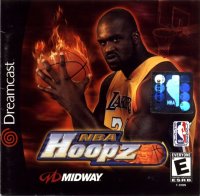
This game mode lets you select a team and players, then drops you right on the court for your game. This is the easiest way to jump right onto the floor and play the game.
Pick a team and embark on a full season of Hoopz! You'll play an entire schedule, hopefully make the playoffs then eventually win a championship. You'll need a MEMORY CARD to save your season information.
Between games, a menu will appear, letting you PLAY NEXT GAME, SAVE your game data or edit PLAYER ATTRIBUTES.
It's like skipping an entire season and jumping right into the playoffs. Select a team, then mow down the competition on your way to the Tournament Championship.
See Customizing Team & Players.
See Options.
See Loading and Saving Games.
OPTIONS MENU
At the Main Menu, highlight OPTIONS and press X. Under the Options Menu you will find the following sub-menu selections: GAME, SOUND, CONTROLS and EXIT.
Highlight the option you want and press X. Each option can be adjusted by pressing ← or →. To go back to the previous menu, select EXIT.
Options Menu Selections
This setting determines how difficult the computer-controlled opponents will be. Select ROOKIE, VETERAN or PRO.
You can speed up the game clock using this option. It controls both the game time and the shot clock. Select from 1:00 to 3:00 minutes in 30 second increments.
Set this option to High or Low view.
Turn the Turbo Bars ON or OFF.
Following the 1st and 3rd Quarters of a game, Tip screens will appear giving you some helpful game hints. You can turn them ON or OFF.
Turn Tag Mode ON or OFF. You control only one player at a time when Tag Mode is turned ON.
Go back to the Options Menu.
CUSTOMIZE TEAMS & PLAYERS
At the Main Menu, highlight CUSTOMIZE and press ✖. The Customize Screen offers two features that allow you to customize a Team or Player.
Team Customization
At the Customize Team Screen, press ⬆ or ⬇ to select the team information you want to modify, then press ✖. You'll then have the choice to change TEAM or PLAYER information. Select TEAM to change the team's information.
When you select specific text, selectable letters will appear to the right of the screen. Press ⬆, ⬇, ⬅ or ➡ to highlight a character, then press ✖ to select it.
You can change names for the CITY, TEAM, ARENA and the HOME and AWAY Jerseys. Repeat the process to type in and complete your team's new information.
To change the logo, select LOGO and press ⬅ or ➡. Choose a new logo and press ✖. Once you have everything set the way you want, press the ▲ to return to the Main Menu.
Player Customization
Select PLAYER to change attributes for players on that team. The Create Player feature essentially allows you to create your own player. You can change existing players' jersey number, their skill attributes as well as their name.
Press ⬆ or ⬇ to select the following options for customizing a player:
Change the player's number. Press ↑, ↓, ◄ or ► to highlight a number, then press Ⓧ to select it. Select EXIT to accept the new number.
You can press ◄ or ► to modify several specific player attributes, but there's a limitation of 84 points to work with. You can earn points for every three wins.
Every time you increase attributes (to boost up your player's attribute) you lose points. Every time you decrease your player
.png)


.png)
.png)






.png)


.png)
.png)