•
R2: Jump to rebound or block shot
•
(with D-Button to choose play): DirectSwitch to specific defender
•
L2: Switch to defender closest to basket
•
R2: Face up the player you are guarding
•
L1: Call for double-team
Setting Up The Game
Game Setup Screen
Use the Game Setup screen to choose the game mode, length, style, and difficulty. Not all options are available in each game mode.
•
PRESS START TO DISPLAY NBA LIVE 2000
•
(OPTIONS OFFER SCREEN TO SCREENS
•
PRESS FOR MORE BUTTON TO HERE
•
LIGHT MENU ITEMS TO CHANGE HIGH
•
STYLE SETTING LIGHTED ITEM
•
TO GET HELP ON WORK IN MIN
Tip
Select Arcade mode if you want to play with fewer rules and perform Monster Dunks.
Note
Default options are listed in bold type in this manual.
Quick Menu
•
RULES SCREEN: Customize game rules in Simulation mode, default settings reflect current NBA rule.
•
OPTIONS SCREEN: Set sound, display and competition options.
•
UNLOCK LEGENDS: Check the availability and locked status of the Legends of the NBA (check Legends Screen on p. 8).
•
MEMORY CARD: You can save or load game files to or from any memory card slot of your game console. You can save games only in Season or Playoff mode. You can load games from within a season of playoff or from Game Setup.
Note
To load and save games, you must have a memory card. Never insert or remove a memory card when loading or saving files.
•
LOAD GAME: Load previously saved Season/Playoff series files from the memory card.
•
LOAD SETTINGS: Load users, rules, and options settings.
•
LOAD ROSTERS: Load previously saved Exhibition rosters.
•
LOAD LEGENDS: Load Legends who have been unlocked.
•
SAVE LEGENDS: When you unlock NBA Legends, save them to your memory card.
•
SAVE SETTINGS: Save current users, rules, and options settings to the memory card.
•
SAVE ROSTERS: Save current Exhibition rosters.
•
To save/load a file, highlight a slot and press X.
•
DELETE FILE: Delete unwanted files from the memory card.
•
PLAYERS: View, create, and edit player ratings or attributes. Players Screens on p. 13.
•
ROSTERS: View/change rosters, make trades, sign/release free agents, and add players to custom teams. Rosters and Players on p. 12.
•
RESET ROSTERS: Reset all team rosters to the default NBA rosters. Any created players are added to the Free Agents Pool. This menu item is accessible on the Quick Menu after any roster transactions have taken place.
•
STATS CENTRAL: Check our statistics from all NBA teams.
•
LIVE 2000 MUSIC: Set music volume and how often you hear each track.
•
CREDITS: Check out the Greats who made NBA Live 2000. Unlock Legends Screen
This year, NBA Live 2000 introduces the greatest roster of NBA Legends playable on All-Star teams of the past decades. When you unlock the Legends, they become available as free agents when you achieve gameplay milestones. You can get to the Unlocked Legends screen from the Quick Menu. Legends become available when you achieve milestones during games. If you achieve a milestone, a notification screen and all of unlocked players appear after the game.
•
To review the information on how to unlock a player highlight a locked player's name in the Unlock Legends screen and press X.
•
To review a different Legends team, D-Button ++.
•
To unlock an available Legend D-Button 1 to any player listed as "inactive" and press X. That player is added to the free-agent pool. Legend players can be made inactive again when you place them back in the free-agent pool.
•
To save your unlocked Legends, select SAVE LEGENDS from the Memory Card screen.
•
To restore unlocked Legends from a Memory Card choose LOAD LEGENDS.
User Setup Screen
An icon for every controller plugged into the system appears on this screen. Up to eight players can play if two Multi Tap-adapters are attached.
•
FORD (SUPERSTAR) FREE ONE CONTROLS STAR
•
PRESS LIM) TO SELECT THE TEAM
•
CONTROLLER ICON EITHER TEAM OR
When all players have selected their teams and user names, press START to go to the pregame introduction.
To enter a new user name
1. D-Button to highlight New User and press X.
2. D-Button to select a letter. Then press X to add another letter.
3. To delete a letter press L1 or R1.
4. To accept the name, press X. Then press START to continue.
To delete an existing name
D-Button to highlight a user name and press X. Then confirm the deletion.
•
Create a user name to save your stats and your controller and menu options.
Pregame Introduction
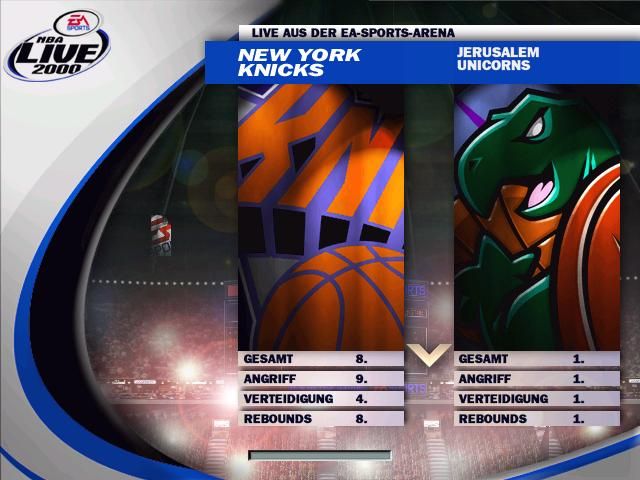
Before the game, the Pregame Introduction displays the teams and home court, followed by the Starting Matchups screen. You can change your starting lineup if needed.
•
To substitute a player D-Button: to highlight the player and then D-Button to select the substitute.
.png)










.png)
.png)