Intro
Welcome to the world of Rally Racing, where precision driving skill rules. In a typical rally race, each team, consisting of a driver and a navigator, takes to the road for some high stakes racing action. There are 84 races to compete in, spread throughout an international circuit. You must push your rally car to the limit on a combination of tire smokin' race tracks and muddy back roads courses.
The all-new Track Editor allows you to shape your own distinctive rally courses. There are also 16 dream machines to put through the paces through four unique race modes.
•
For more information about this and other titles, check out Electronic Arts on the web at www.ea.com. Getting Started
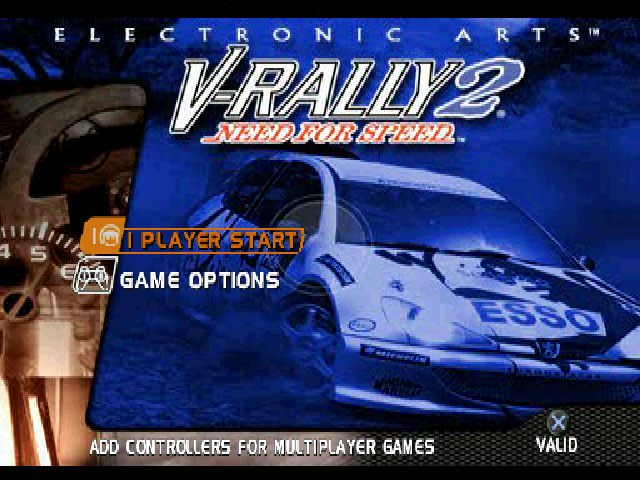
Main Menu
Start a single or multiplayer rally or access game options.
•
1 PLAYER START: Challenge computer-controlled drivers or rally against the clock for track and lap records.
•
2 PLAYERS START: Battle a friend in a head-to-head matchup.
•
GAME OPTIONS: Access the Game Options screen.
•
Default settings in this manual appear in bold type.
•
To play a 3 or 4 Player game, you must have the appropriate number of controllers plugged into a Multi Tap in sequential order in Controller Port 1.
•
If you turn on your console with a saved Championship or V-Rally Trophy mode in-progress on your Memory Card, an option to resume play appears on the Main menu. Otherwise, load the saved game on the Memory Cards Options screen.
Driver Selection Screen
Select to use a current driver or to create an all-new one.
•
SELECT A DRIVER: D-Button to cycle available drivers, then press * to select.
•
NEW DRIVER: Access the New Driver menu. To create a name, D-Button to highlight a letter, then press to select. When the name is complete, select END.
•
ERASE DRIVERS: Delete a saved driver.
•
COPY DRIVERS: Copy a saved driver to a second Memory Card.
After selecting a driver, the Cars screen appears.
Cars Screen
Select the speed machine you want to rally. D-Button to highlight an option, then D-Button to change option settings.
•
D-Button to cycle available cars, then press to select.
•
CAR CATEGORY: Cycle the available car types.
•
TRY CAR: Press to test drive the highlighted car. To return to the Cars screen, press START.
Game Mode Screen
Choose the game mode you wish to compete in or build your own unique track.
•
GAME MODES: Select a racing mode. •
TRACK EDITOR: Access the Track Editor screen.
•
ALTERNATE PLAY: When ON, players take turns racing in multi-player modes. Game Options Screen
Set the game options you prefer.
•
DISPLAY: Access the Display Options screen.
•
SCREEN FORMAT: Toggle between a 4/3 or 16/9 image format.
•
SPEED DISPLAY: Toggle to display your speed in MPH/KPH.
•
SCREEN CENTERING: Press, then D-Button to center your game screen.
•
2 PLAYERS SPLIT: Toggle a VERTICAL/HORIZONTAL split screen for a two-player game.
•
AUDIO: Access the Audio Options screen.
•
SOUND VOLUME: Press to access the Sound Volume menu. Here you can set the volume level for Menu Music, Racing Music, Sound Effects, and Speech. •
PLAYING TYPE: Choose to listen to music tracks in a LINEAR, RANDOM, or REPEAT order.
•
TRACK: Select the music track that currently plays.
•
MEMORY CARDS: Access the Memory Cards Options screen.
•
SAVE MODE: Choose an AUTOMATIC or MANUAL save mode.
•
LOAD GAME AND SCORES: Load previously-saved game data from a Memory Card.
•
SAVE GAME AND SCORES: Save your current game data.
•
ERASE GAME AND SCORES: Delete saved game data from a Memory Card.
•
GAME SCORES: Access the Game Scores screen to view the best times for every track.
•
GAME PROGRESSION: View a summary of your mode progress and unlocked bonus cars.
On The Road
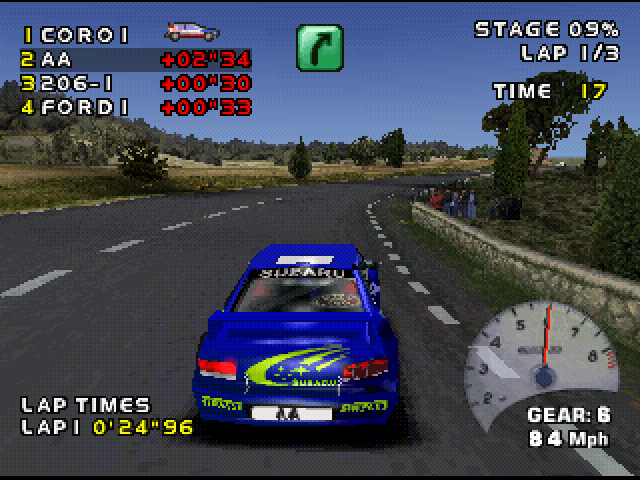
Each car in V-Rally 2™ Need for Speed™ has individual characteristics and responds differently to your driving style and the nature of the course. However, driving controls are consistent no matter which machine you choose. Default Driving Commands
•
COUNTDOWN TO NEXT CHECKPOINT
Car Settings Screen
•
TIRE SELECTION: Select the optimal tires for the surface you will be racing on. •
GEAR BOX: Adjust the gear ratios for your transmission.
•
CHASSIS: Adjust the way your car reacts to the road by tuning the suspension.
•
BRAKES: Distribute the braking force for your front and rear brakes.
To return to the Arcade screen, press ▲. Driving Options Screen
•
GEAR BOX: Select to play with AUTOMATIC or MANUAL transmission.
•
ASSISTANCE: Toggle ON braking assistance to help control your speed.


_1.png)



_1.png)
.png)
.png)
.png)

.png)

 (En,Fr,De).png)

.png)
.png)

 (En,Fr,De) (v1.1).png)

_1.png)