WARNING: READ BEFORE USING YOUR PLAYSTATION® GAME CONSOLE.
A very small percentage of individuals may experience epileptic seizures when exposed to certain light patterns or flashing lights. Exposure to certain patterns or backgrounds on a television screen or while playing video games may induce an epileptic seizure.
Certain conditions may induce previously undetected epileptic symptoms even in persons who have no history of prior seizures or epilepsy. If you, or anyone in your family, has an epileptic condition, consult your physician prior to playing.
If you experience any of the following symptoms while playing a video game - dizziness, altered vision, eye or muscle twitches, loss of awareness, disorientation, any involuntary movement, or convulsions – IMMEDIATELY discontinue use and consult your physician before resuming play.
WARNING TO OWNERS OF PROJECTION TELEVISIONS:
Do not connect your PlayStation® game console to a projection TV without first consulting the user manual for your projection TV, unless it is of the LCD type. Otherwise, it may permanently damage your TV screen. USE OF UNOFFICIAL PRODUCT:
The use of unofficial products and peripherals may damage your PlayStation® game console and invalidate your console warranty. HANDLING YOUR PLAYSTATION® DISC:
•
This compact disc is intended for use only with the PlayStation® game console. •
Do not bend it, crush it or submerge it in liquids.
•
Do not leave it in direct sunlight or near a radiator or other source of heat.
•
Be sure to take an occasional rest break during extended play.
•
Keep this compact disc clean. Always hold the disc by the edges and keep it in its protective case when not in use.
•
Clean the disc with a lint-free, soft, dry cloth, wiping in straight lines from center to outer edge. Never use solvents or abrasive cleaners.
Set-up
To play Pipe Dreams 3D on your console:
•
Set up your PlayStation® game console according to the instructions in its Instruction Manual. •
Make sure the power is off before inserting or removing a compact disc.
•
Insert the Pipe Dreams 3D disc and close the Disc Cover.
•
Insert game controllers and turn on the PlayStation game console. •
Follow on-screen instructions to start a game.
Console Top View
Console Front View
Note on Peripherals
We advise that you do not insert or remove peripherals (controllers, etc.) from your console while it is switched on.
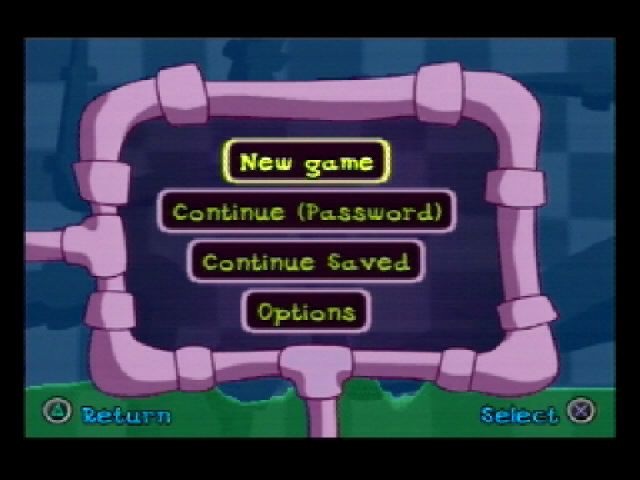
Main Menu
New Game
•
Highlight this option and press the X button to start the Game.
Continue (Password)
•
Select this option to enter an end of level password and continue playing the game from that point on.
Continue (Saved)
•
Select this option to access the MEMORY CARD and continue a previously saved game.
Options
•
Highlight this option and press the X button to configure the various settings within Pipe Dreams 3D.
•
When you have adjusted the options to their ideal settings, press the A or button to go back to the previous screen.
Peripherals
CONTROLLER CONFIGURATION
•
Highlight the buttons you wish to configure and use the LEFT/RIGHT directional buttons or the X button to cycle through the available options.
•
Once you are happy with the configuration, use the UP/DOWN directional buttons to highlight other functions and choose which button you wish to assign to them.
•
When you have selected the configuration that you wish to use, press the A button to accept it and return to the previous menu.
•
You can also adjust the intensity with which the DUALSHOCK™ analog controller will vibrate. Setting the vibration setting to maximum will result in strong vibration feedback, whilst setting it to minimum will disable the feature.
•
To set the intensity, highlight the vibration panel and use the LEFT/RIGHT directional buttons to adjust the settings. As you adjust the settings, the Controller will vibrate to show your currently selected intensity setting.
LOAD AND SAVE FROM MEMORY CARD
•
To make full use of the MEMORY CARD Options, it is necessary to have a MEMORY CARD with 1 free block inserted into MEMORY CARD slot 1.
•
Use the UP/DOWN directional buttons to select whether you wish to Load or Save, then press the O button to confirm your selection.
•
If no MEMORY CARD is present then MEMORY CARD options will be greyed out.
•
Information will be provided below the menu options as to the state of the MEMORY CARD.
•
If there is enough free space available on the MEMORY CARD to save then a confirmation message will be displayed. If there is not enough free space available on the MEMORY CARD a warning message will be displayed about its status.
View Settings
CAMERA CONFIGURATION
•
Use the LEFT/RIGHT directional buttons or press the X button to adjust the camera position used in the game.
•
The default setting is "Normal", which gives you a central view of the game board.
•
You may alternatively select the "High" view, which gives you more of a top-down perspective of the game board, or the "Swing" view, which swings between both higher and lower camera positions in response to your cursor movement.
SCREEN ALIGNMENT
•
Use the directional buttons to adjust your screen.
•
Press the A button to accept and return to the previous menu.
Sound Settings
•
Use the UP/DOWN directional buttons to choose between Music Volume
.png)


.png)
