GETTING STARTED
Important! Do not insert or remove peripherals or memory cards once power is turned on. You will need a memory card to save your games.
•
Set up your PlayStation® game console according to the instructions in its Instruction Manual. •
Make sure the power is OFF before inserting or removing a compact disc.
•
Insert the Q*bert disc and close the disc cover.
•
Insert the game controllers (and memory card if you have one).
•
Turn ON the PlayStation® game console. The introductory sequence will begin. To skip this sequence and go directly to the Main menu, press the START button. You will not be able to save your progress or game information if you don't use a memory card. Make sure there is at least one free block on your memory card before beginning your game in order to save games, player information and high scores.
You are not able to swap memory cards during play and you must leave the card in the first slot of your multi-tap if you are using one.
CONSOLE
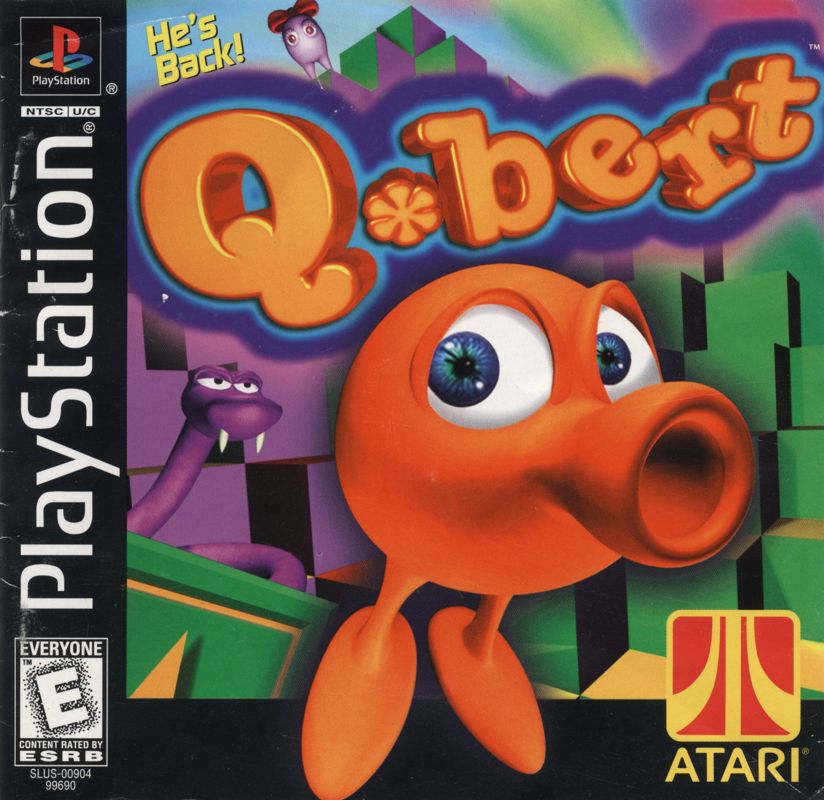
HE'S BACK!
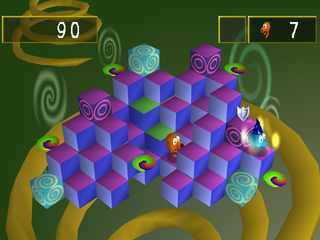
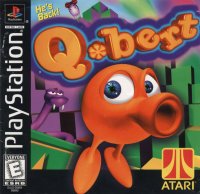
Q*bert, that colorful, lovable and jumpy arcade character of the 1980s is now completely updated with bright 3-D graphics and eye-catching animations. Help him rescue his friends and save Q*dina while navigating his way through challenging new worlds of mind-bending pyramid puzzles filled with secrets, helpful power-ups, and all the familiar characters you remember - plus a few new ones! Choose from three great ways to play - Classic, Adventure or Head to Head. So, jump right in and get ready for all new cube-hopping fun!
SELECT YOUR CONTROLLER CONFIGURATION
When you first launch the game, you will be taken to the Controller Configuration screen. From there, choose the configuration that feels most comfortable to you.
You can test your choice by hopping Q*bert around on the mini-pyramid. Try all four configurations (by pressing the button) to see which is best for you. Press the button to make your selection. This will take you to the Main Menu screen.
MAIN MENU
From the Main Menu, use the left and right directional buttons to bring the menu cube that you want to access to the front of the screen. Press the button to confirm your selection.
•
Classic - Select this cube to play the classic arcade game of the 1980s, or the classic game with new 3D graphics. •
Adventure - Select this cube to play the all-new adventure game.
•
Head-to-Head - Select this cube to play the side-by-side, cube-crazy game.
•
Options - Select this cube to access the Options menu.
•
Score - Select this cube to see your score per level in each Dimension, as well as the total Dimension score. Cycle through the Dimension levels (at the top of the screen) by pressing the up and down directional buttons. Press the button to return to the Main Menu.
OPTIONS MENU
From here you can adjust your controller configuration, the volume of the game sound effects and the game music, or access your memory card.
•
Controller – Use the button to select your controller configuration. Press the button to confirm your selection.
•
SFX – Use the up and down directional buttons to adjust the sound effects volume level anywhere between 0 - 100. Press the button to confirm the level.
•
Music – Use the up and down directional buttons to adjust the music volume level anywhere between 0 - 100. Press the button to confirm the level.
•
Memory Card – Use the left and right directional buttons to choose between SAVE a game and LOAD a game. Press the button to confirm your selection.
You can also access various options through the Classic Game's In-Game Options menu or the Adventure Game's Pause Menu. To access these menus, simply press the Start button during play.
CLASSIC GAME IN-GAME OPTIONS MENU
From here you can adjust the volume of the game sound effects and the game music, or turn the vibration feature ON or OFF.
ADVENTURE GAME PAUSE MENU
From here you can adjust your controller configuration (including the vibration feature ON/OFF), and the volume of the game sound effects and the game music.
SAVE/LOAD GAME
Use the up and down directional buttons to choose between Memory Card Slot 1 and Memory Card Slot 2. Press the button to confirm your selection.
•
To SAVE a game – Enter the name of the game you want to save by using the directional buttons. Press the button when you are done.
•
To LOAD a game – Use the directional buttons to select the name of the game you wish to load and then press the button.
You can save a game from either the main Rainbow Vortex menu or from the Main Menu of the Classic game. You will not be able to save a game from inside a level. You must first exit out of your level.
THE CLASSIC GAME
To Begin
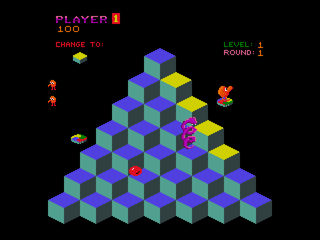
From the Start Game menu, use the directional buttons to choose the number of players (1 or 2), gameplay degree of difficulty (Easy or Hard), and onscreen graphics mode (Original or 3D). Press the button to confirm your selections. From this menu you may also choose to view the High Scores, Load a previously saved game, or Save the current game's setup.
Object
Try to change
.png)

.png)













_1.png)
.png)
.png)