GETTING STARTED
Set up your PlayStation™ game console according to its Instruction Manual. Make sure the power is off before inserting or removing a compact disc. Insert the ROBO PIT disc and close the CD door. Insert game controllers and turn on the PlayStation™ game console. To skip the opening demo and title screens, press the START button. The game will begin at the Main Menu Screen. Returning to the Title Screen
•
Press the Start Button during play to pause the game. Press the Select Button while paused to enter an option screen showing CONTINUE and QUIT. Choose CONTINUE to resume play or QUIT to bring up the "Quit Game?" Menu. Choose YES to quit, returning to the Title Screen, or NO to resume play.
•
Hold down the Select Button, then press and hold the Start Button for 2 seconds to quit the game and return to the Title Screen.
Console Controls
Main Menu Screen
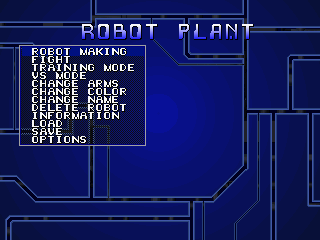
The Main Menu Screen contains eight options. Choose the option you want by moving the cursor up or down using the Directional Buttons and select by pressing the X Button. Cancel your selection by pressing the O Button.
Main Menu Options
•
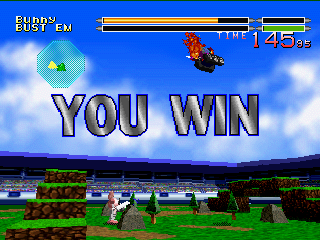
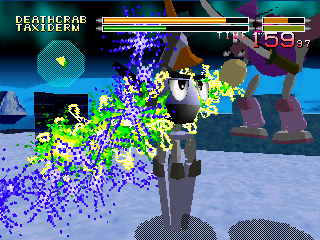
FIGHT: One player versus computer mode.
•
ROBOT LIST: Select or delete a Robot from your list of fighters.
•
ROBOT MAKING: Register and construct a new custom Robot.
•
INFORMATION: Data screen that contains all information on a Robot including ranking and fighting characteristics. •
VS: Compete against another player.
•
MEMORY CARD: Load or save your custom Robot and your data (see page 14 for further details).
•
PASSWORD: Get a password for your current Robot's data and ranking.
•
CONFIG: Reconfigure the game options.
Robot List
When you first enter the Robo Pit, your Robot List will contain only two Default Robots (RB RED and RB BLUE). You can use one of these well-balanced fighters to make your challenge.
To make your battles more interesting, see the section on Robot Making to construct your own custom Robots. As you create Robots, they will also be added to your Robot List.
Use the Directional Buttons to highlight one of the pre-created Robots from the Robot List. The information screen in the lower left will show that Robot's name, rank and current Weapon Arms.
Press the X Button to move the cursor to the small menu in the lower right. Press the X Button again to select OK to select that Robot, or press the Up/Down Directional Buttons to choose CH to change Weapon Arms (see page 10) or DEL to delete a Robot from your Robot List. Press the O Button to go back one screen.
After selecting a Robot, you can proceed to Fight, VS or other options.
Scrapping a Robot
While you're in the process of developing the perfect combination of parts and weapons, you may find it necessary to scrap one or more of your Robot designs. The Robot List can contain up to 10 custom Robots at one time.
To add additional Robots, you will have to delete some older ones. The default Robots can also be deleted to make space. Once you delete a Robot from the Robot List, you won't be able to access it again. Robot Making
To create your own custom Robo Pit fighter, select Robot Making from the Main Menu. In the Robot Lab, you will select various components which will affect your fighter's speed and maneuverability in the Pit.
You can also customize your Robot by selecting colors, facial features and available weapon arms. Unfortunately for you, like all rookie Robo Pit fighters, you'll start with a minimal arsenal. Don't worry, you can add to your weapons by crushing your opponents and taking an arm as a trophy. Remember to save your creation to use in the main tournament.
Creating a Fighter
1. Enter the Name of your Robo Pit fighter using the Directional Buttons to scroll through the letters, X to select a letter, O to delete (a maximum of 10 letters).
2. Choose a Body type by using the Directional Buttons to scroll through the available body types, pressing X to select, O to cancel. Body types vary in power, weight and defense. Experiment with several before taking on the tournament's toughest.
3. Choose a Face type by scrolling through the available faces. Press X to select.
4. Choose a Base type by scrolling through the available base types, pressing X to select, O to cancel. Base types vary significantly in speed, turning ability and jumping height. The type of base you choose will affect your fighting style. 5. Choose two Weapon Arms by using the Directional Buttons to scroll through the available weapon arms, pressing X to select, O to cancel. Each weapon arm is different from the others in offensive strength and type of attack. Weapons also vary in skill value, which will increase when that weapon is used effectively in battle. You can exchange weapon arms between battles. As you win battles, you will obtain additional weapons.
You can change the colors of certain Robot parts by pressing the L1 or R1 buttons during the selection process. You can change the color of a weapon arm whenever you select that arm to use.
Robot Construction Options
Information Screen
Selecting Information from the Main Menu Screen brings up Robot Data for your fighters or for your opponents. Your custom Robots and default Robots are listed in red. Opposing Robots are listed in white
.png)

.png)
.png)
.png)







.png)