GETTING STARTED
Setting up your PlayStation®
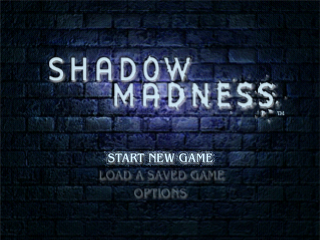
Set up your PlayStation® game console according to the instructions in its instruction manual. Make sure the power is OFF before inserting or removing a compact disc. Insert the Shadow Madness™ disc and close the Disc Cover. Insert a game controller, turn on the PlayStation game console and follow the on-screen instructions to start a game. Loading a Saved Game
You may load a saved game from the Start Menu by choosing Load Saved Game. You can also load a new game anytime during play by selecting Load from the Select menu.
When the Load/Save Menu appears, use the Left/Right directional buttons to change slots on the MEMORY CARD. The Up/Down directional buttons will change to the other memory card. To select a Shadow Madness game, press the Action button.
•
SM/mos, Arkose 01/05-21-SWH
SAVE AND LOAD
NAMING YOUR CHARACTER
As each of the heroes is introduced to the story, you may create your own name. The directional buttons scroll through the menu. Use the Action button to make a selection.
•
A B C D E F G H I J K L M
•
N O P Q R S T U V W X Y Z
•
a b c d e f g h i j k l m
•
n o p q r s t u v w x y z
•
! " # $ % & ' ( ) * [ ] \
•
^ ~ + - . , / : ; < = > ? @
•
_ ` { | } ~ 0 1 2 3 4 5 6 7 8 9
Shops
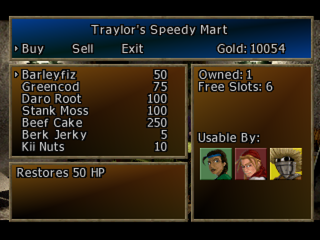
Shops are an essential part of your adventure. Know where they are located and pay close attention to prices. The careful shopper can make gold pieces go the distance!
There are three kinds of shops in the game; Weapons, Armor, and Item shops. Be sure to look at each shop's entire inventory. Some of them offer rare goods and services you can't get anywhere else.
For example: Some weapon and armor shops are owned by master smiths. These skilled artisans are capable of placing enchantments on your weapons and armor. Enchantments can make the difference between life and death in battles!
Inns
Inns are another "must-see" place. Staying the night at an Inn will restore your heroes to full health and mystic power. Additionally, you can save your game while at an Inn. This is a good idea, since it places you right next to a place of healing when you begin the game again.
You can also switch parties at some Inns. When you'd like to check-in on the progress of another hero group, visit an Inn or a similar place of rest. Walk up to the party switching icon and press [Action button].
Battle Mode
When a battle begins, you're positioned across the battle field from your enemies. This won't last long! The enemy creatures will move toward you and attack if you wait to act. Using the command menus, you can quickly execute a strategic attack and eliminate the enemy.
Battle Commands:
(Using the shoulder buttons)
Action
(L2 button)
Engage
This command allows you to select an enemy and move toward it. If you are close enough, you will attack when you select Engage.
Evade Enemy
This command allows you to move away from the enemy to safe ground. However, if you're surrounded on all sides, this command won't help! Be prepared. The enemy may chase you!
Flee
Sometimes discretion is the better part of valor. If you need to get out of a battle, select the Flee command. Your heroes will do their best to leave the field of battle. Warning: this doesn't work all the time!
Pass
Out of weapons or magic? Not sure what to do? Want to have another hero act instead? The pass command allows you to pass play to the next active hero.
Attack
(L1 button)
Guarded Attack
This attack scores low damage, but makes your hero hard to hit.
Normal Attack
This attack does more damage than a guarded attack, but lowers your level of defense.
Aggressive Attack
This attack scores the most damage, but makes your hero extremely easy to strike.
Special Attacks
In addition to a primary weapon, each hero has a special attack method. In order to use a special attack, the target enemy must be in range.
•
Stinger throws Daggers at the enemy. •
Harv-5 fires his Seed-Shooter at his opponent. •
Xero delivers a jarring Headbutt to a foe.
•
Jirina throws energized Warspikes at the enemy. •
Clemett uses his Multicannon as a bludgeon. Items
(R1 button)
This Command Menu lets you review your item inventory. Only items with a combat function are displayed to streamline the process. Pick the item you need and go for it
 (Disc 1).png)

 [NTSC-U] [SLUS-00468].png)

.png)
.png)

.png)
.png)


.png)




.png)