Starting the Game
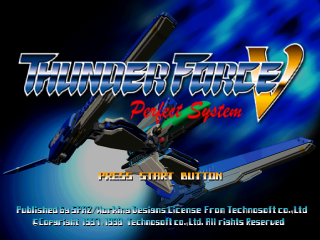
Pressing the START button during the opening animation will display the Title Screen. The Title Screen offers four options: Game Start, Time Attack, Digital Viewer, and Option.
Game Start
After selecting this option, the Course Select screen will be displayed. This screen allows you to choose the order of the first three stages.
•
Move the cursor to choose a course.
•
Press the button to select the course and place it in the Attack window at the bottom of the screen.
•
If a mistake is made, press the button to go to the previous selection.
After all courses are selected, confirm the order of the levels by selecting "YES" or "NO." Select "YES" to start the game with the First Attack stage, or "NO" to revise the order.
Time Attack
Time Attack measures the length of time it takes to defeat stage bosses. This option is only accessible after finishing the game in Normal or Hard Mode.
In this professional mode, the player has 120 seconds to defeat all bosses. Successfully defeating a boss adds bonus time: 85 seconds for Training, 70 seconds for Normal, and 50 seconds for Hard. Every time a ship is destroyed, 15 seconds are deducted.
After selecting Time Attack from the Title Screen, the Course Select screen is displayed. This screen allows you to choose the order in which you fight the bosses.
•
Move the cursor to select a stage.
•
Press the button to select the stage and place it in the course.
•
Continue selecting courses until all attacks have been chosen.
•
If a mistake is made, press the button to move the cursor to the previous attack for corrections.
Once the attack course is selected, choose which ship to use.
•
Use the Directional Buttons to choose a ship.
•
Press the button to select that ship.
To confirm the setup and begin playing, move the cursor to "YES" and press the button. To change the course setup, move the cursor to "NO" and press the button to revise the order of the courses.
Digital Viewer
View key data and graphics. Information and graphics are unlocked and available for viewing after successfully completing certain game levels. The Digital Viewer has three sections: Stage Boss Data, Graphics Viewer, and Text Viewer.
Stage Boss Data
Display boss information. The Stage Boss Data shows a graphic and all known information about a boss.
•
Use the Directional Buttons to select a boss.
•
Press the button to display the boss data.
•
Once a boss is displayed, use the Directional Buttons to rotate it for a better view.
Graphics Viewer
View game artwork. Displays high-resolution pictures of the ships and places in the game.
•
Use the Directional Buttons to select a picture.
•
Press the button to display the picture.
•
After a picture is selected, press the button again to zoom in.
•
Use the Directional Buttons to scroll around the enlarged picture.
•
To return to the previous screen, press the button.
•
To display additional pictures, press the L1 or R1 button.
•
NOTE: These pictures are unlocked as more of the game is conquered.
Text Viewer
View three text documents: Prologue (ThunderForce V story), Glossary (explanation of ThunderForce V terms), and Report (journal entries of the Thunder Force leader). •
After the text is displayed, use the Directional Buttons to scroll through it.
•
In addition to the Directional Buttons, the L1 and R1 buttons can be used to page up or down a text file.
•
Press the O button to change the text and background colors.
Option
Change game configuration. There are eight commands under Option that allow the game's configuration to be altered: Config 1, Config 2, Button Set, Sound, Information, Ranking, Default, and Exit.
Config 1
Basic configuration. Config 1 allows the following game configurations to be changed: Game Level, Continue, Window Disp, Window Type, Ship Speed, Sound Mode, BGM Level, SFX Level.
•
Use the up or down Directional Buttons to select an option.
•
Move the left or right Directional Buttons until the desired setting is displayed.
•
To exit and return to the Option screen, press the START, X, or button.
Game Level
Changes level difficulty. Choose from Training, Normal, and Hard. Training mode only allows for the first four levels to be played. To play the game in its entirety, choose either Normal or Hard.
Continue
The number of times the game can be replayed without starting over.
Window Disp
Determines whether or not the Window Display will be on during the game.
Window Type
The shape of the Window Display. Choose from one of three predefined window types.
Ship Speed
Determines the percentage of the ship's starting speed.
Sound Mode
Select how the sound is heard. The sound can be either Monaural or Stereo.
BGM Level
Sound level at which the background music is played.
SFX Level
Sound level at which sound effects will be played.
Config 2
Save or load games and vibration setting. Config 2 allows the following game configurations to be changed: Load Data, Save Data, Auto Save, and Vibration.
•
To exit Config 2 and return to the Option screen, press the button.
•
Note: Please do not remove the Memory Card during a save or load.
Load Data
Loads previously saved data.
•
After selecting this option,
.png)