Top View
Front View
Setting Up
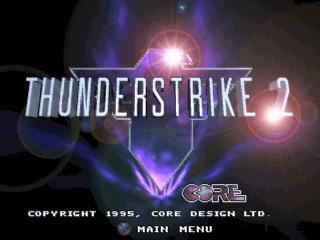
Thunderstrike 2 begins with an animated Introduction. The Introduction is followed by the Title Screen.
From the Introduction, press Start Button to take you to the Main Menu.
Main Menu
Highlight the option of your choice using the Directional Buttons and select by pressing the Cross Button.
Options Screen
When the Options screen is selected, you will be presented with 3 main option headings. Toggle through the main headings and options using the Directional Button.
•
Control: Configure your PlayStation Controller Options. •
NOTE: The easiest configuration for flying uses ROTATE LEFT and ROTATE RIGHT for the L1 and R1 buttons.
•
Level: Select an Easy, Medium or Hard game.
•
Sound: Turns on/off the Background Music and SFX in the game.
Exit
Highlight EXIT using Directional Buttons and select by pressing the Cross Button. This will return you to the Main Menu.
Campaign Selection
On the Campaign Selection Screen you will see a map of the world.
You may select any one of the 8 Campaigns by highlighting the option of your choice using the Directional Buttons and select by pressing the Cross Button.
Arming the AH-73M Thunderstrike
After selecting a campaign, you will be presented with an armament selection screen. Each campaign has a weapon default selection, but here you have the opportunity of arming to your personal preference.
Use the Directional Button to toggle through the various options of missiles. When you have a selection that you are happy with, highlight OK and press Cross Button.
If you wish to revert back to the campaign default setting, simply highlight RESET, press the Cross Button, then highlight and select OK. You will now be ready to carry out your mission — good luck!
Cockpit Instrumentation
The cockpit of your AH-73M Thunderstrike attack helicopter contains the very latest, state-of-the-art instrumentation. These 'multi-functional' monitors enable you to spend less time actually controlling the helicopter and more time engaging in combat.
Radar
This displays all short-range threats within the Mission Zone. Ground-based threats are shown by red dots, airborne threats as yellow dots, and missiles as white dots.
Weapon Selection
This displays your current weapon. When all of your missiles and bombs are spent, your weapon selection will automatically revert to the Chain Gun.
Radar Detection Warning Display (RDWD)
This display flashes amber to warn you when an enemy is tracking your flightpath. It will turn red when your exact position has been pinpointed and the enemy has locked on to you with its weapons.
Heading Indicator
The red bar located above your compass indicates the course you must follow to your Primary Targets.
Objectives
Your overriding objective is to successfully complete every mission in each Campaign. Campaigns can be selected in any order, but missions must be completed chronologically. Some Campaigns are easier than others, but you'll have to try them out.
If you successfully complete a mission, the Debrief Screen will appear.
De-Briefing
•
AIR TARGETS DESTROYED 00
•
GROUND TARGETS DESTROYED 24% 000
•
PRIMARY TARGETS DESTROYED 0% 00
This shows how skillful you are by the use of percentages and points awarded. A bonus will be awarded if you achieve the Main Objective in a particular mission.
Following the successful completion of a mission, if you have performed above and beyond the call of duty, you will be presented with a medal and will then be returned to the Briefing Room to be briefed on your next mission.
Upon the successful completion of an entire Campaign, you will be presented with a Campaign Ribbon and will then be returned to the Campaign Selection Screen to choose your next Campaign.
If you do not destroy all your Primary Targets/achieve your Mission Objectives but have managed to fly out of the Mission Zone, the Debrief Screen will appear showing your percentage of kills. For your failure, you will receive 1 demerit. If you receive 3 demerits in any one Campaign, you will be stripped of your pilot's wings and grounded.
.png)

.png)
.png)
.png)
.png)
.png)


.png)
.png)
.png)

.png)





_1.png)
.png)



_1.png)

.png)