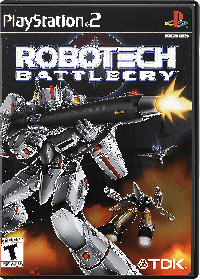
GETTING STARTED
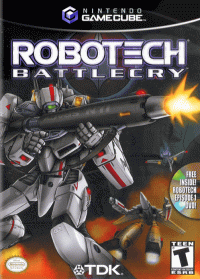
Set up the PlayStation 2 computer entertainment system according to its instruction manual. Make sure the MAIN POWER switch (located on the back of the console) is turned on. Press the RESET button. When the power indicator lights up, press the OPEN button and the disc tray will open. Place the Robotech: Battlecry disc on the disc tray with the label side facing up. Press the OPEN button again and the disc tray will close.
Attach game controllers and other peripherals, as appropriate. Follow on-screen instructions and refer to this manual for information on using the software.
Memory Cards
To save game settings and progress, insert a memory card (8MB)(for PlayStation 2) into MEMORY CARD slot 1 of the Playstation 2. You can load saved game data from the same card, or from any memory card (8MB) (for PlayStation 2) containing previously saved games. At least 109 KB of free space must be available on the memory card (8MB)(for PlayStation 2) in order to save game data. If less than 109 KB of free space exists, delete old data before saving. Do not remove the memory card (8MB) (for PlayStation 2) or turn off the power on the PlayStation 2 while data is being saved or loaded. Your game data may be lost if you do. For more information, see Saving and Loading on page 14.
BASIC CONTROLS
DUALSHOCK®2 ANALOG CONTROLLER CONFIGURATIONS
•
left analog stick (L3 button When Pushed Down)
•
right analog stick (R3 button When Pushed Down)
Making Menu Selections
•
START button: Start Game/Skip Movies
•
left analog stick: Select Options
•
directional buttons: Select Options
•
X button: Confirm/Proceed to Next Menu
•
button: Cancel/Return to Previous Menu
Common Controls
•
left analog stick: Movement
•
right analog stick: Targeting Switch
•
O button: Secondary Weapon
Load Game
If you have previously saved a Robotech: Battlecry game onto the PlayStation®2 memory card (8MB) (for PlayStation 2), you can load it and continue on your mission! Options
This will take you to the Options Menu, where you can adjust various features and settings for Robotech: Battlecry.
NEW GAME MENU
Training
Select this mode to fly one of three training missions under the instruction of Commander Roy Fokker. There is a separate mission for each of the three Veritech modes: Battloid, Guardian or Fighter. These missions allow you to review basic maneuvers and practice controlling your Veritech.
Story Mode
Fly through the game as Jack Archer, a veteran pilot in the RDF. As you successfully complete your missions you will unlock additional missions, different versions of the veritech and new paint schemes.
Versus
Select this mode to start a two player head-to-head mission of Robotech: Battlecry. You will be able to select your mission area and which craft each player will fly. The various battlefields are unlocked by playing the campaign game and completing specific criteria. The different Veritechs and other craft are unlocked in a similar fashion.
Use the directional buttons up and down to highlight an option. Use the directional buttons left and right to move between the various choices of battlefield, craft and paint pattern. Start the game by pressing the X button.
Save Game
You can save your progress here.
Options
This will take you to the Options Menu, where you can adjust various features and settings for Robotech: Battlecry.
Quit
Quit to the Main Menu.
OPTIONS MENU
From the Options screen, you can adjust various features and settings for Robotech®: Battlecry.
Controller
This selection displays a control layout diagram.
Settings
Use the directional buttons up and down to highlight an option. Use the directional buttons left and right to adjust Music, SFX, Sound, and Vibration. Confirm your choice with the X button.
Extras
Watch interviews with the voice cast of Robotech: Battlecry.
Video Mode
This selection allows you to change the video mode between normal 60Hz NTSC and 480 Progressive scan for High Definition Televisions.
Credits
This selection displays a list of the people responsible for creating and publishing Robotech: Battlecry.
HOW TO PLAY
Mission Screen
This screen shows the available mission in the current stage of the game. There can be several missions available, as well as previous missions you can resume.
Missions that have been completed are dimmed on the screen and display an RDF logo. Missions that have not been completed will slowly pulse between dim and bright. The currently selected mission will have a pulsing box around it.
Some longer missions have multiple parts. You can cycle between these sections of the mission using the button.
Use the directional buttons to highlight the mission you wish to fly